Codecs are used to play compressed files by decompressing them in memory. Adding a specific codec lets you play files compressed in that file format. Removing and reinstalling a codec may solve problems playing a particular file type.
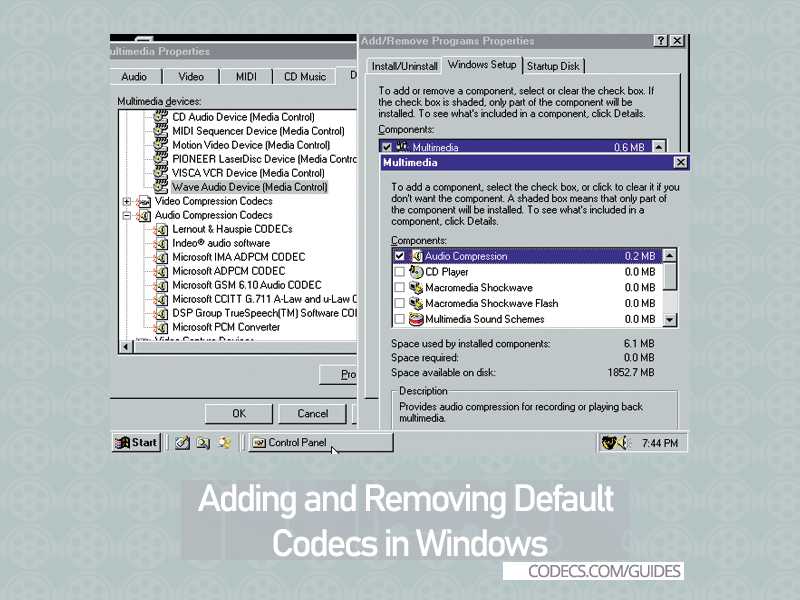
MCI devices are drivers that provide Windows-based programs device- independent capabilities for controlling multimedia hardware and software. Removing and reinstalling MCI devices may solve problems playing certain files.
1. Adding All Default Codecs:
- In Control Panel, double-click Add/Remove Programs.
- On the Windows Setup tab, click Multimedia or Sounds and Multimedia, and then click Details.
- Click the Audio Compression and Video Compression check boxes to select them, and then click OK.
- Click OK.
2. Adding a Specific Codec or MCI Device:
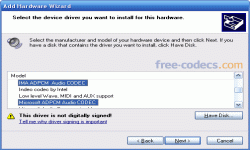
- In Control Panel, double-click Add New Hardware.
- Click Next, click No, and then click Next.
- In the Hardware Types box, click Sound, Video, And Game Controllers.
- Click a manufacturer in the Manufacturers box and a model in the Models box, and then click Next.
The following table lists the codecs included with Windows:
| Manufacturer | Model |
| DSP Group | TrueSpeech Software Audio Codec |
| Intel | Indeo R3.1 Video Codec Indeo R3.2 Video Codec |
| Microsoft Audio codecs | ADPCM Audio Codec CCITT G.711 A-Law and u-Law Audio Codec GSM 6.10 Audio Codec IMA ADPCM Audio Codec |
| Microsoft Video codecs | RLE Video Codec Video 1 Video Codec |
| SuperMatch | Cinepak Video Codec |
NOTE: Microsoft PCM Converter is installed by default.
For MCI devices, click Microsoft MCI in the Manufacturers box, click the model you want in the Models box, and then click Next.
The following MCI devices are included with Windows:
• CD Audio Device
• MIDI Sequencer Device
• Motion Video Device
• PIONEER LaserDisc Device
• VISCA VCR Device
• Wave Audio Device
If the codec or MCI device you want to install is not listed, it was not installed by Windows. If the codec or MCI device was included with another program, reinstall the program to reinstall the codec or MCI device. If the codec or MCI device is located on a driver disk, click Have Disk and specify the location containing the files. If Windows 98 finds a codec or MCI device, click No to add the device to the list of installed devices.
NOTE: Unlike the other MCI devices, the Mixer Device cannot be added manually. This device can be added only during the installation of a Windows-compatible sound card driver. When it is installing the driver, if Windows determines that the driver can support the Mixer Device, it installs the Mixer Device along with the sound card driver.
- Click the Finish button.
3. Removing the Default Codecs:
- In Control Panel, double-click Add/Remove Programs.
- On the Windows Setup tab, click Multimedia, and then click Details.
- Click the Audio Compression and Video Compression check boxes to clear them, and then click OK.
- Click OK.
The default codecs, with the exception of the Microsoft PCM converter, are removed. You cannot remove the Microsoft PCM converter.
4. Removing a Specific Codec or MCI Device:
- In Control Panel, double-click Multimedia.
- Click the Advanced or the Devices tab.
- To remove an audio codec, double-click Audio Compression Codecs, double-click the codec you want to remove, and then click Remove.
- To remove a video codec, double-click Video Compression Codecs, double-click the codec you want to remove, and then click Remove.
- To remove an MCI device, double-click Media Control Devices, double- click the device you want to remove, and then click Remove.
Source: Microsoft.com



How to play FLAC files in Windows Media Playe...
@Drasko What is the error message you're seeing? Can you provide more details?
Read More →The Best Video Player for Android TV - And th...
On Android, Kodi has far the best foreign language subtitle support. Vlc and MX had issues displaying the correct ...
Read More →How to Download HEVC Video Extension for Free
我是一名中国用户,这是我第二次成功在文章指导下下载插件,这篇文章很实用!简单易懂! 我使用的是Windows 11 家庭中文版,操作系统版本 26200.8246。 2026.4.25我已成功下载并使用!感谢发布者,谢谢您!
Read More →