When a video stutters, won't open, or plays with no sound, the fix starts with one question: what is actually decoding it? Here are three free ways to find out.
A file refuses to play and you have no idea why. Is it the codec inside the file? A missing decoder? The wrong splitter winning a priority fight?
You cannot fix what you cannot see. The good news: Windows gives you a few free ways to look inside both the file and the live playback chain.
This guide covers three, from the quickest to the most detailed. Pick the one that matches your question.
"What codec is in this file?" and "What is playing it right now?" are not the same thing.
The first is about the file itself - its container, video codec, audio codec. The second is about the filter chain your player built to decode it. You sometimes need both to solve a problem.
Method 1: Check the live filter graph (during playback)
This answers "what is decoding my video right now?" - the single most useful check when a file plays badly but does play.
It works in any DirectShow player. MPC-BE and MPC-HC both expose it the same way.
- Open the video and let it play.
- Right-click the video area and open the Filters submenu.
- You will see every active filter in the current graph - the source/splitter, the video decoder, the audio decoder, and the renderer.
Each entry tells you something. A line like MPC MP4/MOV Source is your splitter. LAV Video Decoder is what is decoding the picture. Enhanced Video Renderer is what draws it to screen.
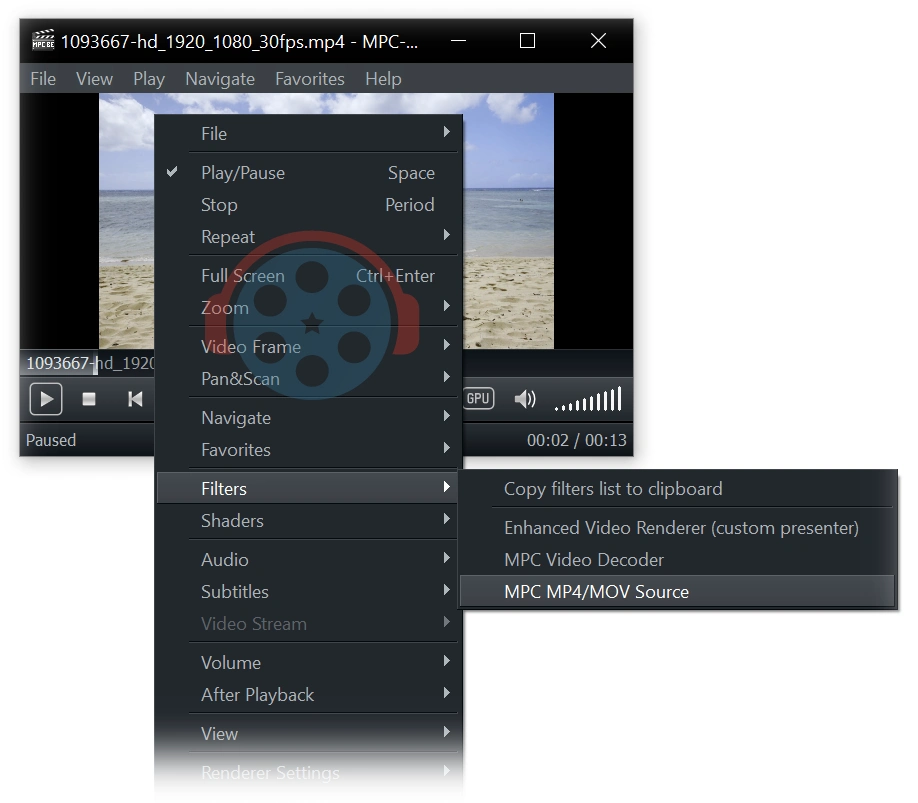
Double-click any filter in that menu to open its property page, which shows the exact streams it parsed and the settings it is using.
If a filter you expected is missing - say you set up a splitter but it is not in the list - your priority settings did not take. Our guide on configuring MP4 Splitter in MPC-BE walks through fixing exactly that.
Method 2: Read the file itself with MediaInfo
This answers "what codec is actually inside this file?" - independent of any player.
MediaInfo reads the file header and reports the container, video codec, audio codec, resolution, frame rate, bitrate, bit depth, and HDR metadata. It is the standard tool for this job.
- Install and open MediaInfo, then drag your file into the window.
- Switch the view to Text or Tree for the full breakdown.
- Read the Video and Audio sections - the Format field is your codec (for example, HEVC, AVC/H.264, AV1, AAC, AC-3).
Knowing the real codec tells you what you actually need. An HEVC file that won't play points you at HEVC support; an AC-3 audio track with no sound points you at an audio decoder.
Prefer a cleaner, modern interface? BetterMediaInfo wraps the same engine with a nicer layout and file comparison.
Method 3: Identify it in your browser - no install
If you do not want to install anything, the browser-based Codec Finder does the file-reading job instantly.
Drag any video or audio file onto the page and it identifies the codecs, resolution, bitrate, and HDR format - then tells you exactly what to download to play it.
Nothing is uploaded. The analysis runs locally in your browser using the same MediaInfo engine, so your files stay private.
This is the fastest path for a one-off "what is this and how do I play it?" question.
Which method should you use?
Match the tool to the question:
- Video plays but stutters or has no sound - use Method 1. The live filter graph shows which decoder is handling it and whether the wrong one loaded.
- File won't open at all - use Method 2 or 3 to read the codec, then install the matching support.
- You just want a quick answer with no install - use Method 3.
Found the codec - now what?
Once you know what you are dealing with, the fix is usually a matter of installing the right decoder.
For broad, system-wide coverage that handles nearly every format at once, the K-Lite Codec Pack installs LAV Filters and a player together, pre-configured. It is the simplest catch-all.
For a specific format like 4K HEVC, set up hardware-accelerated HEVC with LAV Filters instead. Not sure where playback is breaking? The browser-based Codec Troubleshooter walks you through it step by step.


Latest comments
AllInteresting development with the Fire TV Stick 4K — losing Kodi sideloading is a big deal for a lot of users. For those ...
News: The New Fire TV Stick 4K Can't Run Kodi - Here's Which Fire Stick Still Can 3 commentsThanks genius, it worked for me. v2.4.149.0 on windows 10
Guide: How to Download HEVC Video Extension for Free 181 commentsXMediaRecode gives only the option to Copy (No convert) in Audio Mode drop down. I am trying to convert/recode the EAc3 ...
Team replied Guide: How to Convert EAC3 Audio to AC3 or AAC With XMedia Recode 1 comment