Set up MPC Video Renderer with MPC-BE for sharp, HDR-ready, low-CPU playback - no licensing, no bloat, just better video.
Your videos look fine. Then you see what they could look like with a proper renderer, and "fine" stops feeling like enough.
Washed-out HDR, stuttering 4K, a GPU fan that spins up for no reason - most of that is the renderer doing a lazy job, not your hardware giving up.
MPC Video Renderer fixes that for free. It is a modern DirectShow video renderer built for accurate color, real HDR support, and smooth output without hammering your system.
It is part of the Media Player Classic - Black Edition (MPC-BE) project, a lightweight open-source player that handles everything from 1080p clips to 4K HDR streaming and full home-theater setups.
This guide walks you through downloading it, wiring it into MPC-BE, dialing in the settings, and fixing the issues people hit most. Takes about ten minutes.
MPC-BE ships with the Enhanced Video Renderer by default. It works, but MPC Video Renderer gives you better scaling, proper HDR-to-SDR tone mapping, and GPU-accelerated processing that the stock EVR simply does not match - while staying lighter than heavyweight options like madVR.
Step 1: Download MPC-BE and MPC Video Renderer
You need two pieces. The player and the renderer.
- Download the latest version of MPC-BE. Run the installer and follow the prompts. For full feature support, use MPC-BE 1.8.2.136 or newer.
- Download the latest version of MPC Video Renderer (currently build 0.10.3.x). It arrives as an archive - extract it to a permanent folder you will not delete later.
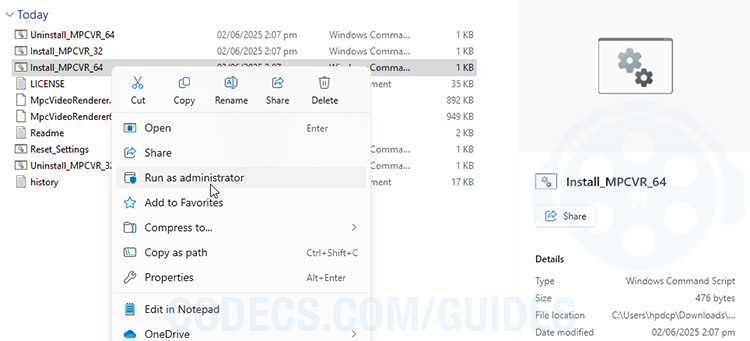
Inside the extracted folder, right-click Install_MPCVR_32.bat or Install_MPCVR_64.bat (match your Windows version) and choose Run as administrator.
A console window flashes and closes. That registers the renderer as a system-wide DirectShow filter. Done.
Keep that folder where it is. If you move or delete it after registering, the filter breaks and you will have to install it again.
Step 2: Select MPC Video Renderer in MPC-BE
Now point the player at your freshly installed renderer.
Launch MPC-BE and open View > Options. In the left pane of the Options window, click Video.
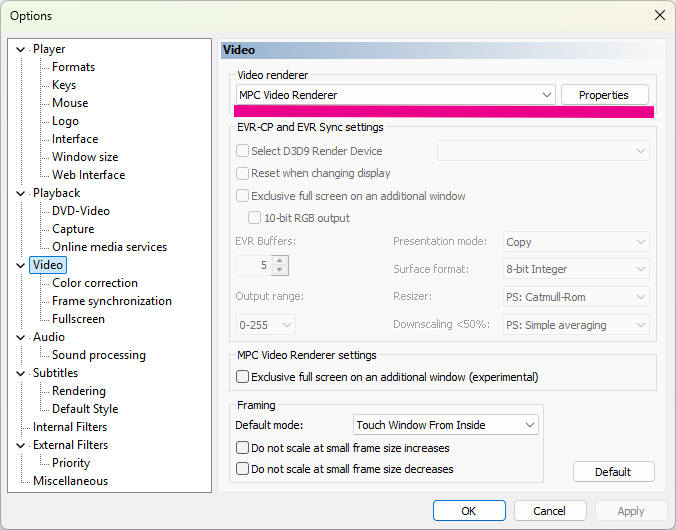
Under Video renderer, open the dropdown (it defaults to "Enhanced Video Renderer (custom presenter)") and select MPC Video Renderer.
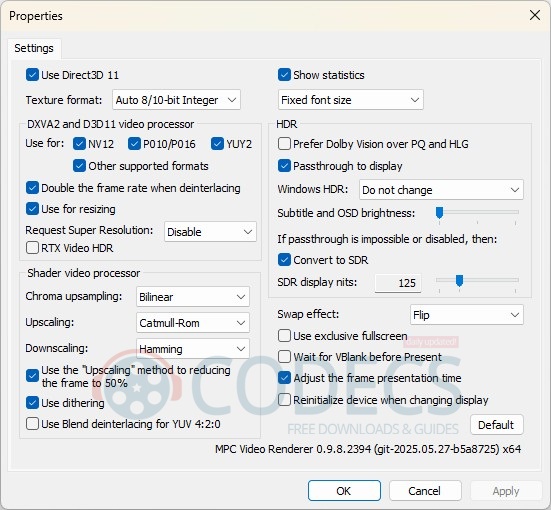
Click the Properties button next to it to open the renderer's own settings.
You can tune shader processing, swap effects, and more here - but the defaults are genuinely good. If you ever poke around and break something, the Default button resets everything cleanly.
Step 3: Test Your Playback
Load a high-bitrate 4K HDR sample - something demanding enough to actually stress the pipeline.
Press Ctrl + J to show the on-screen statistics overlay. Watch for dropped frames and GPU load while it plays.
For a wider view of system load, open Task Manager with Ctrl + Shift + Esc and check CPU and GPU usage.
Toggle tone-mapping, debanding, and the scaling shaders on and off. You are looking for the sweet spot where quality holds up and your hardware is not screaming.
Optional Tweaks Worth Knowing
The defaults cover most people. These are for when you want a specific outcome.
| Goal | What to change |
|---|---|
| Bit-perfect SDR | Disable tone-mapping, set Output Levels to 0-255, and turn off Use Dithering. |
| Smoother motion | Enable your GPU's Adaptive Sync and set Present Queue to 8 or higher. |
| Sharper subtitles | In MPC-BE > Subtitles, pick your font and border, then let the renderer handle the blending. |
| Hardware decoding | Go to Options > Internal Filters > Video Decoders and set Hardware Acceleration to DXVA2 Copy-Back (NVIDIA) or D3D11 (AMD/Intel). |
If you prefer setting up decoding manually instead of relying on a bundle, pairing LAV Filters with MPC-BE and this renderer gives you full GPU-accelerated control over the whole chain.
Troubleshooting Common Problems
Hit a wall? Most issues fall into one of these four buckets.
| Symptom | Fix |
|---|---|
| Black screen, audio only | Make sure the filter registered correctly (re-run the install .bat as admin) and update your GPU driver. |
| Crashes when changing files | Update to the newest build - recent versions fixed rare crashes during mode switches. |
| HDR looks washed out | Either enable Windows HDR, or keep an SDR desktop and turn on HDR-to-SDR tone mapping in the Processing tab. |
| High CPU usage | Switch to a hardware decoder, lower the present queue length, and disable debanding. |
Still stuck on a specific format rather than the renderer itself? If a particular file refuses to play, the all-in-one K-Lite Codec Pack bundles the decoders most Windows players are missing.
You're done. Fire up a movie. MPC Video Renderer is now handling the heavy lifting - crisp, artifact-free playback with minimal load on your CPU and GPU. Enjoy the show.
Frequently Asked Questions
Is MPC Video Renderer better than madVR?
For everyday 1080p and 4K playback, it is nearly as sharp, much lighter on resources, fully open-source, and still works on Windows 7 and up without any licensing hassle. madVR edges it out only on the most extreme tuning, and most people will never notice the gap.
Can I use it in PotPlayer or MPC-HC?
Yes. Once the filter is registered, select it under Video Renderer in your player's preferences. Integration is tightest in MPC-BE because the developers collaborate, but it works in PotPlayer and MPC-HC too.
Note that recent K-Lite Codec Pack builds now include MPC Video Renderer with MPC-HC by default.
Does it support VRR and G-Sync?
It does. As long as your monitor and GPU drivers have variable refresh enabled, set Present Mode to Flip for the best sync.


Latest reviews
AllJPEG XL Is Back in Chrome: What It Means and How to Open JXL...
5/5Brave just enabled it by default for stable users yesterday (1.97). Not specified is chromeOS will be passively gaining decode ...
The New Fire TV Stick 4K Can't Run Kodi - Here's Which Fire ...
5/5Really interesting news - I had no idea Amazon was switching the new Fire TV Stick 4K over to ...
Free Popular IPTV Playlist: Where to Get Fresh, Legal M3U Li...
5/5Hi! Thanks for creating this list, and I have a small question: why do the channels I used to ...