On Windows 10 and 11, FLAC plays in Windows Media Player with nothing installed - and on Windows 7 it does not, which is why this stops working for so many people.
FLAC keeps every bit of the original recording, at roughly half the size of a WAV file.
Windows learned to play it in Windows 10, and has done ever since without any help from you.
So if your FLAC files are silent, throwing errors or filed under Unknown Artist, the cause is one of three specific things - and which one depends on the Windows you are running.
On Windows 10 and 11, double-click the file and it plays. Nothing to install, and adding a FLAC codec on top can actually break it.
On Windows 7 or 8, there is no built-in FLAC support at all, so you need a decoder. Either way, tags are a separate problem with a separate fix, further down.
First, Work Out Which Player You Have
This sounds like a detour and it is not. Three different programs get called "Windows Media Player", they behave completely differently with FLAC, and most bad advice on this topic comes from mixing them up.
| What you have | Where it came from | FLAC support |
|---|---|---|
| Media Player, the modern app | Windows 11 and 10, updated through the Microsoft Store | Yes, built in |
| Windows Media Player Legacy | The classic player, an optional feature on Windows 11 | Yes on Windows 10 and 11 |
| Windows Media Player 12 | Built into Windows 7 and 8 | No |
| Windows Media Player 11 | Windows XP and Vista, from 2006 | No, and never did |
Note the awkward part: the modern Windows Media Player app carries date-style version numbers like 11.2606.19.0, so it reads as "11" while being nothing to do with the 2006 player of that name. If a guide tells you Windows Media Player 11 plays FLAC, this is the confusion it fell into.
To check which you are on, press the Windows key, type "media player", and look at what comes up. Two entries means you have both the modern app and Legacy installed.
If you are on Windows 10 or 11 and only find the old Legacy player, you can download Windows Media Player in its current form as well. Both play FLAC, so this is about which interface you prefer rather than fixing anything.
On Windows 10 and 11, It Already Works
There is no setup step. Double-click a .flac file and it plays, in either the modern app or Legacy, because Windows itself carries the decoder.
If you want the files in your library rather than opened one at a time, point the player at the folder they live in. In the modern app that is the Music Library settings; in Legacy it is Organize, then Manage libraries, then Music.
To confirm what you are actually playing, right-click the track and open Properties. Item type will read .flac, and the progress bar will be running - proof the decoder is working with nothing installed.
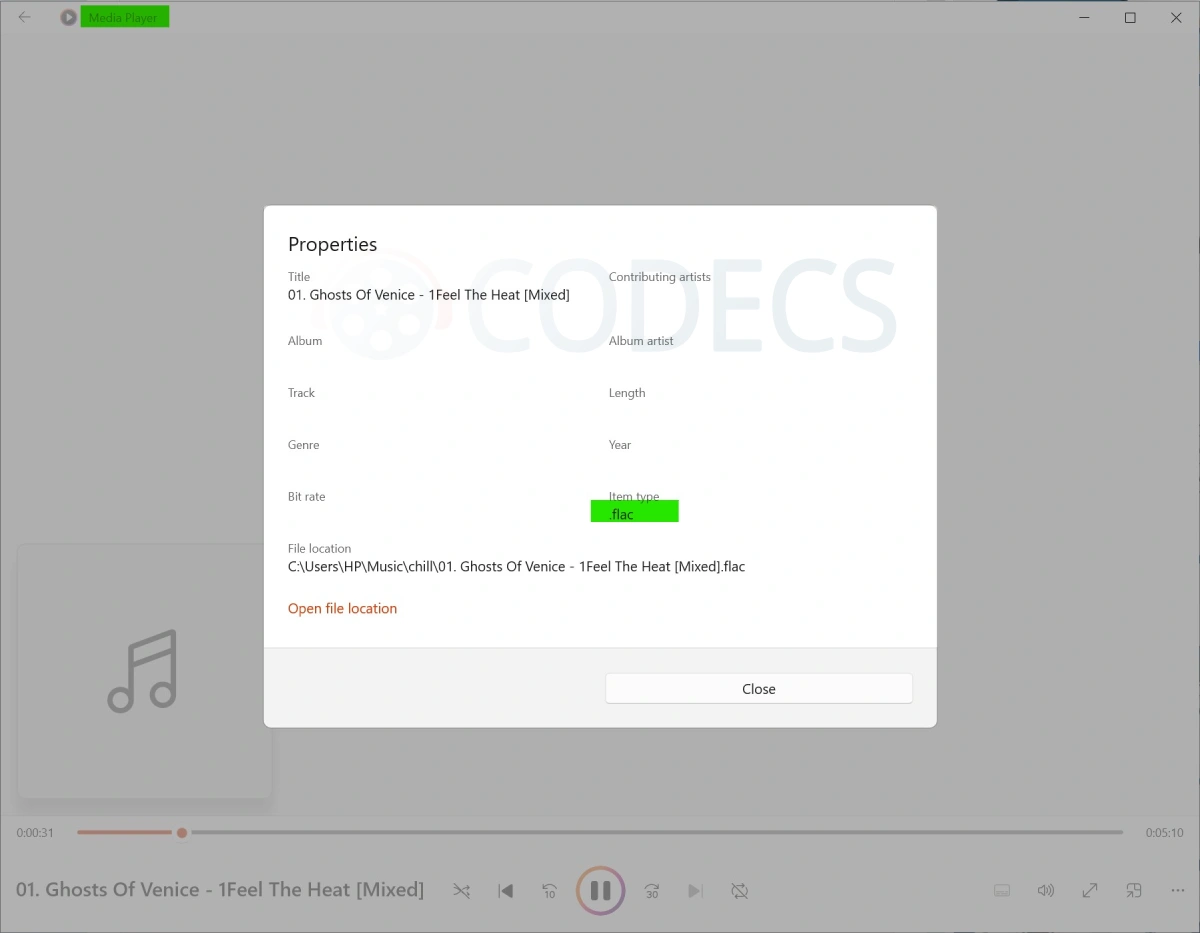
Look at the empty fields in that dialog, though. The file plays, and the player still knows almost nothing about it - which is the next problem on this page.
Do not add a FLAC codec on top of this. Installing a second decoder alongside the one Windows already has is a common way to turn working playback into silence or an error, because the two compete over which one handles the file. If FLAC already plays on your machine, you are finished - skip the downloads below.
Why Your Library Says Unknown Artist
This is the most common complaint from people whose FLAC files play perfectly well, and the screenshot above shows it happening. Playing a file and reading its tags are two different jobs, and Windows Media Player is noticeably worse at the second one.
The result is an album that sounds fine and looks like nothing - no artist, no album name, no cover art, everything dumped together under Unknown Artist.
WMP Tag Plus is the fix, and it is the one plugin on this page most readers actually want. It teaches the library to read tags from FLAC, OGG, APE, WavPack, Musepack and MPEG-4 files, and it works with the Advanced Tag Editor so edits you make write back to the files themselves.
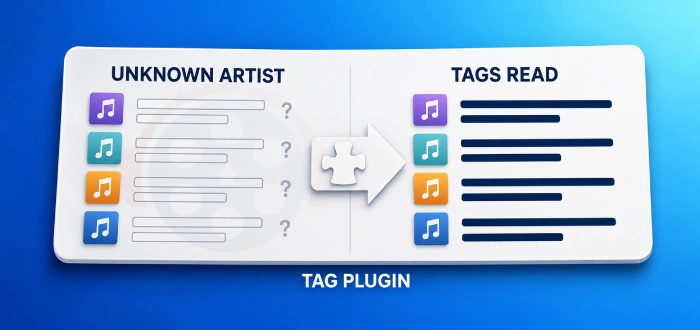
Install it, then remove your music folder from the library and add it back so the player re-scans. If the tags are wrong in the files rather than missing from the library, Mp3tag will fix the whole collection in one pass.
On Windows 7 and 8, You Need a Decoder
Here there is genuinely nothing built in, so Windows Media Player 12 on these versions will refuse FLAC no matter what you change in its settings. You have to add the decoder yourself, and there are three ways to do it.
- Xiph DirectShow Filters come from the people who maintain the FLAC format, and cover Ogg, Vorbis, Speex and Theora in the same install. This is the tidiest single-purpose option.
- madFLAC is the long-standing lightweight alternative. It has not been updated in years, so treat it as the fallback if the Xiph filters give you trouble rather than the first thing to try.
- K-Lite Codec Pack or LAV Filters cover FLAC as part of a much wider set, which is the better trade if other formats are failing too.
Whichever you pick, install it, then close Windows Media Player completely and reopen it. It caches its list of available decoders at startup, so a running instance will keep insisting the file is unplayable.
Worth saying plainly: Windows 7 and 8 are out of support, so this is a way to keep an old machine useful rather than a setup to build on. If the PC is your main one, the honest advice is a maintained player instead.
When FLAC Still Will Not Play
If you have done the above and the file is still silent or erroring, work through these in order.
- Check it is really FLAC. A .flac extension proves nothing on its own - run the file through the Codec Finder to see what is actually inside.
- Try a 24-bit or hi-res file separately. High sample-rate FLAC trips up some setups that handle ordinary CD-quality files without complaint.
- Remove any FLAC codec you installed by mistake. On Windows 10 and 11 this is the most likely cause, and uninstalling it usually restores playback immediately.
- Test the same file in another player. If VLC Media Player also refuses it, the download is damaged and no amount of configuration will help.
- Check the file is not in a container you think it is not. FLAC audio inside an .ogg or .mka wrapper is a different thing again, and needs the Xiph filters even on Windows 11.
When to Stop Fighting and Change Player
Windows Media Player is fine at playing FLAC and mediocre at managing a FLAC collection. If lossless music is most of what you listen to, a player built for it will save you this whole page.
- foobar2000 is the enthusiast standard - it reads every tag correctly out of the box and converts between formats without a second tool.
- VLC Media Player carries its own decoders, so it plays FLAC on Windows 7 with nothing added.
- Dopamine is the middle ground - a clean modern music player that handles lossless properly without foobar2000's learning curve.
And if you would rather have one library that works everywhere, converting is a legitimate answer. Our guide to converting a library with foobar2000 covers the batch route, or the site's online audio converter handles a handful of files in the browser.
Before you convert anything, though, it is worth knowing what you would be giving up - FLAC vs MP3 puts real numbers on the difference, and what FLAC actually is covers the format itself.
Quick questions
Do I need to download a FLAC codec for Windows 11?
No. Windows 10 and 11 both decode FLAC themselves, and adding another codec on top is more likely to break playback than improve it.
Why do my FLAC files play but show no artist or album?
Because playback and tag reading are separate, and the library is weaker at the second. WMP Tag Plus teaches it to read FLAC tags properly.
Will FLAC play in Windows Media Player on Windows 7?
Not on its own. Windows 7 has no built-in FLAC support, so you need the Xiph DirectShow Filters or a codec pack first.
What is the difference between Media Player and Windows Media Player Legacy?
They are two separate programs on Windows 11. The modern app is the one still getting updates; Legacy is the classic player, kept for CD burning and advanced tag editing. Both play FLAC.
Does Windows Media Player handle 24-bit and hi-res FLAC?
Generally yes on Windows 10 and 11, though very high sample rates depend on your sound hardware. If ordinary FLAC works and hi-res does not, that is where to look.
Is it worth keeping FLAC instead of converting to MP3?
For archiving and home listening, yes - it keeps everything at roughly half the size of a WAV. Our FLAC vs MP3 comparison covers where the difference stops being audible, and hi-res FLAC streaming is now mainstream enough to matter.





@Drasko
What is the error message you're seeing? Can you provide more details?