There are five things you can do to a video file, and knowing which one you actually need can be the difference between a two-second job and a two-hour one.
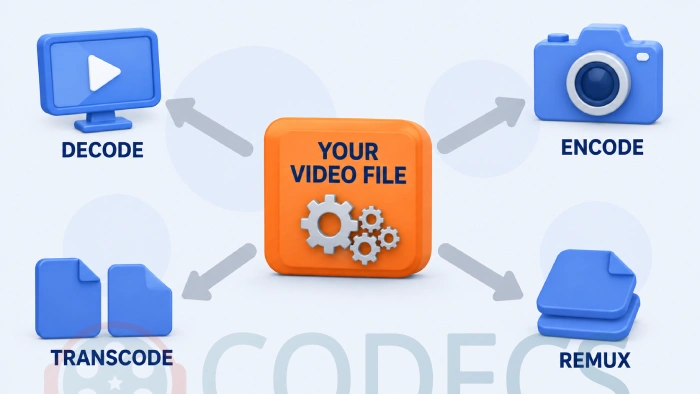
People use these words loosely, and the confusion costs real time and real quality.
The short version is that four of the five operations rebuild your video from scratch, and one of them does not.
The one that does not is the one most people have never heard of.
Start here. If you only need to change the file extension - MKV to MP4, for instance - you almost certainly do not need to convert anything. Skip to the remuxing section.
All Five, in One Table
| Operation | What it does | Quality cost | Speed |
|---|---|---|---|
| Decoding | Turns the file back into pictures and sound so you can watch it | None | Instant |
| Encoding | Creates the compressed file in the first place | Depends on your settings | Slow |
| Transcoding | Changes the codec, for example HEVC to H.264 | Some loss, always | Slow |
| Recoding | Keeps the codec, changes the settings, usually the bitrate | Some loss, always | Slow |
| Remuxing | Changes the container only, leaving the streams untouched | None at all | Seconds |
Decoding - Just Watching It
Decoding is what happens every time you press play. Your player reads the compressed data and turns it back into moving pictures and sound.
Nothing is written to disk and nothing is changed, so decoding never costs you any quality. It is the only one of the five that is purely a read operation.
When somebody says a file "will not play", they mean their player cannot decode it. Any of the players in our media players category will handle far more formats than Windows does on its own.
Encoding - Making the File
Encoding is the original act of compression: raw footage in, a manageable file out. Your phone does it every time you record a video.
You are also encoding when you export from an editor, rip a disc, or compress something for upload. Everything after this point is a variation on doing it again.
Modern tools bring their own encoders, so there is no separate component to install. HandBrake and FFmpeg both include everything they need.
Choosing settings is its own subject. If that is what you are here for, our guides to the best free HEVC encoders and the best codec for YouTube go into it properly.
Transcoding - Changing the Codec
Transcoding means taking a file that is already compressed, decoding it, and encoding it again using a different codec.
You do this when something will not play. An HEVC file that chokes on an older TV becomes an H.264 file that plays everywhere, at the cost of time and a little quality.
Note what is really happening: the file is decoded all the way back to raw frames and then compressed from scratch. That round trip is why transcoding is slow and why it can never be free.
Recoding - Same Codec, Different Settings
Recoding keeps the codec the same and changes how it is applied - almost always the bitrate. A two-hour film at 3000 kbit/s becomes the same film at 2000 kbit/s, and a smaller file.
Most of the industry calls this re-encoding, and a bitrate-only change is sometimes called transrating. You will rarely see "recoding" outside older guides, so do not be surprised if a forum does not recognise the word.
Mechanically it is identical to transcoding: full decode, full re-encode. The only difference is that the codec at the far end is the same one you started with.
Why Doing It Twice Costs You Twice
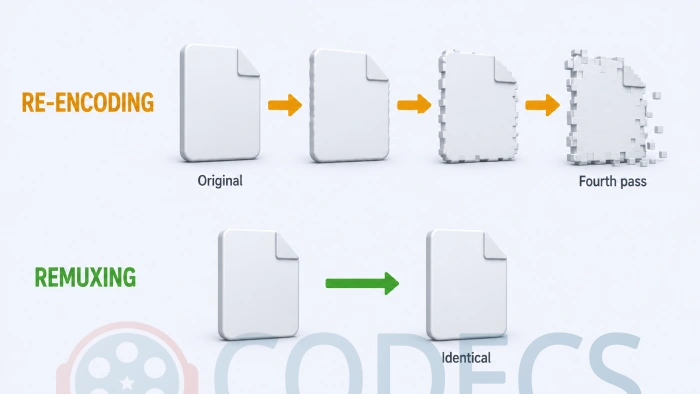
This is the part the old version of this page never mentioned, and it matters more than any of the definitions.
Lossy codecs work by throwing away detail you are unlikely to notice. When you re-encode an already-lossy file, the encoder cannot recover what the first pass discarded - it can only throw away more on top.
The effect is cumulative and it is called generation loss. Encode the same clip four times and the fourth copy will look visibly worse than the first, even if you raise the bitrate at every step.
A higher bitrate does not undo it. Re-encoding a 2000 kbit/s file at 5000 kbit/s gives you a bigger file that still looks like the 2000 kbit/s one. The detail is already gone.
The practical rule that follows: always go back to the highest-quality source you have rather than converting a conversion. And avoid re-encoding entirely whenever you can, which brings us to the operation nobody told you about.
Remuxing - The One Worth Knowing
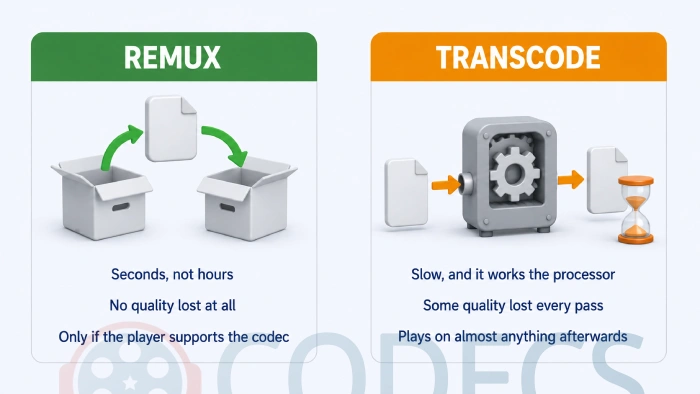
Remuxing changes the container and leaves the compressed streams completely alone. Nothing is decoded, nothing is re-encoded, nothing is lost.
Think of it as moving the contents of one box into another box. The video and audio inside arrive at the far end bit-for-bit identical to how they started.
Because there is no compression work to do, it runs at the speed of your disk. A film that would take an hour to transcode remuxes in a few seconds.
This is what you want any time the problem is the wrapper rather than the contents - an MKV your TV refuses to list, a file you need as MP4 for an upload form, an extra audio track you want to strip out.
The one catch. Remuxing cannot fix a codec your device does not understand, because the codec does not change. If the video inside is HEVC and your player cannot decode HEVC, a new container will not help.
Which One Do You Actually Need?
| Your situation | What you need |
|---|---|
| The file plays fine, you just need a different extension | Remux |
| You want to remove a subtitle or audio track | Remux |
| You want to trim the start and end | Remux, if your tool can cut without re-encoding |
| Your device says the format is unsupported | Transcode |
| The file is too big for where it is going | Recode at a lower bitrate |
| You are exporting from an editor or a camera | Encode |
If you are not sure which codec is inside your file, check it before you decide. Codec Finder runs in the browser and MediaInfo reports it in full detail.
The Tool for Each Job
For remuxing, three free options cover almost everything:
- MKVToolNix - the standard for anything involving MKV. Add, remove and reorder tracks, then write the result out in seconds.
- LosslessCut - built for trimming and cutting without re-encoding, which is exactly the job most people are trying to do.
- FFmpeg - the command-line option, and the one every other tool is built on. Our FFmpeg setup guide covers getting it running on Windows.
For transcoding and recoding, when you genuinely do need to re-encode:
- HandBrake - the usual first choice, with presets for most devices. StaxRip vs HandBrake compares it against the more advanced option.
- VidCoder - the same engine as HandBrake with an interface some people prefer.
- XMedia Recode - strong on device profiles and awkward source formats.
- Avidemux - useful when you want simple cuts and filters alongside a format change.
There are plenty more under Video Encoders, and VirtualDub still has its uses for frame-accurate work on AVI files.
For audio rather than video, converting with foobar2000 and our LAME MP3 settings guide cover the same ground on the audio side.
Where This Fits With Codecs and Containers
All five operations only make sense once you have the codec-versus-container distinction straight, because remuxing changes one and transcoding changes the other.
What Is a Codec covers the concept, and Codecs vs Containers explains why two files with the same extension can behave completely differently.
If you are choosing what to encode to in the first place, AV1 vs H.265 and our StaxRip HEVC walkthrough are the next steps.
Quick questions
How do I convert MKV to MP4 without losing quality?
Remux it rather than converting it. MKVToolNix or FFmpeg will copy the streams into a new container in seconds, with the video and audio completely untouched.
What is the difference between encoding and transcoding?
Encoding compresses raw footage for the first time. Transcoding takes an already-compressed file and re-encodes it into a different codec, which means decoding it first.
Does converting a video always lose quality?
Re-encoding does, every time, because lossy codecs cannot recover detail the previous pass discarded. Remuxing does not lose anything at all, because nothing is re-encoded.
Is remuxing the same as converting?
No. Converting rebuilds the video, remuxing just repackages it. That is why one takes an hour and the other takes seconds.
Can I remux any file into any container?
Not quite, because containers differ in what they will carry. MP4 is fussier than MKV, so a track MKV accepts happily may need converting before MP4 will take it.
Will a higher bitrate improve a file I already compressed?
No. You will get a larger file that looks the same, because the detail was discarded during the first encode and cannot be put back.
What does recoding mean?
Changing the settings while keeping the same codec, usually to reduce the bitrate and the file size. Most people call it re-encoding, so use that word if you are asking elsewhere.


Best Way to Get VidMate APK - Fast, Free, and...
5/5The demand for feature-rich video editing applications continues to grow across the digital content industry. Filmora Mod APK is ...
Read More →Free Popular IPTV Playlist: Where to Get Fres...
2/5where can i goet fox news M3u* link please someone post here
Read More →How to Download HEVC Video Extension for Free
5/5its works! thank you all!
Read More →