Bloated MP4s and AVIs filling your drive? StaxRip re-encodes them to H.265 for free, and most files come out around half the size with no difference you will see on a normal screen.

StaxRip is a free, open-source Windows app that drives the x265 encoder for you, so HEVC encoding becomes a series of clicks instead of a command line.
This guide takes one video from start to finish in ten steps, using the settings StaxRip already picks for you wherever they are the right ones.
StaxRip runs on 64-bit Windows 10 and 11, and if one of its bundled tools complains on first run, install the all-in-one Microsoft Visual C++ Redistributable and start StaxRip again.
The download is around 700 MB and unpacks to more than that, so leave a few gigabytes free for StaxRip, its temporary files and the finished video.
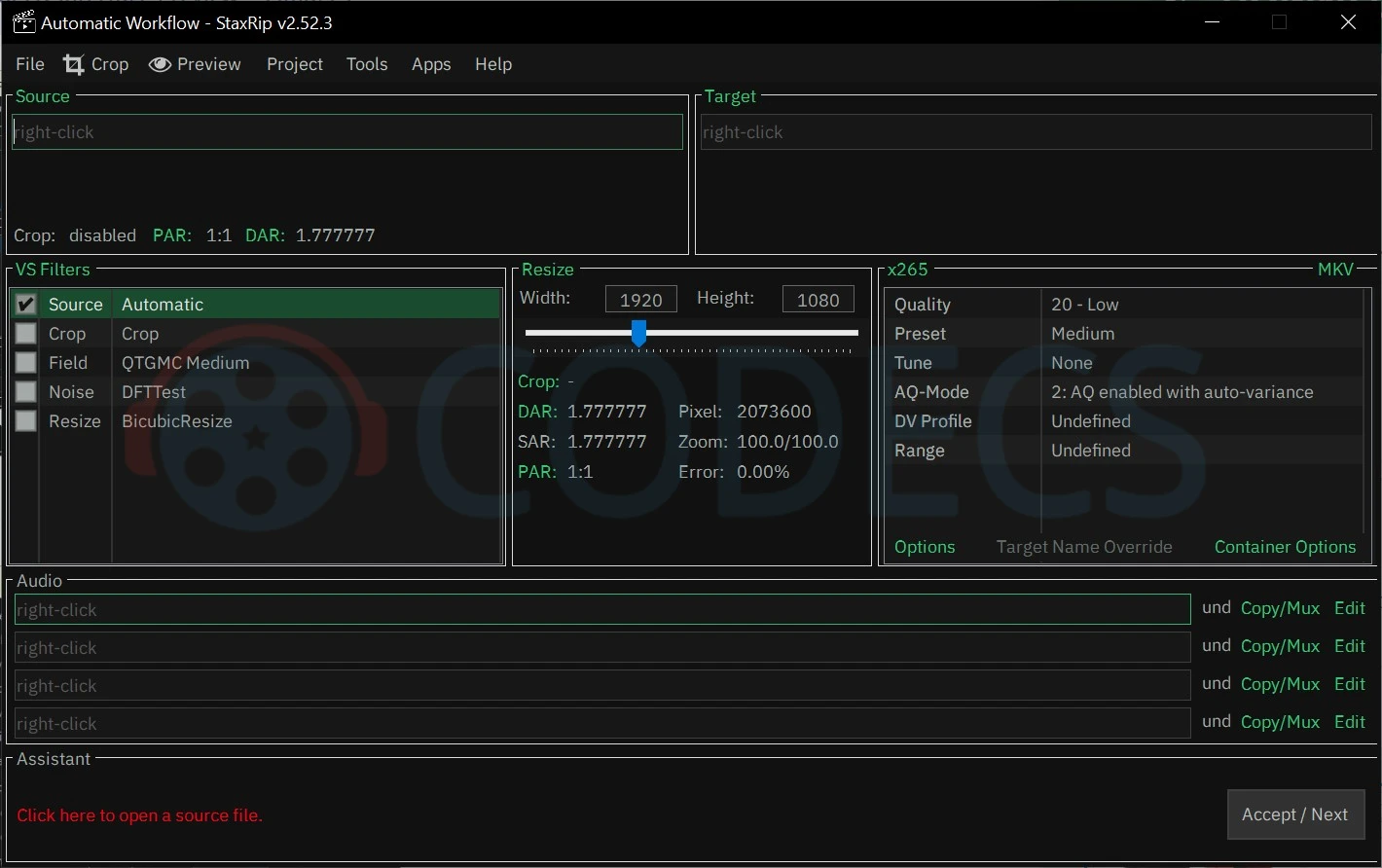
Step 1: Download and Unpack StaxRip
Download StaxRip and unpack the 7z archive into a new, empty folder - Windows 11 can open it directly, or use 7-Zip.
There is no installer: StaxRip is portable, so it never touches the registry. When you update later, unpack the new version into a fresh folder rather than over the old one, as the developers advise.
Step 2: Choose Where Settings Live
Run StaxRip.exe. On the first launch it asks where to keep its settings.
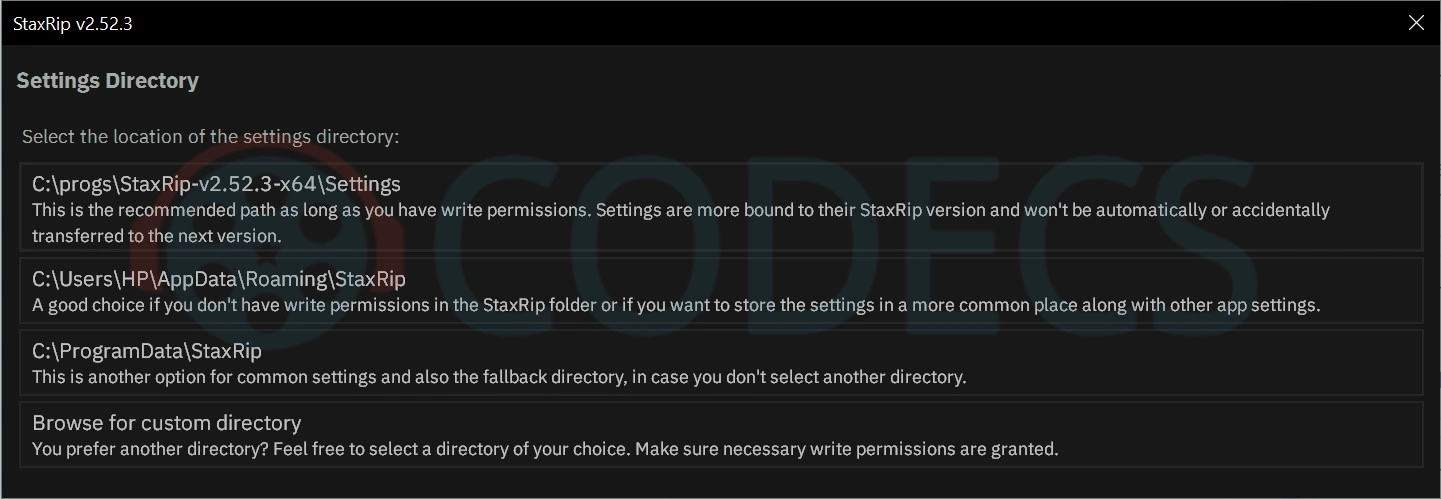
Pick the first option, a Settings folder inside StaxRip's own folder - StaxRip marks it as recommended, and it keeps each version's settings separate. Choose the AppData option only if Windows will not let you write to the StaxRip folder.
Step 3: Open Your Video
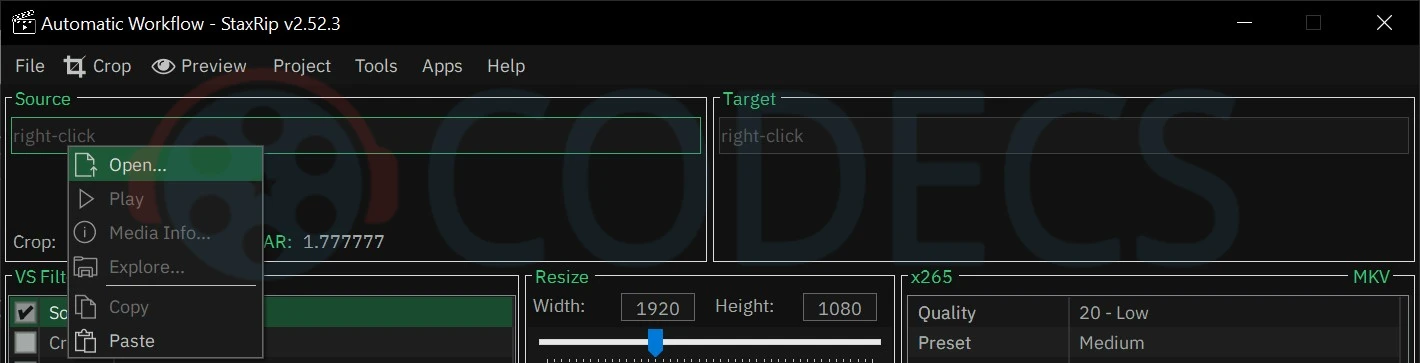
Right-click the empty Source box at the top left and choose Open, then pick the single-file option and select your video.
StaxRip reads the file and fills in the details - length, size, bitrate, resolution, frame rate and audio tracks. A 4K HDR file can take a little longer while it reads the colour information.
Step 4: Check the Encoder Is x265
The encoder panel on the right is titled with the encoder in use. Left-click that title to see the list - x265 is ticked by default, and it is the right choice for HEVC.
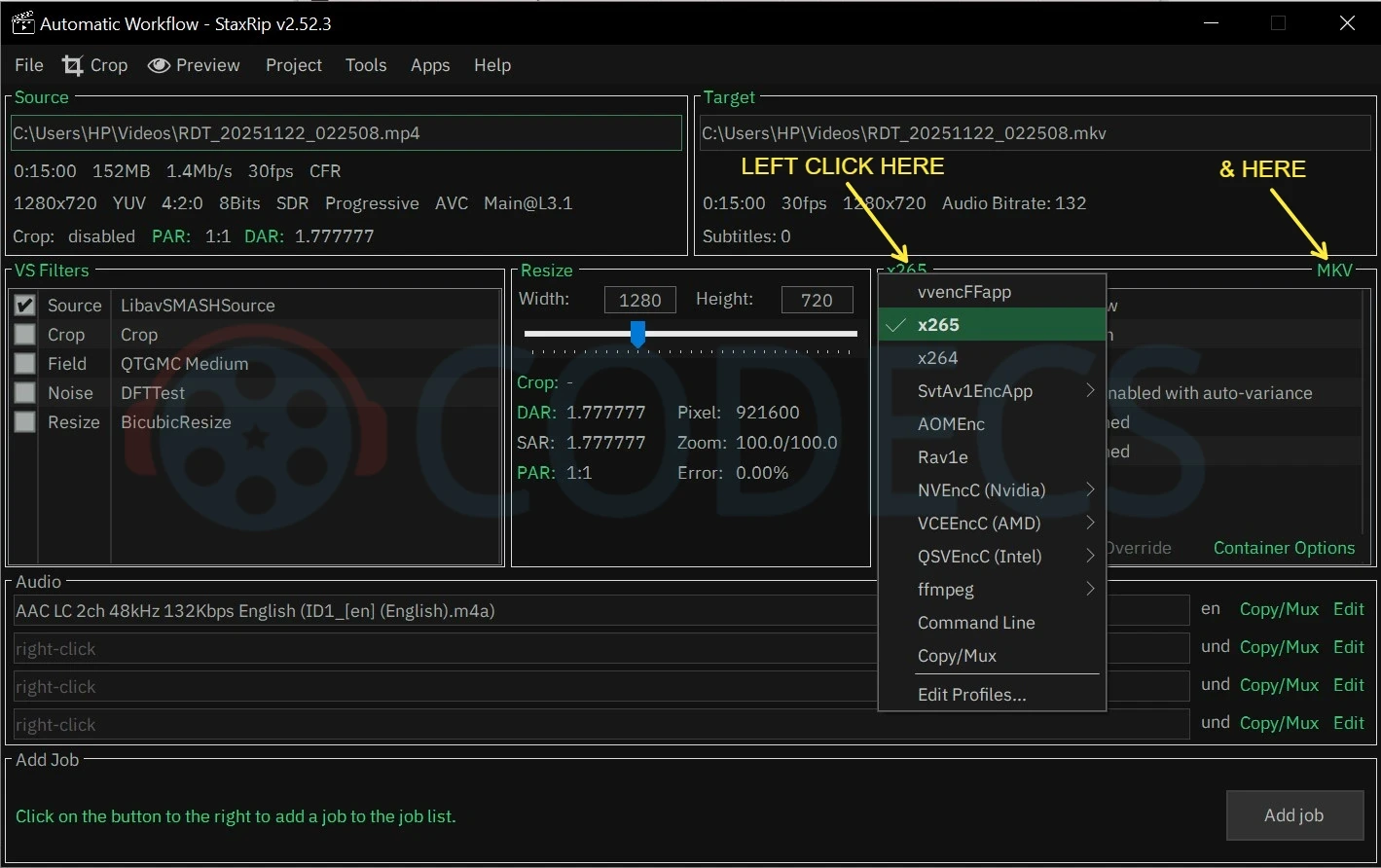
The same list holds x264, the AV1 encoders and the graphics-card encoders (NVEncC for NVIDIA, VCEEncC for AMD, QSVEncC for Intel). More on those in the tips below.
Step 5: Pick MKV or MP4
The container is the label at the top right of the same panel. Click it to switch between MKV, the default, and MP4.
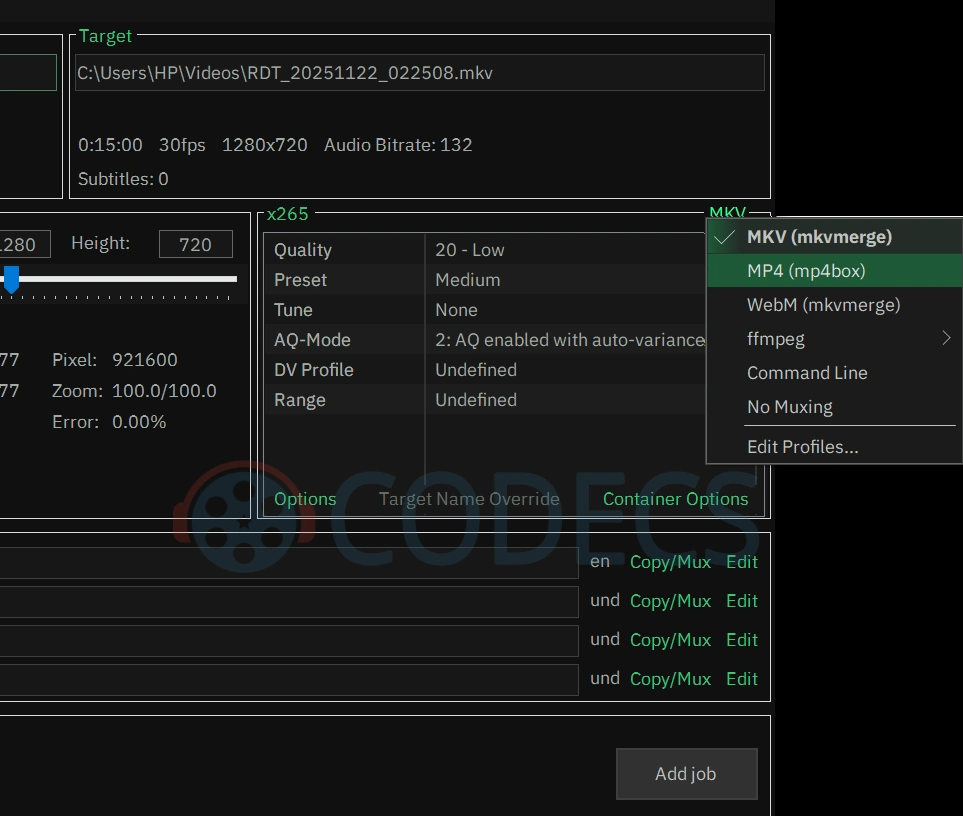
Keep MKV for files you watch on a PC or a media server - it holds several audio and subtitle tracks without fuss. Choose MP4 for phones, browsers and smart TVs; the picture is identical, only the wrapper changes.
Step 6: Set the Quality
This is where the file size is decided. The x265 panel has six settings, and only the first one usually needs touching.
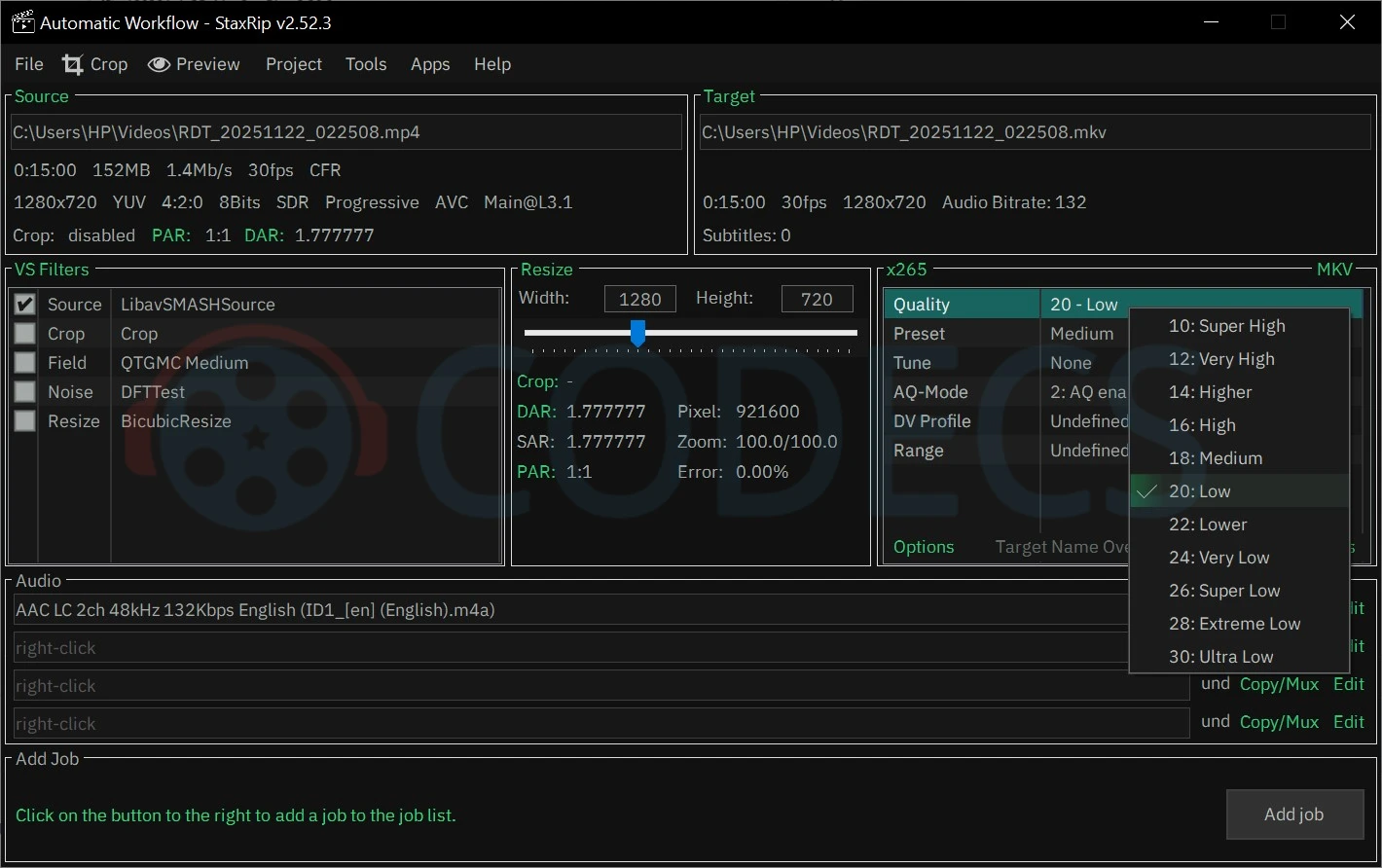
Quality is x265's CRF value with a friendly name. A lower number means better quality and a bigger file, and the default, 20 - Low, is a sensible place to start despite its modest-sounding name.
| Quality setting | Use it for |
|---|---|
| 10 - Super High, 12 - Very High | Near-lossless copies; files stay very large |
| 14 - Higher, 16 - High | Keepers where every detail matters, such as 4K HDR films |
| 18 - Medium | Long-term archive copies that look like the original |
| 20 - Low (default) | Everyday use - the starting point for most files |
| 22 - Lower, 24 - Very Low | Uploads and sharing, where size matters more |
| 26 - Super Low to 30 - Ultra Low | Previews and messaging only; flaws become visible |
Preset is how hard x265 works. Leave it on Medium; Slow squeezes a little more out of each megabyte but takes noticeably longer, and the faster presets cost quality.
Tune stays on None for most videos. Pick grain for old film you want to keep grainy, or animation for cartoons and anime.
Leave AQ-Mode (2: AQ enabled with auto-variance), DV Profile and Range as they are. DV Profile only matters for Dolby Vision sources, and Range is taken from the source.
Step 7: Keep or Convert the Audio
Each audio track has a Copy/Mux link beside it. Leave it as it is to copy the original sound untouched, which is the best choice when the source audio is already AAC, as it is in most phone videos.
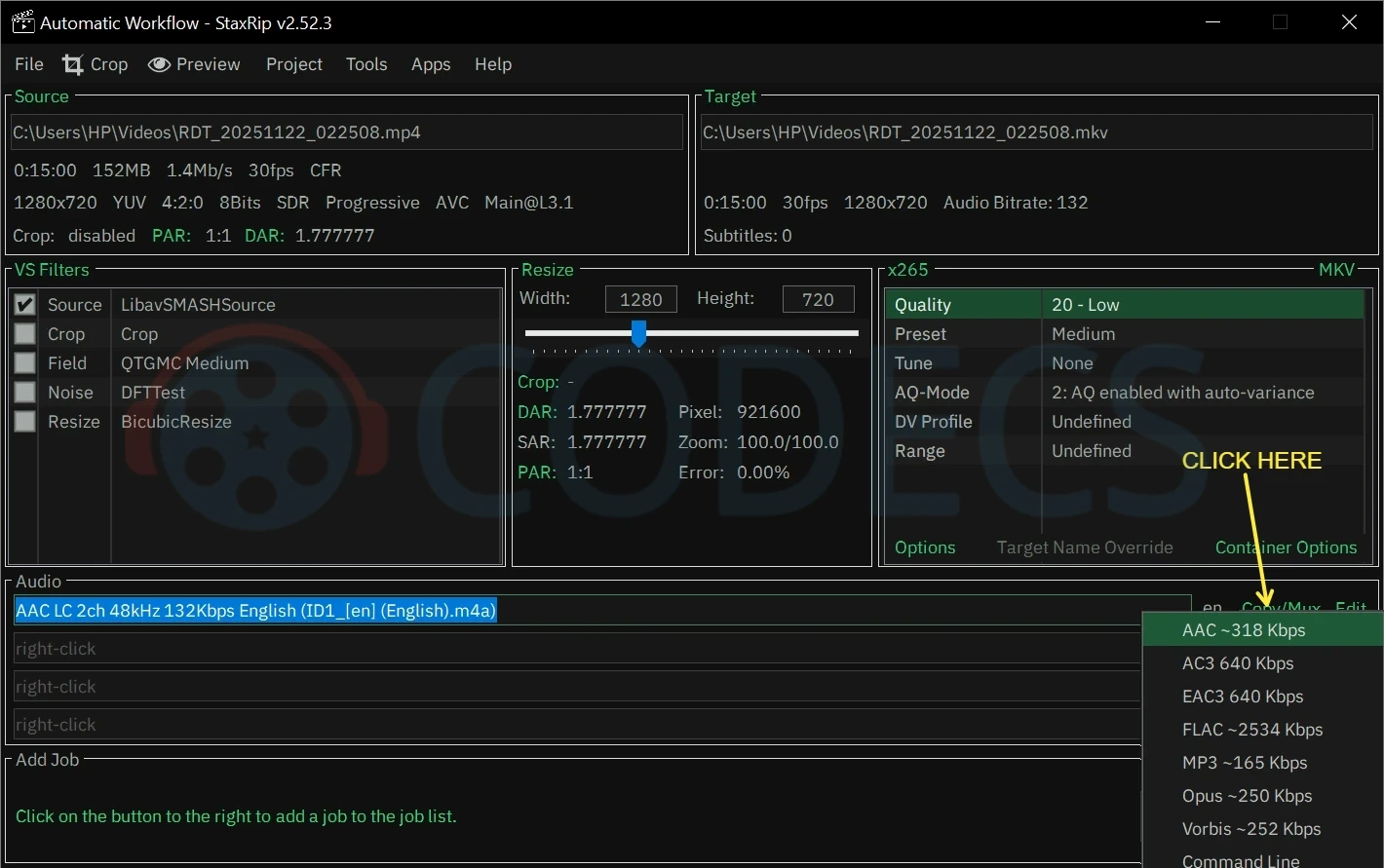
To convert it, click Copy/Mux and pick a profile - AAC plays on almost everything. Use Edit beside it to change the bitrate if you want a smaller file.
Step 8: Add the Job
Check the settings once more before you start: a job that runs for hours with the wrong quality is the most common waste of time in encoding.

Then click Add job at the bottom right. The job goes into StaxRip's job list and encoding begins.
Step 9: Watch the Progress
The processing window shows the percentage done, frames per second and the size so far. x265 is thorough rather than quick, so a full-length film on the Medium preset is an evening's job on most PCs, not a few minutes.
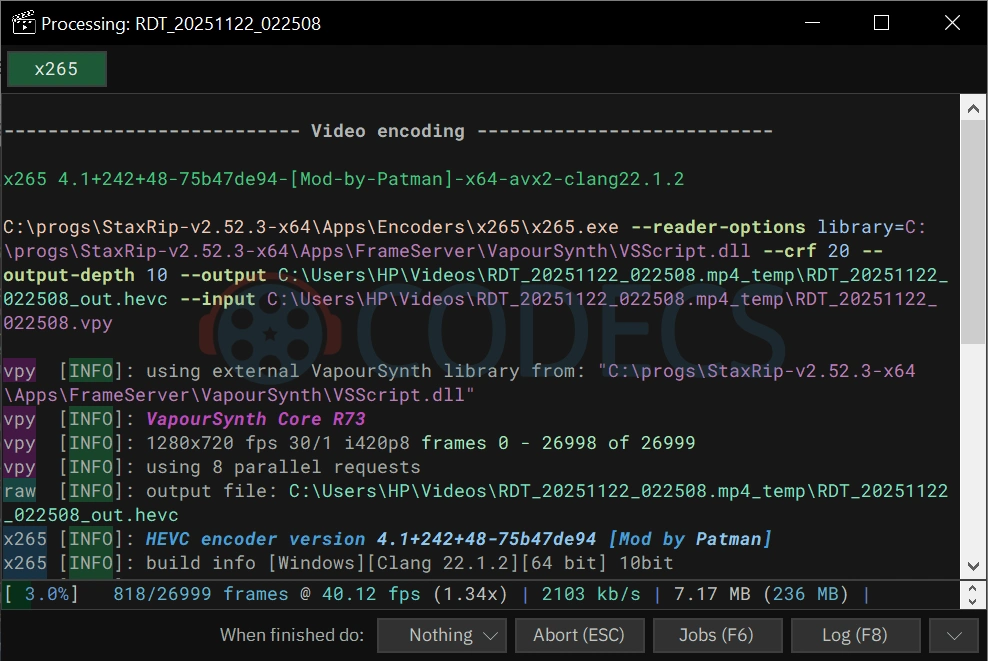
The When finished do menu at the bottom can shut the PC down after the last job, which suits overnight runs. If a job fails, open the Log (F8) - the reason is near the end.
Step 10: Check the Result
Open the new file and skip to the start, the middle and the end. Sound that drifts out of sync or washed-out HDR colours show up quickly if anything went wrong.
To confirm an HDR encode kept its HDR information, open it in MediaInfo and look for HDR format and mastering display lines in the video section.
File came out bigger? That happens when the source was already small, such as a low-bitrate phone clip or a streaming download. Raise the Quality number to 22 or 24 and try again, or keep the original.
Playing Your HEVC Files
VLC, MPC-HC, PotPlayer and mpv carry their own HEVC decoders and play StaxRip output straight away - our roundup of the best HEVC players compares them.
Windows' own Photos and Media Player apps need Microsoft's decoder, which you can get free as HEVC Video Extensions from Device Manufacturer.
StaxRip Feels Like Too Much? Two Simpler Options
StaxRip shows hundreds of options most people never touch. If you only need a quick conversion now and then, there is an easier route.
- X HEVC Encoder. A small portable app with presets such as Archival, Streaming and HDR/4K that drives x265, Kvazaar or your graphics card - it needs FFmpeg beside it.
- HandBrake. The well-known middle ground, with good presets and versions for Windows, Mac and Linux.
Not sure which suits you? Our StaxRip vs HandBrake comparison goes through it. StaxRip stays the better tool for filtering, cleaning up noisy or interlaced footage and long batch jobs.
Tips for Better Encodes
- Stay with CRF. The Quality setting gives the best picture per megabyte - use a two-pass bitrate mode only when a file must hit an exact size.
- 10-bit is already on. StaxRip's default x265 profile encodes in 10-bit, which looks smoother in skies and shadows even from an 8-bit source, and modern HEVC players handle it.
- Clean up problem sources first. In the VS Filters list on the left, QTGMC fixes interlaced footage and DFTTest calms noisy phone video - clean video compresses better than any encoder setting can manage.
- Graphics-card encoders are faster, not better. NVEncC, VCEEncC and QSVEncC finish in a fraction of the time, but x265 gives a smaller file at the same quality - use the GPU for speed and x265 for keepers.
Quick questions
How much smaller will my files be?
It depends on the source. Older H.264 files and high-bitrate camera or phone recordings often shrink by half or more at the default setting, while files that are already compact shrink much less. Encode a 30-second clip first to see what you get.
Is StaxRip free and safe?
Yes, it is free and open source, developed in public on GitHub. It is portable, so there is no installer, no bundled offers and nothing written to the registry.
Why does my encoded file have no sound?
Usually the audio was copied in a format the chosen container cannot hold, or a format the player cannot decode, such as TrueHD in MP4. Click Copy/Mux, choose AAC and encode again.
Can StaxRip encode several files in a row?
Yes. Set up the first file and click Add job, then open the next file, adjust it and add that too. StaxRip works through the list in order, and can shut the PC down when it finishes.
Should I use AV1 instead of HEVC?
StaxRip can encode AV1 with SVT-AV1 from the same encoder list, and AV1 files are usually smaller still. HEVC is the safer pick if you play files on older TVs, phones or streaming boxes, which are more likely to decode HEVC than AV1.
The bottom line
Leave StaxRip on x265 and 20 - Low, test a short clip, and adjust the number until the size and picture suit you. Got a setting that works well for your videos? Share it in the comments.


Latest comments
AllTo view major football league live
Guide: Free Popular IPTV Playlist: Where to Get Fresh, Legal M3U Links in 2026 20 commentsThe link isn't working. [link]
Guide: Free M3U Playlist for TiviMate: Legal Lists That Load Cleanly 1 commentThe Vega OS shift is the biggest Firestick story of 2026. Anyone buying now needs to know: 4K Max = sideloading works, plain 4K = ...
News: The New Fire TV Stick 4K Can't Run Kodi - Here's Which Fire Stick Still Can 3 comments