Windows keeps its codecs in two different places, and neither shows up in Add or Remove Programs. Here is how to see what is installed, add what is missing and take out what is causing trouble on Windows 11 and 10 - with the Windows 95, 98 and Me method at the end.
A codec on Windows is either a Media Foundation component - built into Windows or installed as a Store extension - or a DirectShow filter registered by a codec pack or a single installer.
The two kinds are listed, added and removed in different ways, which is why a codec you know you installed can be nowhere in the Installed apps list.
Everything below is free, and the only downloads are two small tools.
See which codecs are installed
Start with the Store extensions, because they are the easy ones. Open Settings, Apps, Installed apps and type "extension" in the search box - HEVC Video Extensions, AV1 Video Extension, VP9 Video Extensions, MPEG-2 Video Extension and Web Media Extensions all appear here if they are installed.
The built-in Windows decoders and any DirectShow filters do not appear in that list. For those, InstalledCodec is a small portable tool that lists every ACM, VCM and DirectShow codec on the PC in one window, with its file, version and whether it is enabled.
If you already have the K-Lite Codec Pack, its Codec Tweak Tool does the same job from its codec and filter management screen, and also flags entries whose files have gone missing.
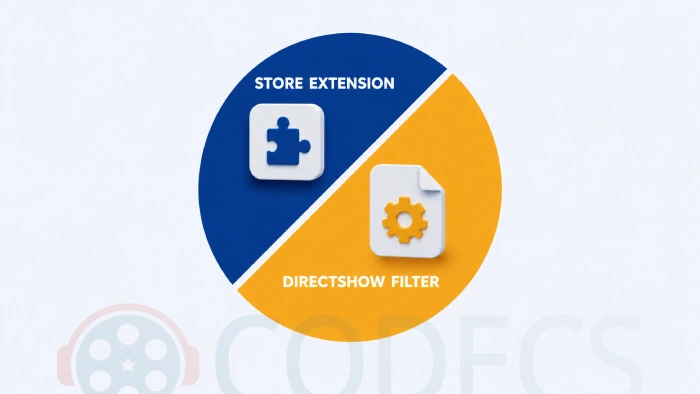
Which kind is it? If it came from the Microsoft Store or has "Extension" in its name, it is Media Foundation and lives in Installed apps. If it came with a codec pack, a player or a single .ax or .dll file, it is DirectShow and lives in the registry.
Add a codec
There are three ways in, and which one you want depends on which player needs the codec.
- Store extension. The only route that helps the Windows 11 Media Player app, Movies & TV and Photos - the Media Foundation Codecs bundle installs every Microsoft extension at once, HEVC included, for free.
- Codec pack. The route for Windows Media Player Legacy, MPC-HC, PotPlayer and every other DirectShow player - the K-Lite Codec Pack registers LAV Filters for HEVC, AV1, DTS, TrueHD, Xvid and the rest in one install.
- Single filter file. For one specific .ax or .dll decoder, register it with regsvr32 - the steps are in How to install and uninstall DLL and AX codec files.
Whichever route you use, install one codec pack at most. Two packs registering the same formats is the commonest cause of a player that worked yesterday and does not today.
Remove a codec
Removal follows the same split. Store extensions come out through Settings; DirectShow filters come out through the installer that put them in, or through a tool that edits the registrations.
- For a Store extension, open Settings, Apps, Installed apps, open its menu and choose Uninstall - if the button is greyed out, as it is on the HEVC extension from device manufacturers, open Terminal (Admin) and run the command below.
- For a codec pack, uninstall it from Installed apps, restart, then run the Codec Tweak Tool and let its Fixes scan remove any registrations the uninstaller left behind.
- For a single .ax or .dll filter, unregister it with regsvr32 /u followed by the file path, as an administrator, then delete the file.
Get-AppxPackage -AllUsers *HEVCVideoExtension* | Remove-AppxPackage -AllUsers
Do not delete Windows' own codec files. The built-in decoders in System32 are protected system files, and removing them breaks the Media Player app, Photos and Edge at once. If a built-in codec is misbehaving, disable it or repair it rather than deleting it.
Disable instead of remove
Most codec conflicts are not solved by deleting anything. They are solved by stopping one decoder from answering first, and both tools above have a switch for exactly that.
In InstalledCodec, select the codec and use the Disable or Enable command on its menu. In the Codec Tweak Tool, the codec and filter management screen has a checkbox beside every entry, and the DirectShow preferred decoder settings let you choose which filter handles each format without touching any other.
Disabling is reversible in one click, which is why it is the right first move when you are not sure which codec is the problem.
Stopped working rather than missing? Removing and re-adding a codec is usually the long way round. The decoder is normally still on the disk and only needs re-registering - that is covered step by step in How to Reinstall Default Codecs in Windows 11 and 10.
Windows 95, 98 and Me: the original method
This page was first written in 2004 for the Windows 9x family, where codecs and MCI drivers were managed from one Control Panel screen. The steps still work on those systems.
- Open Control Panel, then Multimedia on Windows 95 and 98, or Sounds and Multimedia on Windows Me, and switch to the Devices tab - called Advanced on the original Windows 95.
- Expand Audio Compression Codecs or Video Compression Codecs to see what is installed; Media Control Devices holds the MCI drivers.
- To remove a codec, select it, click Properties and then Remove, and restart.
- To add one back, open Add New Hardware from Control Panel, choose to select the hardware from a list, pick Sound, video and game controllers, choose (Standard system devices) and click Have Disk.
- Browse to the Windows folder on the installation CD, open mmdriver.inf, pick the codec or MCI driver from the list and click Next, then restart.
Codec packs for these systems have not been maintained for many years, so the CD is the only reliable source for the default codecs.
Quick questions
Where are codecs listed in Windows 11?
Store extensions appear in Settings, Apps, Installed apps. The built-in decoders and any DirectShow filters do not appear anywhere in Settings - InstalledCodec or the Codec Tweak Tool lists them.
Why does my codec pack not help the Media Player app?
The Windows 11 Media Player app, Movies & TV and Photos use only Media Foundation decoders and Store extensions. DirectShow codec packs are invisible to them. Install the Store extension for that format instead.
The HEVC extension has no Uninstall button - how do I remove it?
Extensions installed from a device manufacturer package are treated as system components, so Settings hides the button. Run the PowerShell command in the Remove section as an administrator and it comes out cleanly.
Can I remove a codec pack without breaking Windows?
Yes. A codec pack adds DirectShow filters alongside the built-in codecs and never replaces them, so uninstalling it leaves Windows exactly as it was. Run the Codec Tweak Tool afterwards to clear any stale registrations.
Should I delete a codec or just disable it?
Disable first. It takes one click, it is reversible, and it tells you whether that codec was the problem. Only remove it once the file plays correctly with it disabled.
Do these steps work on Windows 10?
Yes. The Settings path is Apps, Apps & features instead of Installed apps, and everything else - the tools, the PowerShell command and regsvr32 - is identical.
Two lists, two tools, and you are in charge of every codec on the PC.
Download the K-Lite Codec Pack to add the missing decoders and get the Codec Tweak Tool in the same install, or tell us which codec you had to hunt down if you have been through this.


![How to Add Multiple ISOs to One USB with YUMI exFAT [2026] - guide thumbnail](/thumb/300x150/0/guides/pictures/multiple-isos-with-yumi-exfat.webp)


EAC3 Audio Not Supported in MX Player? Fix It
4/5EAC3 Audio Not Supported in MX Player? Fix It
Read More →Free Popular IPTV Playlist: Where to Get Fres...
4/5Bonjour je peux avoir le lien M3U. Les codes playlist 2026 des chaînes en français et africainses
Read More →Best Way to Get VidMate APK - Fast, Free, and...
5/5The demand for feature-rich video editing applications continues to grow across the digital content industry. Filmora Mod APK is ...
Read More →