Windows 11 plays most everyday files out of the box - but the moment you hit HEVC, AV1, or a Dolby track, playback fails. Here is the free 5-minute setup that plays anything.
What Windows 11 Already Plays - and What It Doesn't
Windows 11 ships with a built-in media framework that covers the common formats. H.264 video, AAC and MP3 audio, and standard MP4 files all play in Media Player, Movies & TV, and Photos without any extra install.
The gaps appear with newer, more efficient codecs. HEVC (H.265), AV1, certain MKV combinations, and a few audio formats are not all available natively.
When a file uses one of these, Windows reacts in predictable ways. You see a black screen with audio, silent video, an error like "To play this video, you need a new codec", or a prompt sending you to the Microsoft Store.
A file ending in .mp4, .mkv, or .mov tells you the container, not the codec inside it. If you want the full picture of how this works, see our guide on codecs vs. file formats.
An .mp4 can hold H.264, HEVC, AV1, or older formats.
That is why renaming the extension never fixes playback - the decoder is what is missing, not the wrapper.
The Big Three Gaps: HEVC, AV1, and Dolby Audio
Three specific gaps cause the overwhelming majority of "Windows 11 won't play my video" complaints. Knowing which one you have decides the fix.
HEVC (H.265) is the format used by most modern phones, GoPros, and DSLRs for 4K and HDR footage. Windows 11 does not decode it by default because of patent licensing.
AV1 is the royalty-free codec behind a growing share of YouTube, Netflix, and Meta video. Many newer Intel, AMD, and Nvidia GPUs decode it in hardware, but Windows still needs an extension for native app playback - here's how to enable AV1 decoding for smoother playback.
Dolby Digital (AC-3) is the surprise one. Starting with Windows 11 version 24H2, the AC-3 audio codec is no longer included with Windows by default - which is why some MKV and broadcast recordings now play with no sound on a clean install.
Not sure which codec your file uses? Install the free MediaInfo tool, right-click the file, and read the Video and Audio sections. It removes all the guesswork before you install anything.
Do You Even Need a Codec Pack?
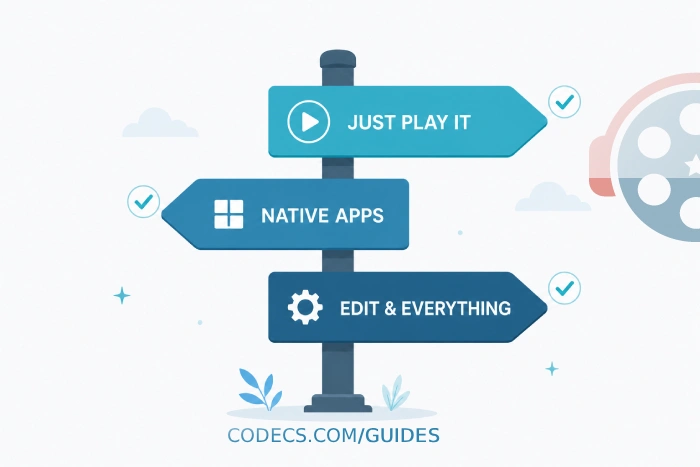
Before installing anything, decide what you actually want Windows 11 to do. The right fix depends on whether you care about native apps or just want files to play.
If you only need video to play and do not care which app opens it, a self-contained player is the cleanest route. VLC Media Player bundles its own decoders for HEVC, AV1, VP9, and over 200 other formats, so it ignores your system codec setup entirely.
If you want HEVC and AV1 working inside the native Photos, Media Player, and Movies & TV apps, you need Microsoft's extensions instead. And if you want every DirectShow app on the system - including editors and older players - to read these formats, a full codec pack is the answer.
Fix It in 5 Minutes: Three Setup Paths
Pick the path that matches how you use media. You do not need all three.
Path 1: The Self-Contained Player (Simplest)
- Download and install VLC Media Player.
- Right-click any problem file and choose Open with > VLC.
- HEVC, AV1, VP9, and FLAC all play immediately, with GPU hardware acceleration where available.
This touches nothing in your Windows codec configuration, which makes it the safest option for most people.
Path 2: Microsoft Store Extensions (Native Apps)
Use this if you want the built-in Windows apps and File Explorer thumbnails to handle modern formats.
- For H.265 footage, install the HEVC Video Extensions from Device Manufacturer - the free equivalent of the paid Store listing.
- For modern web and streaming downloads, add the AV1 Video Extension, which is free and supports hardware-accelerated 4K decoding.
- If you save older YouTube or WebM clips, add the free VP9 Video Extension so the native apps decode VP9 too.
- Restart the Photos or Media Player app and reopen your file.
Path 3: System-Wide Codec Pack (Everything, Everywhere)
This is the route if editing apps, older Windows Media Player builds, and any DirectShow program need to read these formats too.
- Uninstall any existing codec packs first - running two at once causes DirectShow conflicts.
- Install the K-Lite Codec Pack. It bundles LAV Filters, which decode H.264, HEVC, AV1, VP9, and legacy formats system-wide.
- Default settings work for most users, and it includes the lightweight MPC-HC player.
Power users who only want the decoder layer without the full bundle can install LAV Filters on their own. It is the same engine K-Lite is built around.
Fixing the Dolby (AC-3) No-Sound Problem
If video plays but there is no audio - especially on MKV files or recorded TV - you are likely hitting the AC-3 change in Windows 11 24H2.
The simplest fix is to play the file in VLC, which decodes AC-3 on its own. For system-wide audio support across all apps, the K-Lite Codec Pack restores AC-3, DTS, and other surround formats through its LAV Audio component.
If you want a single lightweight decoder rather than a full pack, the free AC3 Filter adds AC-3 and DTS decoding to any DirectShow player, with surround downmixing and SPDIF passthrough.
If you upgraded to 24H2 from an earlier Windows version, the AC-3 codec is usually retained, so you may not see this issue at all.
Which Path Should You Pick?
For most people, the answer is a single install. Choose based on your real habit, not on doing the maximum.
- You just want files to play: install VLC and stop there.
- You live in the native Windows apps and want thumbnails: add the HEVC and AV1 extensions.
- You edit video or use many different players: install the K-Lite Codec Pack once and forget about it.
Mixing all three rarely helps and can introduce conflicts. Pick the one that matches how you watch.
Windows 11 is not broken - it simply ships without a handful of licensed and newer decoders. Five minutes and one free install closes the gap for good.
Frequently Asked Questions
Does Windows 11 play HEVC by default?
No. HEVC is excluded by default because of patent licensing. You need the free HEVC Video Extensions from Device Manufacturer, a player like VLC, or a codec pack.
Is the AV1 extension free?
Yes. The AV1 Video Extension is free, and many recent GPUs decode AV1 in hardware for smooth 4K playback.
Why does my video play but with no sound?
On Windows 11 24H2 the AC-3 (Dolby Digital) codec is no longer included by default. VLC or the K-Lite Codec Pack restores it.
Do I need a codec pack at all?
Not always. If VLC plays everything you need, you can skip system codecs entirely. Packs matter when you want native apps or editing software to read modern formats.


Latest comments
AllInteresting development with the Fire TV Stick 4K — losing Kodi sideloading is a big deal for a lot of users. For those ...
News: The New Fire TV Stick 4K Can't Run Kodi - Here's Which Fire Stick Still Can 3 commentsThanks genius, it worked for me. v2.4.149.0 on windows 10
Guide: How to Download HEVC Video Extension for Free 181 commentsXMediaRecode gives only the option to Copy (No convert) in Audio Mode drop down. I am trying to convert/recode the EAc3 ...
Team replied Guide: How to Convert EAC3 Audio to AC3 or AAC With XMedia Recode 1 comment