Every few seconds someone searches for a DirectX 12 offline installer, and every one of them is looking for a file that does not exist. Here is why, and what to do instead.
The short answer.
DirectX 11.3 and DirectX 12 are already part of Windows 10 and Windows 11. There is nothing to download and nothing to install.
The only DirectX file Microsoft still publishes is the June 2010 End-User Runtime, and it is for old games missing a DLL, not for getting a newer DirectX.
If a game or an app told you to update DirectX, the fix is almost never DirectX itself.
It is Windows Update, or your graphics driver, and this guide covers both.
Why There Is No DirectX 12 Offline Installer
DirectX stopped being a separate product a long time ago. Since Windows 10 it has been a component of the operating system, updated the same way the rest of Windows is.
Microsoft has never shipped a standalone installer for DirectX 11.3 or DirectX 12, and there is no offline package, no ZIP and no 64-bit setup file waiting somewhere official.
Anything advertising one is offering you something else under a familiar name.
What those download sites actually hand you.
In the best case it is the June 2010 runtime renamed, which is a genuine Microsoft file doing a job you probably did not need. In the worst case it is a bundled installer, adware, or something a good antivirus will quarantine on sight.
A DirectX 12 torrent or ZIP is never a real Microsoft package, because Microsoft has never produced one to copy.
How Windows Actually Gets You the Latest DirectX
Running Windows Update is the entire process. There is no second step.
- Open Settings, then Windows Update.
- Click Check for updates and install whatever it offers, including optional driver updates.
- Restart when prompted. DirectX components arrive as part of the cumulative update.
- Update your graphics driver separately, through NVIDIA App, AMD Adrenalin or Intel Arc Control.
That last step matters more than the first. Most errors that name DirectX are graphics driver problems wearing a DirectX label.
The Part That Changed - The Agility SDK
Here is the piece most guides have not caught up with, and it explains the whole offline installer question.
New DirectX 12 features no longer wait for a Windows release. Developers ship them inside the game itself, through something called the DirectX 12 Agility SDK.
The current release is Agility SDK 1.619, dated July 2026, which brought Shader Model 6.9 and DirectX Raytracing 1.2 to retail games.
What this means for you.
A game can use the newest DirectX 12 features on a Windows install that has not changed in months, because the game carries them. There is nothing for you to download, and no version of Windows to chase.
Check Which Version You Have
Windows has told you this since the Windows 98 days, through a tool called dxdiag.
- Press Windows + R, type
dxdiagand press Enter. - On the System tab, read the DirectX Version line.
- Switch to the Display tab to see your graphics card, its driver version and its driver date.
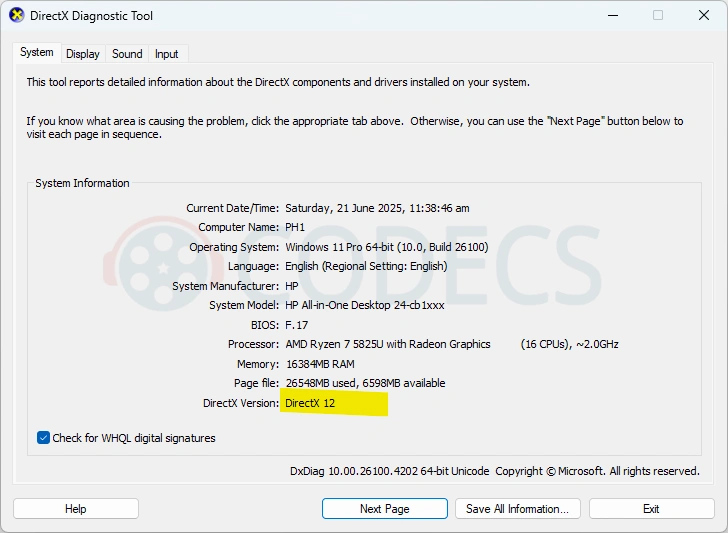
A driver date more than a year old is the most useful thing on that screen. It is the usual cause of a game refusing to start.
What Is the Latest DirectX Version in 2026?
DirectX 12 is current, and DirectX 12 Ultimate is its top feature tier. There is no DirectX 13, and none has been announced.
DirectX 12 Ultimate is not a separate download either. It is a label for a set of capabilities - hardware ray tracing, mesh shaders, variable rate shading and sampler feedback - that your graphics card either has or does not.
Broadly, NVIDIA RTX 20-series and newer, AMD Radeon RX 6000-series and newer, and every Intel Arc card qualify. Our DirectX 12 product page goes into the tiers in more detail.
If your graphics card supports it and Windows is current, games detect it on their own. There is no switch to flip.
Why dxdiag Can Mislead You - Feature Levels
This trips up a lot of people. dxdiag reports the DirectX runtime your copy of Windows has, not what your graphics card can actually do with it.
An older laptop with Intel HD graphics can show DirectX 12 in dxdiag while only supporting feature level 11_0 in hardware. Games see the feature level, not the runtime.
That is why a PC can pass a DirectX 12 check and still be told it cannot run a DirectX 12 game.
GPU-Z reports the real supported feature level on its main tab, which settles the question in about ten seconds.
Where DirectX 11.3 Fits In
DirectX 11.3 arrived with Windows 10 in July 2015, at the same time as Direct3D 12, and it has never had an installer of its own.
It exists because not every application wanted to move to the very different Direct3D 12 model, so Microsoft added the newer rendering features to Direct3D 11 as well.
If you are on Windows 10 or Windows 11, you already have it. If dxdiag says DirectX 12, then 11.3 is present too.
The One DirectX File You Can Actually Download
Games built roughly between 2002 and 2014 often need helper libraries that modern Windows leaves out, such as d3dx9_43.dll, xinput1_3.dll or xaudio2_7.dll.
The fix is the DirectX End-User Runtime June 2010, the official Microsoft package that adds those older files.
It will not upgrade your DirectX.
The June 2010 runtime adds legacy libraries alongside what you have. It does not replace, downgrade or modify Direct3D 11 or 12, so it is safe to run on Windows 11 and it will not change what dxdiag reports.
If It Is a Video Problem, Not a Game Problem
Plenty of people arrive here because a video file will not play, not because a game will not start. DirectX is rarely the answer to that.
A file that stutters or shows no picture usually needs a decoder or a different player, so the K-Lite Codec Pack or LAV Filters is the better download.
Missing format support is a separate matter again, usually solved by the HEVC Video Extensions or the AV1 Video Extension.
Not sure which one you need? Run Codec Finder on the file and it will name the codec and point you at the right decoder.
For the settings side of hardware playback, our guide on how DirectX and D3D11 handle video decoding covers which decoder to pick in VLC.
In MPC-HC that setting lives inside LAV Filters, and our walkthrough on enabling hardware acceleration in MPC-HC covers it click by click.
To see exactly which decoders your card exposes, DXVA Checker lists every supported profile, or our GPU and codec checker answers it in the browser with nothing to install.
Quick questions
Can I download DirectX 12 as an offline installer?
No. Microsoft has never released one, because DirectX 12 is part of Windows 10 and Windows 11 rather than a separate product. Any site offering a DirectX 12 offline setup, ZIP or torrent is giving you something else under that name.
Is DirectX 12 still the latest version in 2026?
Yes. DirectX 12 is current and DirectX 12 Ultimate is its top feature tier, with no DirectX 13 announced. New features now reach games through the Agility SDK that developers bundle with the game itself.
How do I update DirectX on Windows 11?
Run Windows Update and install everything it offers, then update your graphics driver through NVIDIA App, AMD Adrenalin or Intel Arc Control. There is no separate DirectX updater.
Can I reinstall DirectX if something is broken?
Not in the usual sense, since it is a Windows component. If you suspect damaged files, run sfc /scannow from an elevated Command Prompt, and update your graphics driver, which resolves the large majority of errors that mention DirectX.
Why does dxdiag say DirectX 12 when my game says it is not supported?
dxdiag reports the runtime Windows has, while games check what your graphics card supports, called the feature level. An older card can show DirectX 12 in dxdiag yet only offer feature level 11_0 in hardware. GPU-Z shows the real figure.
Do I need the June 2010 runtime on Windows 11?
Only if an older game asks for a missing file such as d3dx9_43.dll or xinput1_3.dll. It adds legacy libraries alongside your current DirectX and changes nothing else, so there is no harm in installing it, and no benefit if nothing is asking for it.


Latest comments
AllInteresting development with the Fire TV Stick 4K — losing Kodi sideloading is a big deal for a lot of users. For those ...
News: The New Fire TV Stick 4K Can't Run Kodi - Here's Which Fire Stick Still Can 3 commentsThanks genius, it worked for me. v2.4.149.0 on windows 10
Guide: How to Download HEVC Video Extension for Free 181 commentsXMediaRecode gives only the option to Copy (No convert) in Audio Mode drop down. I am trying to convert/recode the EAc3 ...
Team replied Guide: How to Convert EAC3 Audio to AC3 or AAC With XMedia Recode 1 comment