A codec is the language a file is written in. A container is the box it arrives in. Almost every "unsupported format" message is one of those two, and telling them apart takes about a minute.
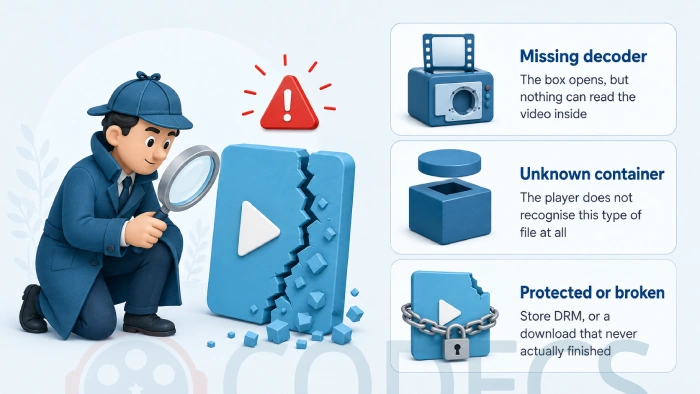
Windows says the format is not supported, or the video plays with sound but no picture, or nothing happens at all.
All three point at the same small misunderstanding.
Once you know which half of the file is the problem, the fix is usually one free download away.
The Difference, in One Table
This is the whole idea. Everything below is detail.
| Codec | Container | |
|---|---|---|
| What it is | The method used to squeeze the video or audio down | The wrapper that holds those squeezed streams together |
| Names you will see | H.264, HEVC, AV1, VP9, MP3, AAC, FLAC | MP4, MKV, AVI, WebM, MOV, WAV |
| Where you see it | Hidden inside the file | The file extension, such as .mp4 |
| Typical symptom | File opens, but there is no picture or no sound | Player refuses to open the file at all |
| Typical fix | Install the missing decoder | Use a player that knows the format, or repackage the file |
The short version. Container is the box, codec is the language. A box you can open can still be full of something you cannot read.
Same Extension, Very Different Contents
Here is the part that trips everyone up. An .mp4 file might hold H.264 video, or it might hold HEVC, or AV1.
Same extension, same icon, completely different requirements. That is why one MP4 plays instantly and the next one from the same folder does not.
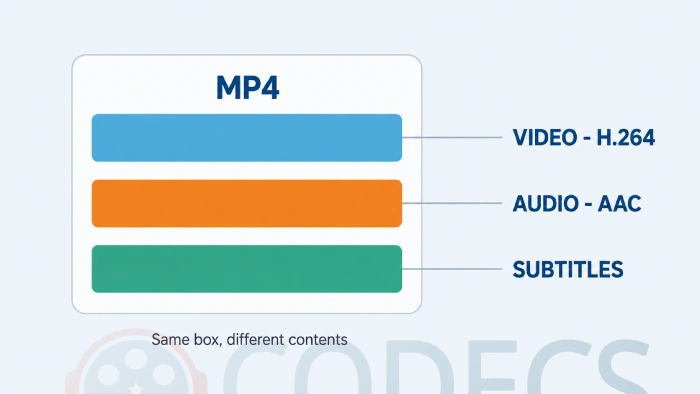
A single container usually holds several streams at once: one video track, one or more audio tracks, and often subtitles. Each of those is compressed with its own codec, which is why a film can play perfectly in English and stay silent on the French track.
The Video Codecs You Will Actually Meet
There are hundreds. In practice, four cover almost everything you will ever open.
- H.264 (AVC) - the default for well over a decade, and the safest thing to hand someone else. Every phone, TV and browser decodes it.
- H.265 (HEVC) - roughly the same picture quality in a much smaller file, which is why phones and 4K cameras use it. Windows needs the HEVC Video Extension before Photos or Media Player will touch it.
- AV1 - royalty-free, very efficient, increasingly common on YouTube and Netflix. Windows handles it once the AV1 Codec is installed.
- VP9 - Google's codec, still doing a lot of quiet work behind YouTube playback in browsers.
Anything older than that - DivX, Xvid, MPEG-2 from a DVD rip - is covered by the MPEG family explained, and by the broader video codecs category if you need a specific decoder.
Not sure which one you need. The free Codec Finder runs in your browser and points you at the right download without installing anything first.
The Audio Codecs You Will Actually Meet
Audio is simpler, and the split is mostly about whether quality was thrown away to save space.
- MP3 - old, lossy, and understood by literally everything. Still the right answer when compatibility matters more than fidelity.
- AAC - the modern replacement, better sound at the same file size, and the default inside most MP4 files.
- FLAC - compressed but lossless, so nothing is discarded. Worth reading FLAC explained before you rip a CD collection.
- AC3 and DTS - surround sound from DVDs and Blu-rays, and the usual reason a film plays fine but has no audio on a basic player.
If you just need to turn one into another, the online audio converter handles the common cases in the browser.
The Four Containers Worth Knowing
Containers differ less than people assume. What separates them is how much they can carry and how widely they are supported.
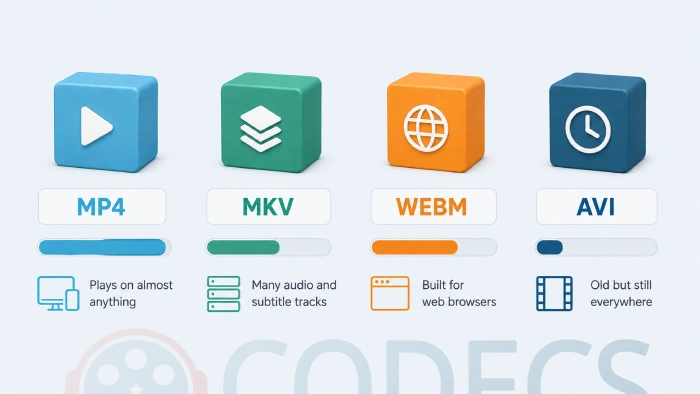
- MP4 - the universal choice. If you are sending a file to someone whose setup you do not know, send this.
- MKV - holds as many audio tracks and subtitle tracks as you like, which is why film collections live in it.
- WebM - built for browsers, usually carrying VP9 or AV1 video.
- AVI - ancient, limited, and still turning up on old drives and camcorders.
WAV and MOV are worth a mention too. WAV holds uncompressed audio at full quality and enormous size, and MOV is Apple's container, close enough to MP4 that most players treat them alike.
Why a File Refuses to Play
When a player gives up, it is nearly always one of three things.
- The decoder is missing. Your system recognises the container but cannot read what is inside, which is the classic HEVC-in-an-MP4 situation - see set your HEVC file associations.
- The player does not know the container. Windows Media Player and MKV files have never been close friends.
- The file is protected or damaged. Purchased films carry DRM that no third-party player or converter will open, and a partial download is simply incomplete.
There is a fourth possibility that looks like a codec fault and is not: the decoding worked, but the picture never reached your screen. What decoders and renderers actually do covers that, and how codecs work behind the scenes walks the whole chain.
One honest limit. No codec pack, player or converter opens DRM-protected media from a store or a streaming service, and anything promising otherwise is not worth the download.
Find Out What Is Actually Inside Your File
Guessing is slow. Reading the file takes seconds.
- Right-click the file, choose Properties, then the Details tab. Windows will often name the video and audio codecs on its own.
- For anything Windows will not read, install MediaInfo. It lists every stream, its codec, bitrate and language.
- Take that codec name to the Codec Finder, or browse the codec identifiers if you would rather have a desktop tool.
Once you know the codec, the fix stops being guesswork. Installing one decoder is always better than installing five in the hope that one of them helps.
Picking the Right Combination
If you are exporting, converting or archiving, the pairing matters more than either half on its own.
| What you want | Container and codec | Use this when |
|---|---|---|
| Maximum compatibility | MP4 with H.264 video and AAC audio | You are sending it to someone else, or playing it on a TV or an old laptop |
| Smaller files, same quality | MP4 or MKV with HEVC | Your device decodes HEVC in hardware, so playback stays smooth |
| Free and royalty-free | MP4 or WebM with AV1 | Recent PC, recent browser, and storage you would like back |
| Several languages and subtitles | MKV | Films with multiple audio tracks, or subtitles you want to keep separate |
| Video on your own web page | WebM with VP9, plus an MP4 fallback | You publish the video yourself and want it to load fast |
Changing the container does not have to mean re-encoding. Video Container Changer repackages the same streams into a different wrapper, so nothing is re-compressed and no quality is lost.
For the wider picture on what to encode with today, best modern codecs in 2026 and the three codecs that carry most of the world's video are the two to read next.
When It Is Easier to Change Player
Sometimes the quickest fix is not a codec at all. VLC ships with its own decoders and opens most things without help, though it will not defeat DRM or repair a broken download.
If you would rather not install anything, the web player and the online HEVC player both run in the browser.
For a permanent setup, MPC-BE and MPC-HC compared is the honest starting point.
Subtitle trouble is its own category, and worth separating from codec trouble. See the best players for subtitles and fix out-of-sync subtitles.
Quick questions
What is the difference between a codec and a container?
A codec is the compression method used on the video or audio itself. A container is the file wrapper that holds those streams together, along with subtitles and chapter information, and it is what the file extension tells you.
Why do some MP4 files play and others do not?
Because MP4 is only the box. One MP4 might contain H.264, which everything decodes, and the next might contain HEVC or AV1, which needs a decoder your system may not have yet.
Do I need a codec pack?
Usually not. Installing one specific decoder is cleaner and safer, but if you deal with a lot of old and unusual files, the K-Lite Codec Pack is the established option.
How do I find out which codec a file uses?
Right-click the file, open Properties and check the Details tab, or install MediaInfo for a full breakdown of every stream in the file.
Is MKV better than MP4?
Neither is better, they are built for different jobs. MKV carries more audio and subtitle tracks, MP4 plays on more devices, and if you are sharing the file with someone else MP4 is the safer choice.
Why does my video play with no sound?
The video codec is supported and the audio codec is not, which most often means an AC3 or DTS surround track on a player that cannot decode it. A player with its own audio decoders, or the matching codec from the site, fixes it.


