Your phone already knows which Bluetooth codecs it can use - the list is just behind a switch that nobody tells you to turn on.
On Android it takes about a minute, and the same screen tells you what your headphones can do as well.
On an iPhone there is nothing to check, and this guide will explain why in one line rather than sending you looking.
Once you know what is on the list, the companion question is which codec is worth having in the first place.
Turn On Developer Options
The codec list lives in Developer Options, which every Android phone ships with hidden. Unlocking it does not change anything on its own and it can be switched back off afterwards.
- Open Settings, then About phone.
- On a Samsung, tap Software information first - Build number is one level deeper there than on other phones.
- Tap Build number seven times, entering your PIN or pattern if you are asked for it.
- You will see a short confirmation that developer mode is on.
Developer options then appears under Settings, System on most phones, and at the bottom of the main Settings list on Samsung. Older Android versions tuck it under System, Advanced.
Open the Bluetooth Audio Codec List
Connect your headphones or speaker first. This matters more than it sounds: the list is only meaningful while something is actually connected, because half of what it shows you is about the other device.
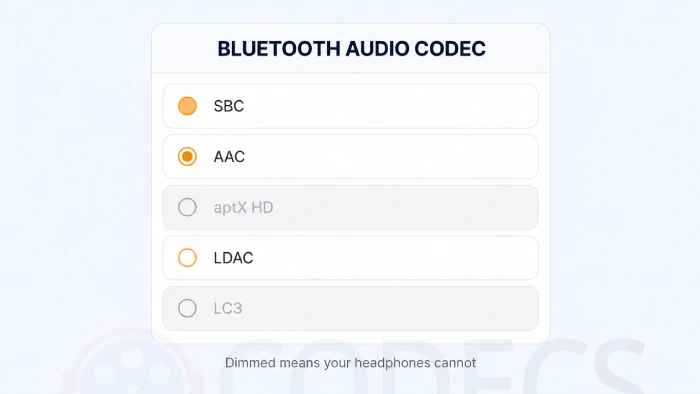
Scroll down inside Developer options to the Bluetooth audio section and open Bluetooth Audio Codec. You will get a list along the lines of SBC, AAC, aptX, aptX HD, aptX Adaptive, LDAC and, on newer hardware, LC3.
The bit the screen does not explain. Some entries will be dimmed and untappable. A dimmed codec is not a fault - it means the headphones you have connected right now cannot do it, so there is nothing for your phone to negotiate.
Reading What You See
The selectable entries are the codecs both devices support, which is the only list that matters. The one already marked is what you are listening to at this moment.
If LDAC is selectable, you have the highest-bitrate option Android offers, and there is a separate guide on turning LDAC on in Windows 11 if you want it on a PC too. If only SBC and AAC are there, that is your ceiling and no app can raise it.
On a Galaxy phone paired with Galaxy Buds you may see SSC instead, which is Samsung Seamless Codec. It only works between Samsung devices, which is roughly what Samsung said when Samsung introduced them.
An aptX entry means Qualcomm silicon at both ends, which became rather more common after Qualcomm opened aptX and aptX HD up to Android builders. An LC3 entry means both devices do Bluetooth LE Audio, and its hi-res sibling LC3plus is a separate option again.
Why Your Choice Keeps Reverting
This is the part most guides leave out, and it is the reason people think they did the procedure wrong. On most Android builds the codec is renegotiated every time the headphones reconnect, so a setting you picked this morning can be back on AAC by lunchtime.
Three things commonly cause it. The connection was too congested to hold the higher bitrate, the headphones' own companion app has a stability or connection-priority mode overriding the phone, or the codec was never really supported and the phone fell back.
The fix for the second one is in the headphone app rather than in Android: look for a sound quality versus stable connection choice and put it on sound quality. For the first, move closer to the phone and take it out of your back pocket.
The easier route. Bluetooth Codec Changer puts the same switch behind an ordinary app, so you are not digging through Developer options every time it drops back. It sits with the rest of the Android section here.
Checking Without Developer Options
If you would rather not unlock developer mode at all, the headphones' own app usually reports the active codec somewhere in its settings. Sony, Samsung, Bose and Sennheiser all surface it, though every one of them calls it something slightly different.
The other route is the box or the product page for the headphones, which lists what they support. That tells you half the answer, and your phone's spec sheet tells you the other half.
On an iPhone, an iPad or a Windows PC
Apple does not expose a codec list because there is nothing to choose from. iOS and iPadOS use AAC, falling back to SBC, and no app, adapter or setting adds LDAC or aptX to them.
If you want the AAC story on the desktop side rather than over Bluetooth, the site hosts the AAC encoder itself.
On Windows 11 you get SBC and AAC as standard, LDAC on supporting hardware, and an audio quality choice on the device's own page in Settings once you are on 24H2 or later with factory-fitted Bluetooth LE. There is usually more to gain on a PC from spatial sound than from codec hunting.
Before You Go Shopping On The Strength Of This
A codec list is a ceiling, not a promise. Feeding a 990 kbps codec a low-bitrate stream gains you nothing, so it is worth settling FLAC against MP3 for your own library first.
Past that, the headphones themselves change what you hear far more than the codec badge does. It is also worth reading up on whether hi-res audio is worth the money before rebuying an album to suit a setting.
Cheapest real upgrade. Give the codec something worth carrying: rip your own CDs to a lossless format, or use the free online audio converter for one-off files.
Quick questions
Is turning on Developer Options safe?
Yes. It only reveals a settings menu, changes nothing on its own, and can be switched back off with the toggle at the top of that screen.
Why are some codecs greyed out?
Because the headphones connected at that moment do not support them. Connect a different pair and the dimmed entries will change.
Why does my phone keep going back to SBC or AAC?
The codec is renegotiated on every reconnect, and a congested connection or the headphones' own stability setting will pull it back down. Set the headphone app to prioritise sound quality and stay closer to the phone.
How do I check the codec on an iPhone?
You cannot, and you do not need to. Apple devices use AAC and fall back to SBC, with no menu and no way to add another codec.
Does the list show what my headphones support?
Effectively, yes. While they are connected, the selectable entries are the ones both devices have in common, so anything dimmed is missing from one side or the other.
Can an app add a codec my phone does not have?
No. A codec changer selects from what is already supported in the phone's Bluetooth stack, it does not install anything new.
The codec list is a one-minute check that answers two questions at once - what your phone can do, and what the headphones on your head are actually capable of.
Grab Bluetooth Codec Changer for Android if you would rather not visit Developer options every time it reverts, or tell us what your phone offered you if you have just been through it.
Nearby: Windows Sonic, Dolby Atmos and DTS compared, and tuning your output with Equalizer APO.
The full audio codec downloads section covers the desktop side of all of this.


Latest reviews
AllHow to Stream With VLC: Open a Stream URL or Send Your Own
5/5This is amazing! I could no longer afford cable so I cut the cord and started watching Hulu, Youtube, ...
Don't Open a .xmpeg File Before Reading This
3/5It's never a good sign when the potential malware you downloaded has the EXACT same filename as the example. ...
Free Popular IPTV Playlist: Where to Get Fresh, Legal M3U Li...
3/5How can you create a DSTV channels on IPTV?