foobar2000 is a free music player that also happens to be one of the best audio converters on Windows - and there are two ways to use it, one of which takes three clicks.
Converting audio does not have to be complicated.
Whether you want FLAC to MP3 for your phone, WAV to AAC to save space, or a whole album folder done in one pass, foobar2000 handles it without a second program.
One thing to get out of the way first, though, because it is where most people come unstuck.
Install the Encoder Pack First
foobar2000 ships without the encoder that makes MP3 files. Converting to MP3, AAC or Opus therefore does nothing until you add them, and the formats simply will not appear in the output list.
The Free Encoder Pack is the fix, and it is a 5 MB download that takes about a minute to install. Inside it:
- LAME MP3 Encoder and qaac for AAC - the two you are most likely here for.
- Opus and Ogg Vorbis for smaller files at the same quality.
- FLAC and WavPack for lossless archiving, plus Apple Lossless and Musepack.
The pack is Windows only. There is no macOS build, so Mac users need a different tool - the standalone converters at the foot of this guide are the honest answer there.
You also need foobar2000 v1.1.14 or newer and its Converter component, which is part of every standard installation. If you have never removed anything, you have it.
Download the Free Encoder Pack and run it. The installer finds your foobar2000 folder by itself, lets you tick only the encoders you want, and needs no restart - the new formats show up in the Converter straight away.
Do not have the player yet? Download foobar2000 first, then come back to the pack.
Two Routes, and Which One You Want
This is the part most guides blur together. foobar2000 offers a fast route and a full route, and picking the wrong one is why conversion feels more complicated than it is.
| Route | What you get | Use this when |
|---|---|---|
| Quick Convert | Pick a format, hit go, files land next to the originals | A one-off, or you do not care where the output goes |
| Converter | Full control of format, destination, folder structure and tags | A whole library, or you want the folders kept tidy |
Route 1 - Quick Convert
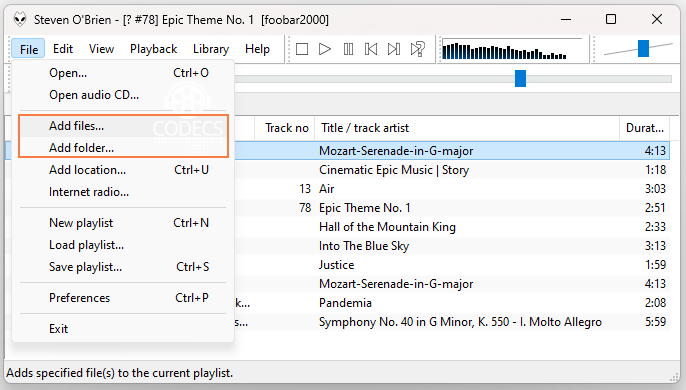
Three clicks and you are done. Add your files to foobar2000 first, either by dragging them onto the window or through File, then Add Files or Add Folder.
Select the tracks you want in the playlist. Hold Ctrl to pick several, or drag across a group.
- Right-click the selection and hover Convert.
- Click Quick Convert.
- Pick your output format from the list and click OK.
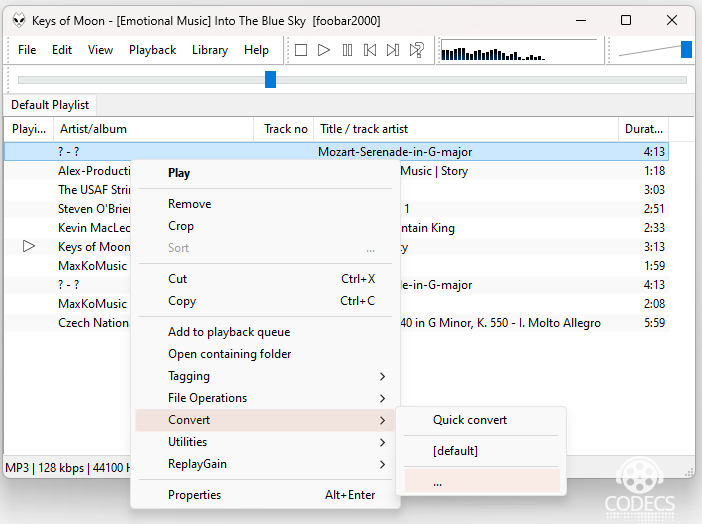
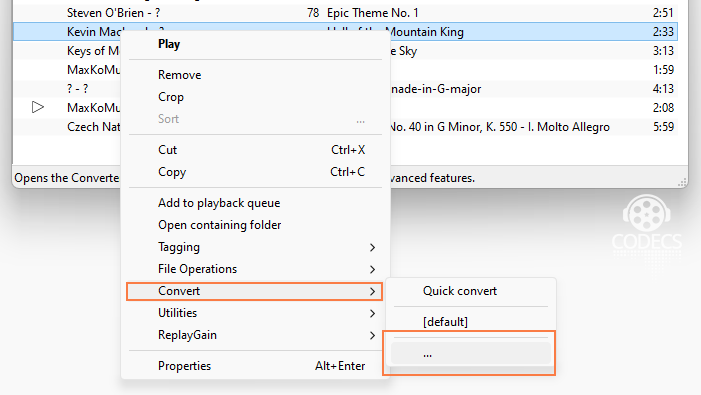
Quick Convert sits at the top of that Convert submenu, above the full Converter entry.
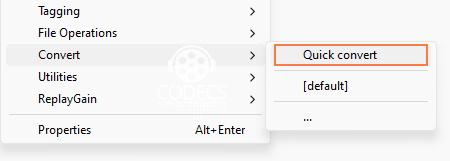
The format list is where the encoder pack pays off. Without it you get a short list of lossless options; with it, MP3, AAC, Opus and Vorbis are all there with sensible quality presets.
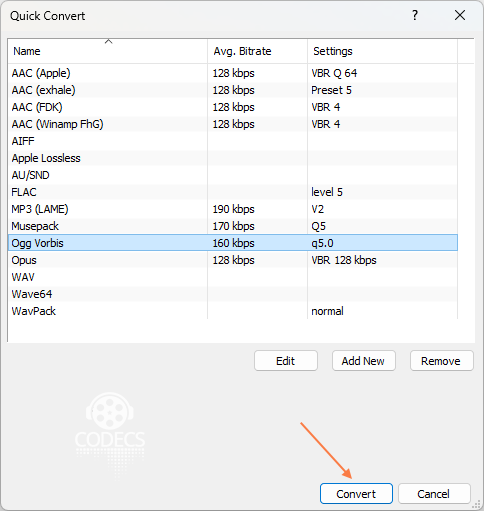
Converted files land in the same folder as the originals. That is the trade for the speed, and it is fine for a handful of tracks.
Route 2 - The Full Converter
Use this when you are converting a library rather than a few songs, because it is the only route that lets you choose where everything goes and keep your album folders intact.
Select your files, right-click, hover Convert, and this time click the entry with the three dots rather than Quick Convert.
The Converter Setup window opens with four rows: Output format, Destination, Processing and Other. Each is a link that opens its own panel.
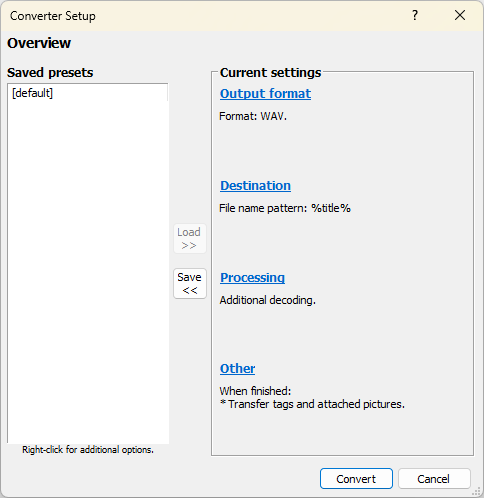
- Click Output format and choose your codec and quality. This is where MP3 appears once the encoder pack is installed.
- Click Destination and pick the output folder. The same panel holds the file name pattern, which is what preserves your artist and album folder structure.
- Leave Processing alone unless you want ReplayGain or resampling applied on the way through.
- Click Convert and choose where to save.
Worth saving your setup as a preset if you will do this again. The Converter Setup window has a Save button for exactly that, and it turns a five-minute job into a two-click one next time.
Watch It Run
A progress window shows how many files are done and roughly how long is left. Large libraries run happily in the background while you get on with something else.
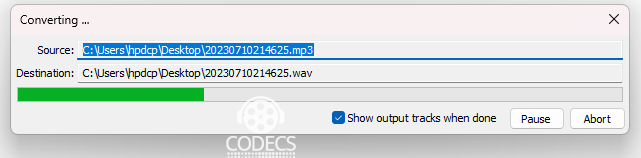
When it finishes, open the destination folder you picked and your converted files are waiting. Nothing is done to the originals, so a bad conversion costs you nothing but the time.
Picking a Format and a Quality Setting
The format decides compatibility; the quality setting decides how good it sounds and how big it gets. These are the pairings worth knowing.
| Going to | Good setting | Best for |
|---|---|---|
| MP3 | LAME, VBR quality 2 | Anything that has to play everywhere |
| AAC | qaac, TVBR around 91 | Apple devices and modern phones |
| Opus | Around 128 kbps | Podcasts, voice, smallest files at quality |
| FLAC | Compression level 5 | Archiving, where nothing may be lost |
Our best LAME settings guide goes through the MP3 presets properly if you want to understand what VBR 2 is actually doing.
Custom and Command-Line Encoders
The Converter also accepts any command-line encoder you point it at, which is how you get output foobar2000 does not ship a preset for.
- exhale produces xHE-AAC, the format behind low-bandwidth streaming, which nothing else here will make for you.
- FDK-AAC is the open alternative to qaac when you would rather not depend on Apple's encoder.
- FFmpeg covers anything else at all, at the cost of writing the command line yourself.
Adding one means pointing the Converter at the encoder's .exe and supplying its parameters. Our guide to installing foobar2000 components covers the same territory for plugins generally.
When It Does Not Work
- MP3 is missing from the format list. The encoder pack is not installed, or it installed to a different foobar2000 folder than the one you are running - portable installs are the usual culprit.
- The pack installer seems to do nothing. It asks for admin rights then exits silently on some systems - install foobar2000 to its default location and retry, or put the encoder .exe files into your foobar2000 folder by hand and point the Converter at them.
- No output files appear. Check the Destination panel rather than the folder you expected - Quick Convert and the full Converter default to different places.
- Artist and album details are lost. Turn on Transfer tags in the Converter's Other panel, and fix anything still wrong afterwards with Mp3tag.
- You are on a Mac. The encoder pack is Windows only, so use a standalone converter instead - the options below all work.
If foobar2000 Is Not the Right Tool
It is superb once configured and genuinely fiddly before that. For a one-off conversion the setup is not worth it.
- The site's online audio converter does single files in your browser with nothing to install.
- LameXP is a dedicated drag-and-drop converter that carries its own encoders, so there is no pack to install.
- Helium Audio Converter is the gentler desktop option if you want a wizard rather than panels.
And if the source is video rather than audio, VLC does video as well as audio and is probably already installed.
Ripping CDs into this workflow instead? Exact Audio Copy reads the disc accurately, then foobar2000 encodes whatever comes out of it.
Every encoder mentioned on this page, and a good many that are not, sits in the Audio Codecs section if you would rather browse than be told.
Quick questions
Why is MP3 missing from my output format list?
foobar2000 does not include the LAME encoder. Install the Free Encoder Pack and MP3 appears immediately, with no restart needed.
What is the difference between Quick Convert and Convert?
Quick Convert asks only for a format and writes the output alongside the originals. The full Converter lets you set the destination, the folder structure and the tag handling.
Does converting damage my original files?
No. foobar2000 writes new files and leaves the sources untouched, so a conversion you dislike costs you nothing but time.
Can I convert a whole music library at once?
Yes, that is what the full Converter is for. Add the top folder, select everything, and set a file name pattern in the Destination panel so your album folders are recreated rather than flattened.
Does this work on a Mac?
The player does, but the Free Encoder Pack is Windows only, so MP3 and AAC output is not available that way. Use a standalone converter on macOS instead.
Will I lose my artist and album details?
Only if Transfer tags is switched off in the Converter's Other panel. Leave it on and the metadata comes across with the audio.


Latest comments
AllTo view major football league live
Guide: Free Popular IPTV Playlist: Where to Get Fresh, Legal M3U Links in 2026 20 commentsThe link isn't working. [link]
Guide: Free M3U Playlist for TiviMate: Legal Lists That Load Cleanly 1 commentThe Vega OS shift is the biggest Firestick story of 2026. Anyone buying now needs to know: 4K Max = sideloading works, plain 4K = ...
News: The New Fire TV Stick 4K Can't Run Kodi - Here's Which Fire Stick Still Can 3 comments