You already have a free video converter installed - it is hidden in VLC's Media menu, and most people never find it.
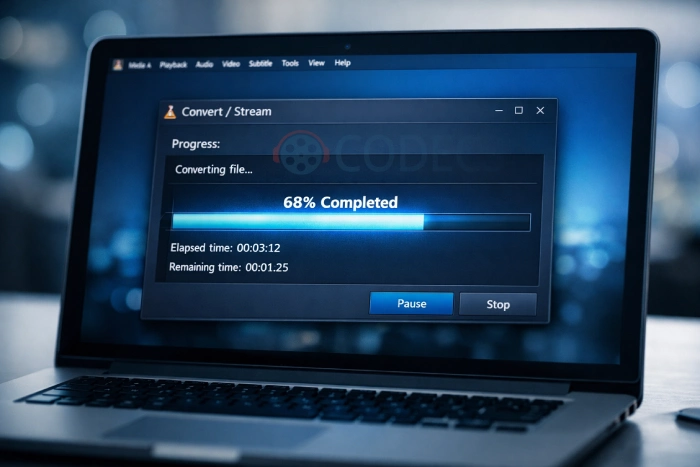
No subscription, no watermark, no trial that expires halfway through.
It converts between the common formats and pulls audio out of video, which is what most people want anyway.
Here is the whole process, the three things that go wrong, and the point where you should use something else.
Step 1: Open the Converter
If you do not have it yet, VLC Media Player is free and open source, and there is a VLC for Mac build too.
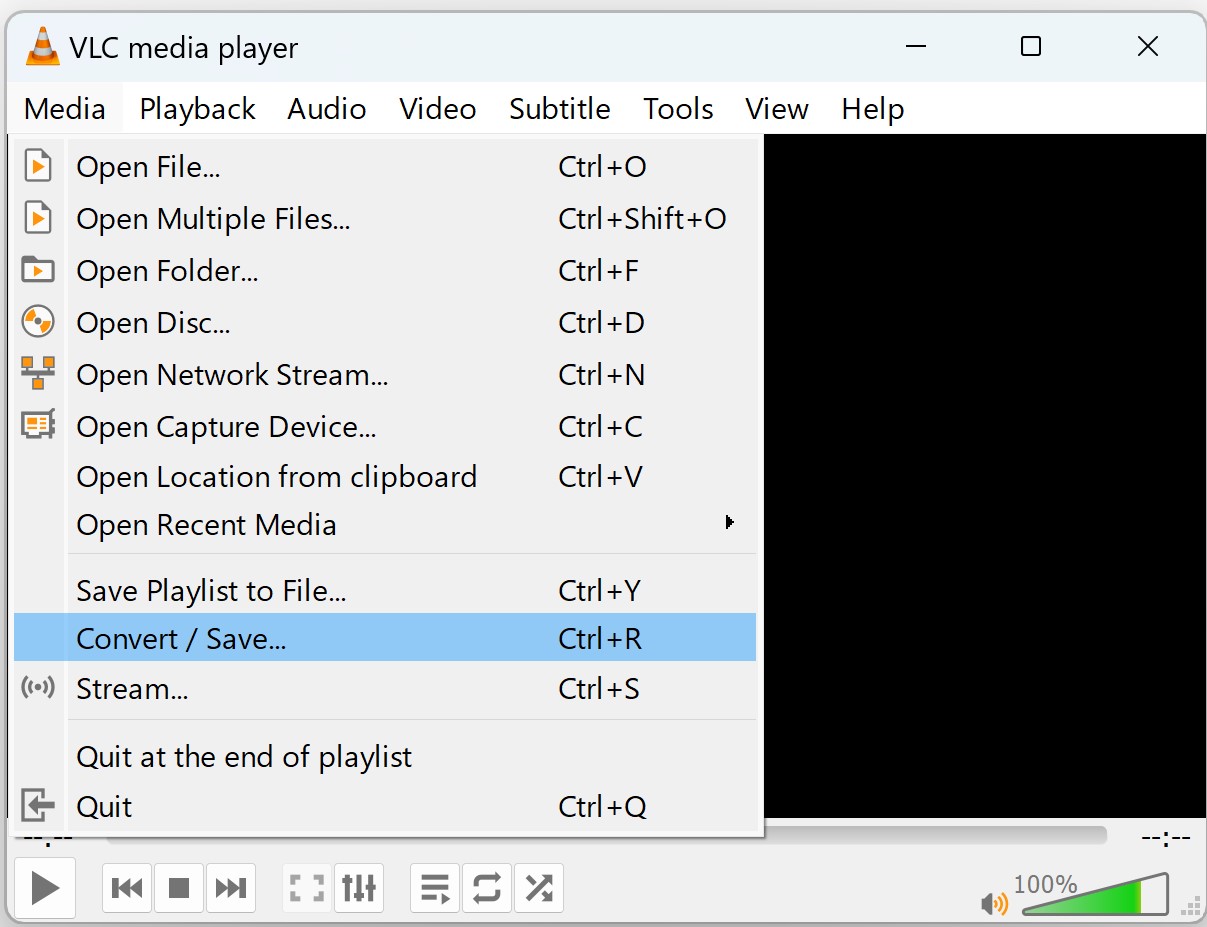
In VLC, click Media, then Convert / Save. The keyboard shortcut is Ctrl + R, or Cmd + R on a Mac.
Step 2: Add Your File
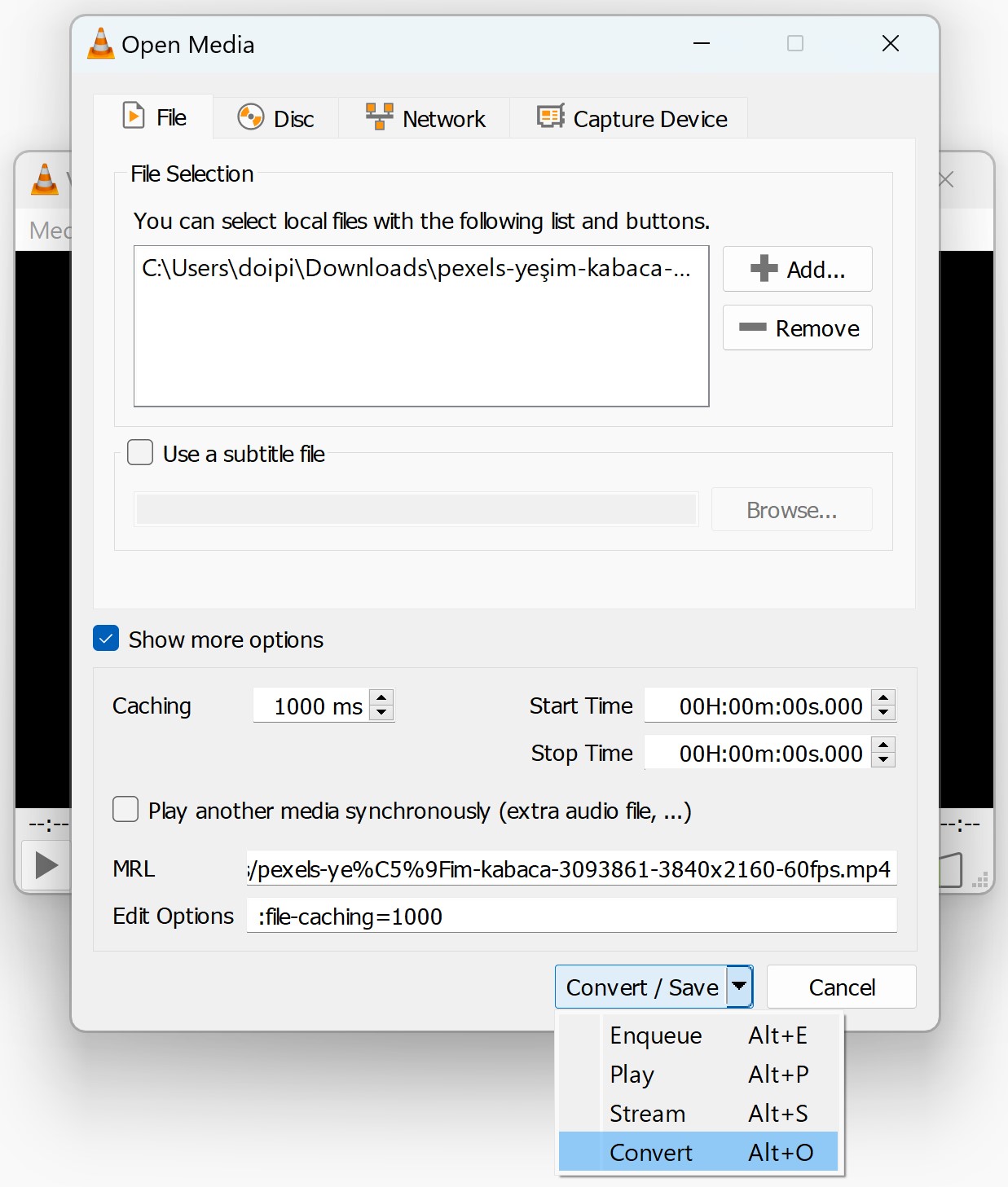
Stay on the File tab, click Add, and pick the video or audio file you want to convert.
You can add several files, and VLC will work through them one after another. When the file is in the list, click Convert / Save at the bottom.
Step 3: Pick the Output Format
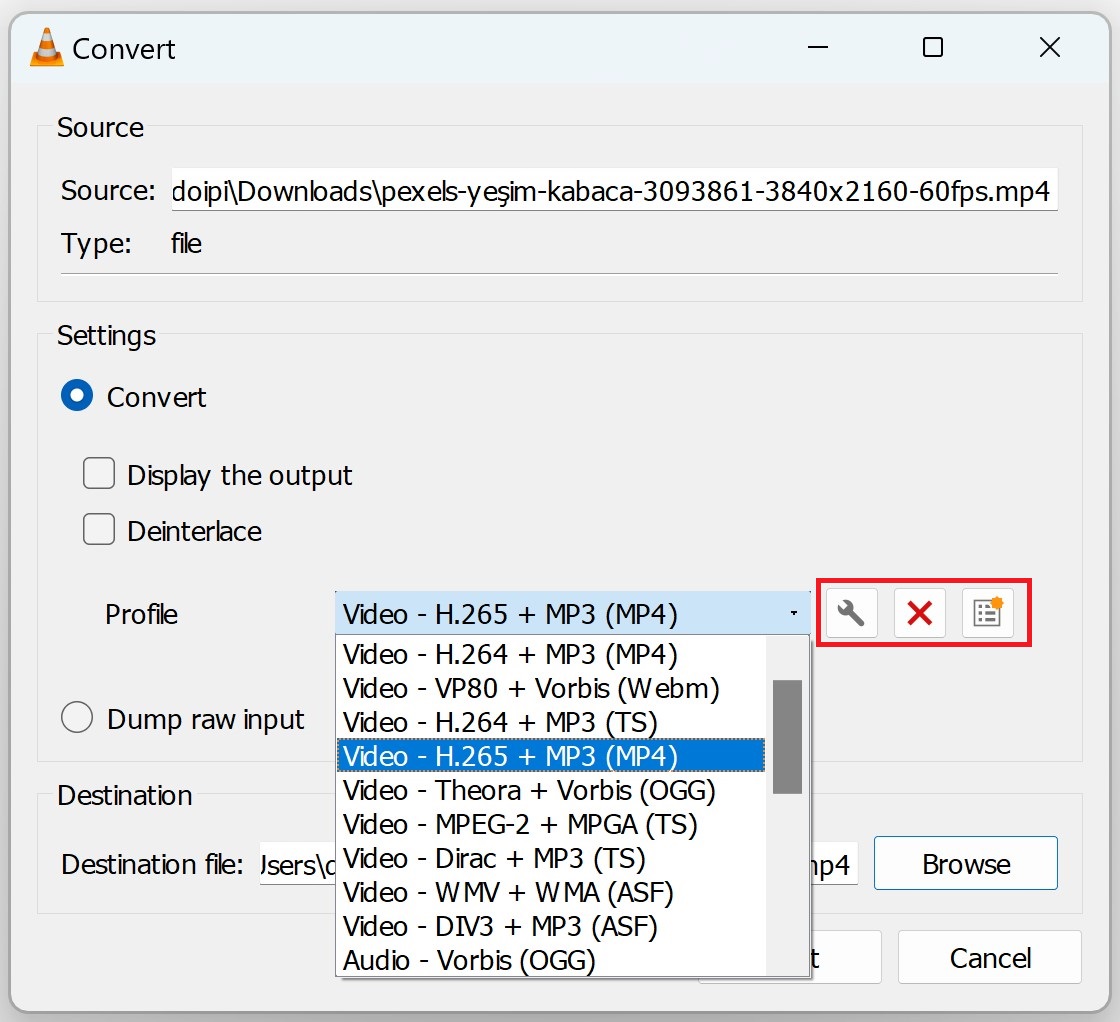
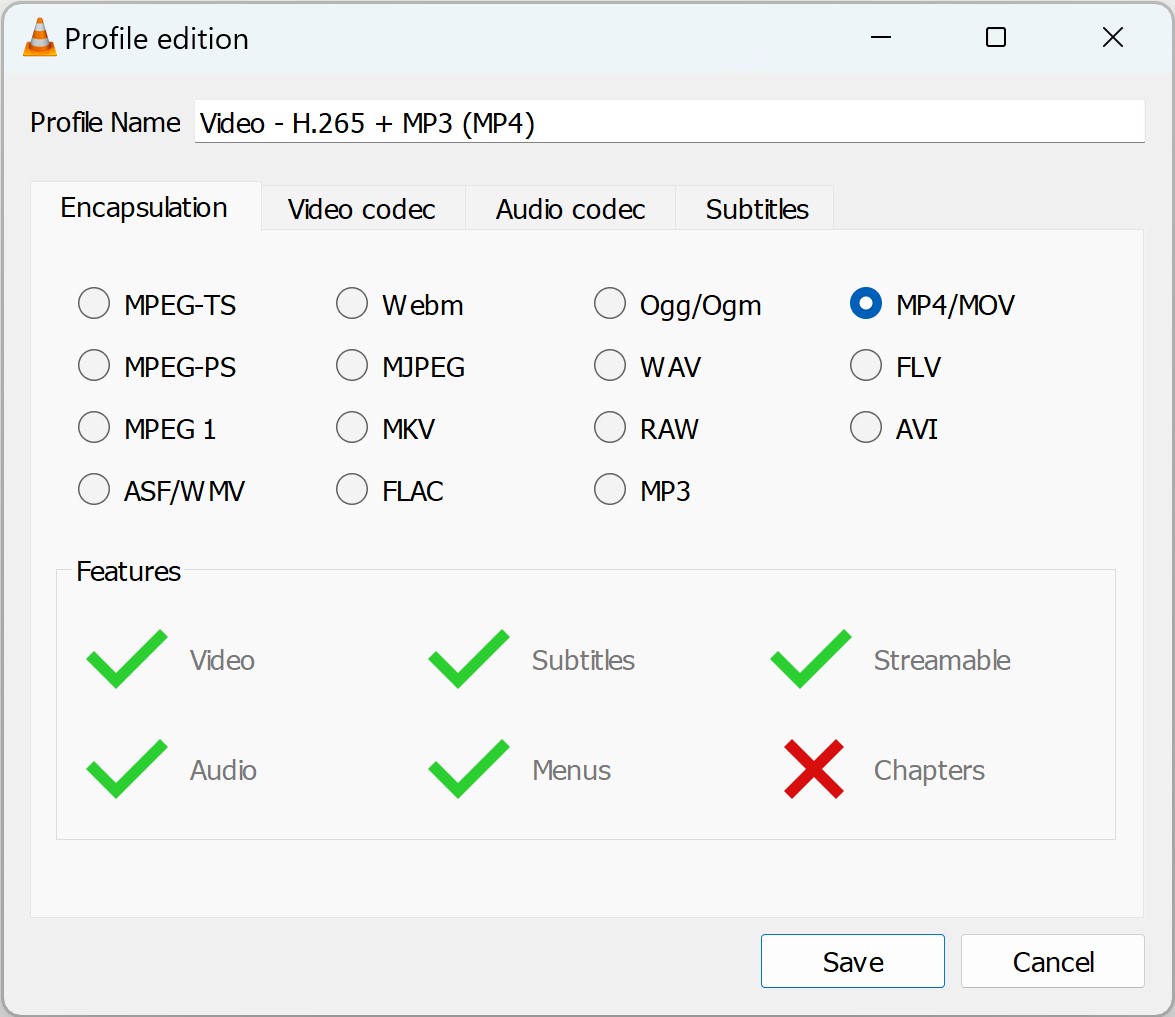
The Profile dropdown is where you choose what comes out. These are the ones worth knowing.
| Profile | Use it for |
|---|---|
| Video - H.264 + MP3 (MP4) | Anything you are not sure about. Plays on phones, TVs and browsers alike. |
| Video - H.265 + MP3 (MP4) | Smaller files at the same quality, on reasonably modern devices. |
| Video - VP80 + Vorbis (Webm) | Video headed for a web page. |
| Audio - MP3 | Pulling the sound out of a video, which is what most people come here for. |
| Audio - FLAC | Lossless audio, bigger files, worth it from a lossless source. |
Just want an MP3 out of a video?
Our Audio Converter does it in the browser with nothing to install, and the file never leaves your computer.
Step 4: Change the Settings, If You Need To
The wrench beside the Profile dropdown opens the codec options - resolution, bitrate, frame rate, audio codec. Most people never need it.
One thing there is worth knowing: leave Display the output unticked. It plays the video while converting and roughly doubles how long the job takes.
Step 5: Name the Output File
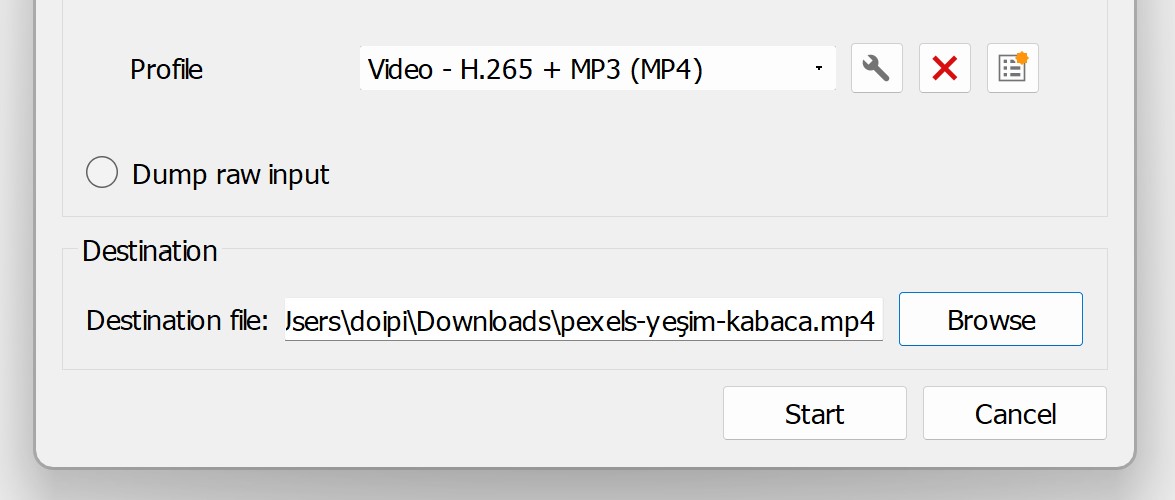
Under Destination, click Browse, choose a folder, and type a filename.
Type the extension yourself.
VLC does not add it for you. A destination called holiday produces a file with no extension that nothing will open, even though the conversion worked perfectly. Type holiday.mp4 instead.
Step 6: Start, and Wait
Click Start. The playback bar becomes the progress indicator - VLC is not playing the video, it is working through it.
When the bar reaches the end and VLC goes back to normal, the file is waiting in the folder you chose.
How long it takes depends on the length, the resolution and the output codec. VLC converts on the processor alone, so H.265 takes considerably longer than H.264 on the same file.
When It Goes Wrong
| What you see | What to do |
|---|---|
| Nothing opens the output file | The filename probably has no extension. Rename it with the right one and try again. |
| Black screen, sound plays | Convert again with the Video - H.264 + MP3 (MP4) profile, which is the most widely supported combination. |
| Video plays, no sound | Open the profile settings, check the Audio codec tab is enabled and set to MP3 or AAC. |
| It finishes instantly, file is tiny | VLC could not read the source. Play the file in VLC first - if it will not play, it will not convert. |
| The source is a purchase or a rental | DRM-protected files cannot be converted, by VLC or by anything else. |
If a file will not play in VLC at all, our Codec Finder tells you what is inside it, which is usually faster than guessing.
A codec pack will not help here.
VLC carries its own decoders and ignores the ones a codec pack installs, so K-Lite and its relatives change nothing about what VLC can open or convert. They are worth having for other players, not for this.
When to Use Something Else
VLC's converter is a convenience feature, and it shows in three places: there is no real batch queue, no hardware acceleration, and no way to set quality per file.
For a folder of files, or when quality matters, HandBrake is free, has proper presets and uses your graphics card. FFmpeg is the answer for scripted jobs.
Need one file converted on a machine where you cannot install anything? Convertico handles video, audio and images in the browser.
Quick questions
Is VLC's converter really free?
Yes, and it is built in - no separate download, no watermark, no account, no limit on how many files you convert.
What can it convert to?
MP4 with H.264 or H.265, WebM, OGG, TS and ASF for video, and MP3, FLAC and Ogg for audio, from its built-in profile list.
Is the quality good?
Good enough for format changes and audio extraction. For control over quality or a batch of files, HandBrake does a better job with less guesswork.
Why did my converted file come out broken?
Nine times out of ten the destination filename had no extension. After that, it is a profile whose codecs do not fit the container - switch to H.264 and MP3 in MP4.
Will a codec pack let VLC convert more formats?
No. VLC uses its own decoders and ignores system codec packs, so nothing changes. If VLC cannot read a file, no pack will make it.
The bottom line
For a quick format change or an MP3 out of a video, VLC is already on your machine and it works, and for anything bigger it is worth installing a real encoder. Did it work for you? Tell us what you were converting.




Latest comments
AllTo view major football league live
Guide: Free Popular IPTV Playlist: Where to Get Fresh, Legal M3U Links in 2026 20 commentsThe link isn't working. [link]
Guide: Free M3U Playlist for TiviMate: Legal Lists That Load Cleanly 1 commentThe Vega OS shift is the biggest Firestick story of 2026. Anyone buying now needs to know: 4K Max = sideloading works, plain 4K = ...
News: The New Fire TV Stick 4K Can't Run Kodi - Here's Which Fire Stick Still Can 3 comments