AV1 is the most demanding codec your PC decodes, so when it stutters the problem is almost never the file - it is that your graphics card is sitting the job out.
Play an AV1 video, open Task Manager, go to Performance and click your GPU. If the Video Decode graph is flat while your CPU is near the top, the decoding is being done in software.
Turn on hardware decoding in your player, and if your graphics card is too old to help, drop the video to 1080p instead.
AV1 squeezes video smaller than anything else in common use, and it pays for that with decoding effort.
A machine that plays 4K H.264 without noticing can stutter on 1440p AV1.
Nothing is broken when that happens. The work is simply landing on the wrong chip.
Nothing plays at all? That is a different problem with a different fix - see how to play AV1 videos on Windows 11. This page is for video that plays but plays badly.
The 30-second check
Start the video that stutters and leave it playing.
- Press
Ctrl+Shift+Escto open Task Manager. - Open the Performance tab and click your GPU in the left-hand list.
- Find the graph labelled Video Decode. If it is not showing, click any graph's title and pick it from the list.
- Watch both that graph and the CPU figure while the video plays.
Video Decode busy, CPU low. Hardware decoding is already working. Your stutter is something else - a slow drive, a full disk, or a 4K file on a screen that cannot take it.
Video Decode flat, CPU high. Software decoding. That is what the rest of this page fixes.
Does your graphics card decode AV1?
Hardware AV1 decoding arrived across all three vendors in late 2020, so the rough rule is that anything newer than that has it and anything older does not.
There are exceptions in both directions, which is why the check above matters more than the table below.
| Graphics | AV1 decoding |
|---|---|
| NVIDIA | RTX 30 series and newer. GTX 16 series and anything older cannot |
| AMD | RX 6000 series and newer - but not the RX 6400 or RX 6500 XT, which had the decoder cut out |
| Intel integrated | Iris Xe and newer, which is most laptops sold from late 2020 onward |
| Intel Arc | Every model |
Do not trust a generation name on its own. The RX 6400 and RX 6500 XT sit inside a family that decodes AV1 and cannot do it themselves, and Intel's integrated graphics changed capability mid-generation more than once.
Your own Task Manager is the only answer that is true for your machine.
If you would rather see what your system reports in one place, our codec checker runs in the browser and lists what it finds without installing anything.
Turn hardware decoding on in your player
Every player ships with this either off or set to automatic, and automatic is not always right.
VLC - open Tools, then Preferences, then the Input / Codecs page. Set Hardware-accelerated decoding to Automatic, or to the specific option your card offers, then restart VLC.
PotPlayer - press F5, go to Video, then Video Decoder, and enable the DXVA or D3D11 option for AV1. PotPlayer gives you the most control here and also shows you what it ended up using.
MPC-HC and MPC-BE - both decode through LAV Filters, so the setting lives there rather than in the player. Our LAV Filters guide covers the video decoder page, and the MPC-HC hardware acceleration guide goes step by step.
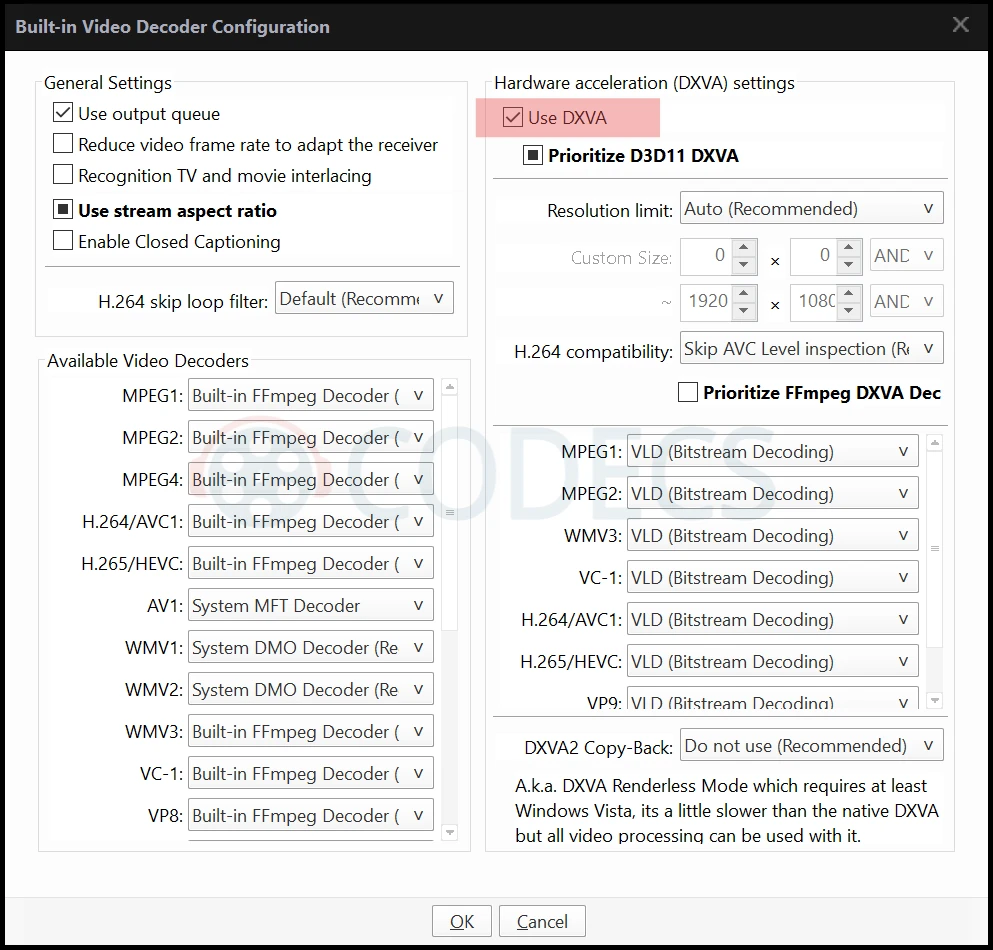
Check it worked. Go back to the Task Manager graph with the same video playing. Video Decode should now be doing the work and the CPU should have dropped, often by more than half.
If your graphics card cannot decode AV1
Software decoding is the fallback, and on a reasonably modern processor it handles 1080p AV1 without complaint.
1440p is where most machines start to struggle, and 4K AV1 in software is out of reach for all but the fastest desktop processors.
The practical fix is to stop asking for the resolution your machine cannot decode. Drop the video to 1080p and it will usually play perfectly.
On YouTube there is a second option: tell it to stop sending you AV1 at all, and it will fall back to a codec your hardware can handle. Our guide to AV1 on YouTube covers that setting.
What the AV1 Video Extension does, and what it does not
This one causes more confusion than anything else about AV1 on Windows, so it is worth being exact.
The AV1 Video Extension adds AV1 decoding to Windows' own media framework. That means the Movies and TV app, the Photos app, Edge, and File Explorer thumbnails.
It does nothing for VLC, PotPlayer, MPC-HC or MPV, because those players never used Windows' decoders in the first place - they bring their own.
So if your video stutters in VLC, installing the extension will change nothing. That is not a fault, it is the wrong tool for that particular problem.
Quick questions
Why does AV1 stutter when 4K H.264 plays fine?
AV1 compresses harder, and the price of that is more decoding work per frame. A machine with hardware support for one codec and not the other will handle them very differently regardless of resolution.
Will a driver update give my old card AV1 decoding?
No. Hardware decoding is a physical block on the chip, so a card without it cannot gain it. Keeping drivers current is still worth doing, because it is what exposes the block properly to your player.
Is software decoding worse quality?
No. The picture is identical either way. The only differences are how much of your processor it uses and how warm the machine gets.
My laptop has two graphics chips. Which one matters?
Whichever one your player is actually using, which is often the integrated one on battery. Task Manager lists both, so check the Video Decode graph on each while the video plays.
Does this apply to Netflix and Prime Video too?
Yes, with one difference: streaming apps and browsers pick the codec themselves and usually fall back on their own when hardware support is missing. It is local files and YouTube where you notice AV1 the most.
Still stuttering after all that? Our codec troubleshooter walks through the rest of the usual causes, or start from scratch with playing AV1 on Windows 11.
Found a setting that fixed it on your machine? Tell us which one.




Latest comments
AllXMediaRecode gives only the option to Copy (No convert) in Audio Mode drop down. I am trying to convert/recode the EAc3 ...
Guide: How to Convert EAC3 Audio to AC3 or AAC With XMedia Recode 1 commentTo view major football league live
Guide: Free Popular IPTV Playlist: Where to Get Fresh, Legal M3U Links in 2026 19 commentsThe link isn't working. [link]
Guide: Free M3U Playlist for TiviMate: Legal Lists That Load Cleanly 1 comment