Want to shrink a 4K video without it looking like a smeary mess? The right HEVC (H.265) encoder can cut your file size roughly in half while keeping the picture sharp. The trick is picking the right tool, because "best" depends a lot on whether you want top quality or top speed.
Here's the short version: for the smallest, cleanest 4K files, you want x265 doing the work.
The only real question is how you'd like to drive it. Let's break it down.
- Best quality, no command line: X HEVC Encoder - a free GUI that runs x265 for you.
- Best quality, advanced control: the x265 encoder itself (command line).
- Easiest for total beginners: HandBrake with a ready-made 4K preset.
- Fastest, when you don't mind bigger files: your GPU's built-in encoder (NVENC, AMF or QSV).
Everything below explains why.
First, the thing nobody tells you
"HEVC encoder" usually means one specific engine: x265. It's the open-source tool that streaming services and pros rely on, and it produces the best quality at any given file size.
When you read that some app gives "50% smaller 4K files", it's almost always x265 under the hood.
But x265 on its own is a command-line tool. You don't double-click it and get a window with buttons. You type commands. For most people that's a wall, not a tool.
So the real choice isn't really "which encoder" - it's "which front-end lets me use x265 without the headache".
The GUI we recommend: X HEVC Encoder
If you want x265 quality but you'd rather click than type, X HEVC Encoder is the easy win.
It's a free, portable Windows app (no installer) that wraps x265 and several other encoders in a clean window.
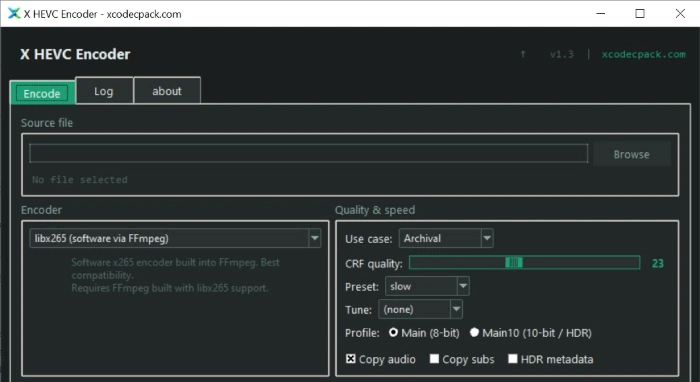
Pick your video, choose a quality preset, click encode. Done.
There's a built-in HDR/4K preset that automatically switches on the right settings for high-resolution footage, so you don't have to know what "Main10 profile" means to get a good result.
A few things that make it genuinely handy for 4K:
- It reads your source file and suggests the correct settings (resolution, HDR, frame rate) on its own.
- For HDR clips, it passes the color data through correctly so the result actually looks right on an HDR TV.
- It can resize down to 4K, 1440p or 1080p with high-quality scaling, in case you're shrinking footage.
- It shows you the exact command it's about to run, so you can learn or tweak if you ever want to.
One small note: it's a front-end, so it needs FFmpeg to do the actual decoding. That's a free, single-file download from codecs.com - just drop it in the same folder and you're set. Keeping them separate is what makes the encoder itself tiny.
Want maximum control? Use x265 directly
If you're comfortable in a terminal, the standalone x265 encoder gives you the most direct control over every setting. It's the same engine the GUI uses, just raw.
This is overkill for most people. But if you're archiving a 4K movie library and want to fine-tune every parameter, this is the purest path to the smallest, best-looking files.
The recent builds even added support for very high resolutions beyond 4K and better Dolby Vision handling.
For everyday use, though, the GUI gives you 95% of the benefit with none of the typing.
The beginner-friendly alternative: HandBrake
HandBrake is the most popular free video converter, and it's a perfectly good way to make 4K HEVC files. It ships with preset profiles - including 4K ones - so you can drag in a video, pick a preset, and go.
It's a great pick if you also want to rip discs or batch-convert a whole folder at once. The output quality is solid.
If X HEVC Encoder and HandBrake both appeal to you, try whichever interface clicks - they both lean on the same kind of quality engine.
Fast vs. small: the one decision that matters
Here's the single most important thing to understand about 4K HEVC encoding.
Software encoding (x265) is slower but makes the smallest files at a given quality. A long 4K encode can take a while, but the result is as compact as it gets.
Hardware encoding (NVENC, AMF, QSV) uses your graphics card and is 5 to 10 times faster - but the files come out noticeably larger for the same quality. It's fantastic for quick exports, recorded gameplay, or anything where you just want it done.
So the rule of thumb is simple:
- Keeping it forever? Use software (x265). Smaller files, better quality, worth the wait.
- Need it now? Use your GPU. Done in minutes, slightly chunkier files.
X HEVC Encoder supports both, and it auto-detects which hardware encoders your PC has, so you can switch between them with a dropdown.
Don't forget: you need to play it back too
Quick heads-up that trips a lot of people up. After you encode a 4K HEVC file, Windows might refuse to play it - you'll get a black screen with sound, or a "codec not supported" error. That's normal; Windows leaves the H.265 decoder out by default.
The fix is free. Grab the HEVC Video Extension - the free OEM version, not the paid Store one - and your encoded files will play in Windows Media Player, Movies & TV, and Photos with no fuss.


Latest comments
AllInteresting development with the Fire TV Stick 4K — losing Kodi sideloading is a big deal for a lot of users. For those ...
News: The New Fire TV Stick 4K Can't Run Kodi - Here's Which Fire Stick Still Can 3 commentsThanks genius, it worked for me. v2.4.149.0 on windows 10
Guide: How to Download HEVC Video Extension for Free 181 commentsXMediaRecode gives only the option to Copy (No convert) in Audio Mode drop down. I am trying to convert/recode the EAc3 ...
Team replied Guide: How to Convert EAC3 Audio to AC3 or AAC With XMedia Recode 1 comment