To see which chip your Mac has, click the Apple menu, choose About This Mac, and look at the first line under the Mac's name.
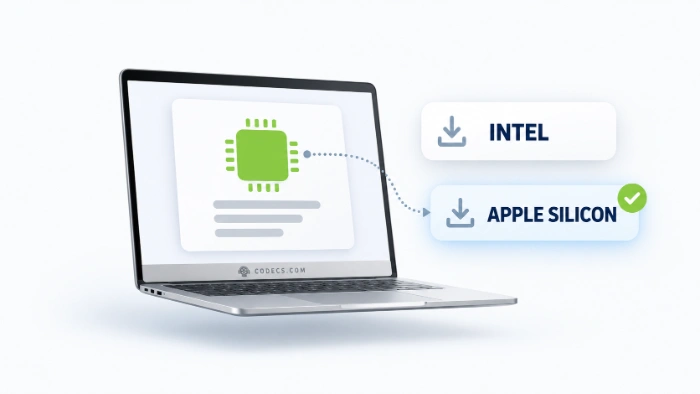
If it says Chip, followed by something like Apple M2, your Mac has Apple silicon.
If it says Processor, followed by something like Intel Core i5, it is an Intel Mac.
That one line tells you which file to pick whenever a download page offers two Mac versions.
Why Mac Downloads Come in Two Versions
Since late 2020, Apple has built Macs with its own chips, starting with the M1, instead of Intel processors. The two kinds of chip need differently built apps, so many developers offer both - 3uTools, for example, lists separate Intel Chip and Apple Silicon downloads.
Every Mac Apple sells today uses Apple silicon. If your Mac was bought new in the last few years, it almost certainly has one, but checking takes ten seconds.
How to Check Your Mac's Chip
- Click the Apple menu. It is the Apple logo in the top-left corner of the screen.
- Choose About This Mac. A small window opens with your Mac's name and details.
- Read the first line under the name. Chip means Apple silicon, Processor means Intel.
Apple also keeps a list of every Mac with Apple silicon, if you want to double-check a model.
Which Download Should You Pick?
| The download says | Pick it if your Mac has |
|---|---|
| Apple Silicon, ARM, arm64 or M1/M2/M3/M4 | Apple silicon (Chip) |
| Intel, x86_64 or x64 | Intel (Processor) |
| Universal | Either - it runs natively on both |
Universal is always the easy choice when it is offered. VLC Media Player for Mac, for example, ships one download that works on every Mac.
What Happens If You Pick the Wrong One?
- Apple silicon version on an Intel Mac. It will not open at all, so delete it and download the Intel version instead.
- Intel version on an Apple silicon Mac. It usually runs through Rosetta 2, Apple's built-in translator, but more slowly and with more battery drain.
That second case is getting riskier. Upgrading to macOS 27 Golden Gate can remove Rosetta 2 until you reinstall it, and Apple says macOS 28, due in autumn 2027, will stop running Intel-only apps, apart from some older games.
So on an Apple silicon Mac, always pick the Apple Silicon or Universal file. Not sure what you already have? Drop any app into our free Mac App Analyzer and it tells you whether it is Universal, Apple silicon only or Intel only, without uploading anything.
If your Mac blocks the installer:
Some download pages say to right-click the installer and choose Open, but that trick no longer works on macOS 15 and later. Try to open the app once, then go to System Settings, Privacy and Security, scroll down and click Open Anyway - only for apps you downloaded from a source you trust.
Quick questions
How do I know if my Mac is Intel or Apple silicon?
Click the Apple menu and choose About This Mac. If the first line says Chip, it is Apple silicon, and if it says Processor, it is Intel.
What does Universal mean on a Mac download?
A Universal app contains both versions in one file, so it runs natively on Intel and Apple silicon Macs alike.
Can an Apple silicon Mac run Intel apps?
Yes, through Rosetta 2, for now. Apple plans to end that with macOS 28 in 2027, apart from some older games, so choose Apple Silicon or Universal versions where you can.
Can an Intel Mac run Apple silicon apps?
No. An app built only for Apple silicon will not open on an Intel Mac, so download the Intel or Universal version.
Is M1, M2 or M3 the same as Apple silicon?
Yes. M1, M2, M3, M4 and their Pro, Max and Ultra versions are all Apple silicon chips.
The bottom line
Check About This Mac once, remember Chip or Processor, and you will always pick the right download. For apps that run well on any Mac, browse our free Mac apps or our pick of the best free video players for Mac.


Latest comments
AllI used [link] on tivimate with the Usa m3u Playlist. I cannot get the guide to work.
Team replied Guide: Free EPG URLs for IPTV: TV Guide Links That Still Work 2 comments[link] Epg is not working on this one.
Team replied News: Free USA IPTV Playlist: The American TV That Is Really Free 1 commentSi mund te shikoj te gjitha kanalet e DigitAlb dhe Tring me url pa pagese ne Iptv Player?
Team replied Guide: Free Popular IPTV Playlist: Where to Get Fresh, Legal M3U Links in 2026 20 comments