Plug a portable SSD into your Android phone and your whole film library, photo archive and more travel in your pocket - no cloud subscription, no storage-full warnings.
Phone storage fills up fast, and the bigger-storage version of a phone costs a lot more. A portable SSD holds far more, plugs into anything with USB-C, and outlives the phone.
Here is what you need, how to set the drive up so Android reads it, the free apps that play films straight off it, and the fixes when it does not show up.
Why use a portable SSD with your phone
- Films. A single 4K film can take tens of gigabytes. An SSD holds hundreds.
- Photos and videos. Move your camera roll off the phone before a trip and free up space without losing anything.
- Games and emulators. Keep big libraries off internal storage.
- One drive, every device. The same files on phone, tablet and PC, with nothing uploaded.
- Privacy. Your files live on a drive you own, not a server you rent.
What you need
- A phone with USB OTG (USB On-The-Go). Nearly every Android phone with USB-C has it. Test with any USB stick - if it appears in your file manager, you are set.
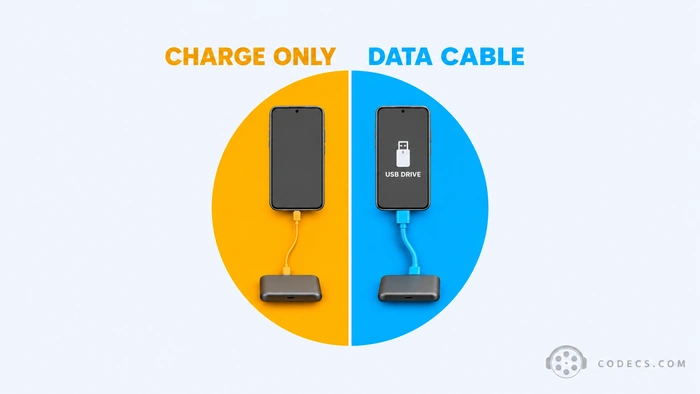
- A USB-C data cable. Many cables that come with chargers carry power only - the SSD lights up but the phone never sees it. Look for a cable marked USB 3.1 or 3.2.
- A portable SSD with a USB-C port. Any mainstream brand works.
- The drive formatted as exFAT. Android, Windows, Mac and most TVs all read it.
Check your phone's USB speed
Many budget and mid-range phones have a USB 2.0 port, which limits any drive to roughly 40 MB/s. That is plenty to stream a 4K film, but copying a big folder takes a while. Search your phone's model name plus "USB 3" to find out which you have.
Step 1: Format the SSD as exFAT
Many SSDs arrive already formatted as exFAT - if yours shows up on your phone, skip this step. If not, format it on a computer first; it is quicker and more reliable than on the phone.
- Plug the SSD into your PC. Then open File Explorer.
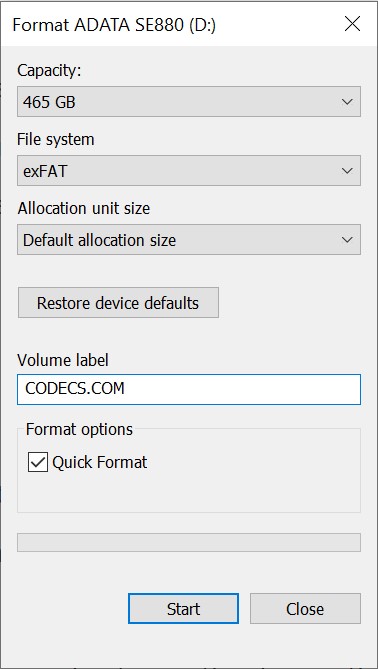
- Right-click the drive and choose Format. Check the drive letter and size first - formatting erases everything on it.
- Set File system to exFAT. Leave Allocation unit size on default and type any name you like.
- Tick Quick Format and click Start. It finishes in seconds.
On a Mac, open Disk Utility, select the drive itself (not the volume under it), click Erase, and choose ExFAT with GUID Partition Map. Avoid APFS and Mac OS Extended - Android cannot read either.
Step 2: Connect the SSD to your phone
- Connect the SSD to your phone. Use a USB-C data cable. Within a few seconds a notification appears, or the drive shows up in your file manager under USB or external storage.
- Browse, copy and move files. Your phone's own file manager works like it does for internal storage.
Want more? Solid Explorer, FX File Explorer and X-plore add two-pane views, archives and network shares. Nothing after ten seconds? Jump to the fixes below.
Step 3: Play video straight from the SSD
This is where the phone's built-in video player often falls short: MKV files, Dolby and DTS sound, and browsing a drive full of folders. Three free players handle all of it.
Play from the drive. Open VLC for Android, add the SSD's folders to its library and tap a film.
- VLC for Android - the one to start with. Plays almost any file - MKV, MP4, AVI, HEVC, AV1, Dolby and DTS sound - with no add-ons and no ads. Our VLC for Android guide walks through setup.
- Kodi - for a real library. Turns folders of films and series into a library with posters, plots and episode lists. Great with the phone connected to a TV.
- mpv for Android - for tricky files. A lightweight player with very wide format support and no ads, handy when another app struggles.
Already use MX Player? It plays from the SSD too, but Dolby and DTS sound need the separate MX Player Custom Codec add-on - VLC for Android needs no add-on at all.
When a file will not play: convert it once
A few files refuse to play in any app - usually unusual encodes or sound formats the phone cannot handle. Convert them once on a computer and keep the converted copy on the SSD.
HandBrake is free for Windows, Mac and Linux. Its Fast 1080p30 preset makes an MP4 with H.264 video and AAC sound that plays on practically every Android phone.
Seeing "codec not supported"? That is the file, not the drive - our codec not supported guide has the fix for each error.
Samsung SSD? Get Samsung Magician
Samsung's portable SSDs work with Samsung Magician, which checks drive health, updates firmware and measures speed. It has real Android and Mac versions as well as Windows.
Fix: the drive does not appear at all
- The cable is charge-only. Try a cable you know carries data - the one that came with the phone usually does.
- OTG is switched off. OPPO, OnePlus and realme phones have an OTG setting that turns itself off after a while. Search Settings for OTG and switch it on.
- Not enough power. Rare with SSDs, common with old spinning hard drives - those may need a powered USB hub.
Fix: the drive appears but looks empty
The drive is probably NTFS (many phones cannot read it) or a Mac format (APFS or Mac OS Extended, which Android cannot read). Copy your files off on a computer and reformat it as exFAT.
Fix: copying is slow or stops halfway
- USB 2.0 cable or port. Check both - a USB 2.0 cable slows even a USB 3 phone to roughly 40 MB/s.
- The phone is hot. Long copies warm phones up, and they slow down to protect themselves. Let it cool and copy in smaller batches.
Build a pocket film library
- Format the SSD as exFAT. On your PC, as above.
- Make simple folders. Movies, TV Shows, Music, Photos.
- Shrink huge files if you like. Converting 4K films to 1080p with HandBrake fits far more on the drive and plays easily on any phone.
- Point VLC or Kodi at the folders. The app builds the library for you.
- Carry one cable. Phone, laptop or a TV with a USB port - the same library goes with you.
Want to go the other way and run Android itself from an SSD? See how to run Android on a PC from a portable SSD.
Quick questions
Does my Android phone support a portable SSD?
Almost certainly, if it has a USB-C port - nearly every Android phone from the last several years supports USB OTG. Plug in any USB stick to check: if it shows in your file manager, the SSD will too.
Why is my SSD slow on my phone?
Usually the phone's port. Many budget and mid-range phones have a USB 2.0 port, which limits any drive to roughly 40 MB/s. A USB 2.0 cable does the same. Films still play fine; copying is just slower.
Can I play 4K films straight from the SSD?
Yes. Even a USB 2.0 port is fast enough to stream a 4K film. Whether it plays smoothly depends on the phone's video decoding, which is why VLC or mpv helps with unusual files.
exFAT or NTFS?
exFAT. It works on Android, Windows and Mac and has no file-size limit. Many phones cannot read NTFS at all.
Will the SSD drain my battery?
A little - the phone powers the drive. Portable SSDs draw far less than old hard drives, so an evening of films is fine; for long sessions, a USB-C hub with charging pass-through helps.
Can I use the same SSD on my PC and TV?
Yes, that is the beauty of exFAT. Most PCs, Macs and many smart TVs read it, so one drive carries your library everywhere.
The bottom line
A data cable, an exFAT drive and VLC for Android - that is all it takes to carry your films on a portable SSD. Tell us your setup.


Latest comments
AllXMediaRecode gives only the option to Copy (No convert) in Audio Mode drop down. I am trying to convert/recode the EAc3 ...
Guide: How to Convert EAC3 Audio to AC3 or AAC With XMedia Recode 1 commentTo view major football league live
Guide: Free Popular IPTV Playlist: Where to Get Fresh, Legal M3U Links in 2026 20 commentsThe link isn't working. [link]
Guide: Free M3U Playlist for TiviMate: Legal Lists That Load Cleanly 1 comment