Play an old Xvid AVI on an iPhone, a smart TV or in a browser and often nothing happens. Your files are fine - the world moved on. Converting them to MP4 fixes it for good.
Here are four free ways to do it, from one click to one command for a whole folder, with no uploads and no watermarks.
If you are not sure you need to convert at all, skip to the last section, because some files are better left alone.
| Tool | Best for | Runs on |
|---|---|---|
| HandBrake | Best quality, a few files | Windows, Mac, Linux |
| XMedia Recode | Many files, simple queue | Windows |
| FFmpeg | A whole folder in one command | Windows, Mac, Linux |
| VLC | One quick file, nothing new to install | Windows, Mac, Linux |
Why convert Xvid to MP4
Xvid is a video format from the early 2000s, usually packed in an AVI file, and while PCs still play it with the right player, most other screens do not.
- It plays everywhere. iPhones, iPads, smart TVs, Chromecast, Roku, consoles and browsers all expect H.264 video in an MP4 file.
- It takes less space. H.264 needs fewer megabytes for the same picture - a converted file is often around half the size.
- It does more. MP4 holds chapters, subtitle tracks and extra audio languages cleanly, which AVI handles badly.
Method 1: HandBrake - best for most people
HandBrake is free, open source and gives excellent results with no setup.
- Install HandBrake. Download it free from CODECS.COM and run the installer.
- Open your Xvid file. Drag the AVI onto the HandBrake window, or click Open Source.
- Choose Fast 1080p30. Pick it from the Preset list - it never upscales, so small Xvid files keep their size.
- Check the format is MP4. On the Summary tab, Format should say MP4.
- Pick where to save. Click Browse next to Save As and choose a folder and name.
- Click Start Encode. The finished MP4 appears in the folder you chose.
Xvid files are usually standard definition, so a modern PC converts them much faster than the film's running time.
Want a touch more quality? On the Video tab, lower Constant Quality from 22 to 20. The file grows a little; the picture matches the original to the eye.
Method 2: XMedia Recode - easy batch conversion
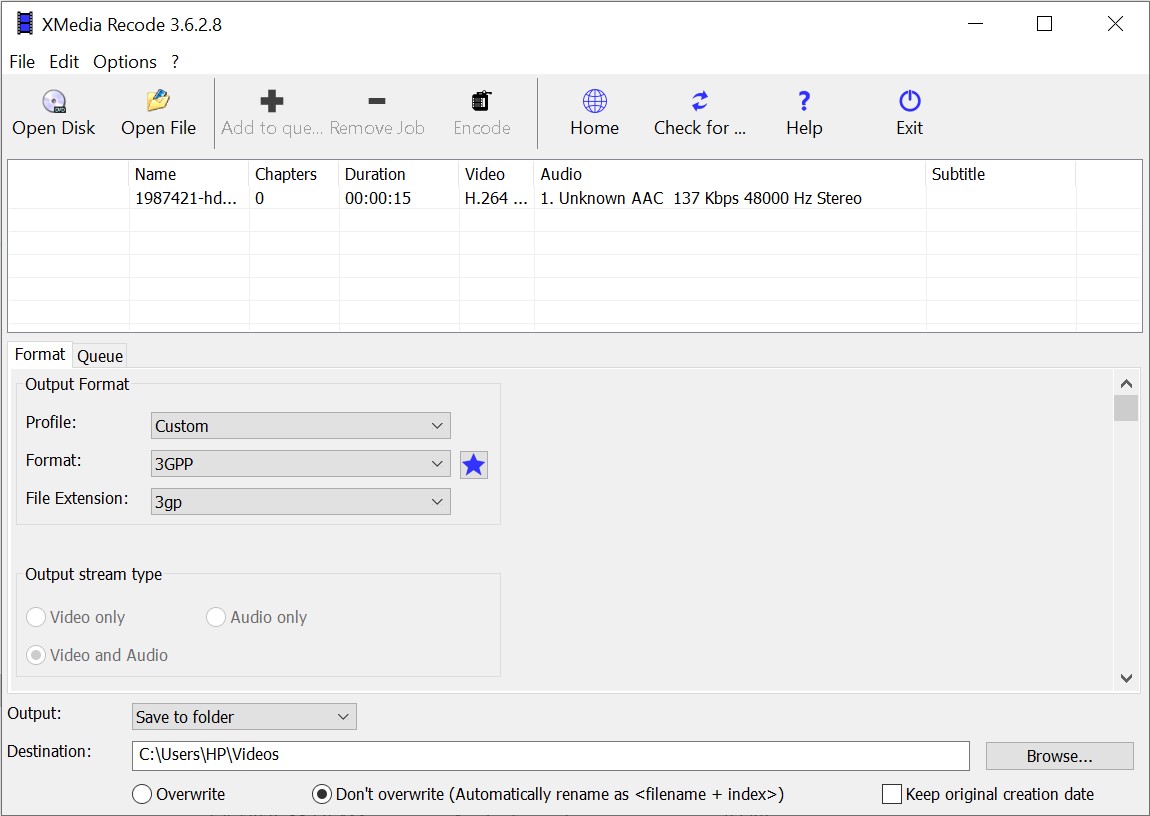
Got a folder full of files? XMedia Recode makes queuing dozens of them simple. It is Windows only and has all the encoders built in.
- Install and open XMedia Recode. It is free from CODECS.COM.
- Click Open File. Select one or many Xvid AVI files at once.
- Set Format to MP4. On the Format tab.
- Set the video codec to H.264. On the Video tab.
- Set the audio to AAC, 192 kbps. On the Audio tab.
- Click Add to queue, then Encode. Every queued file is converted in turn.
Method 3: FFmpeg - one command, whole library
FFmpeg is the engine inside many converters. Used directly, it converts a whole folder with one line. It has no windows or buttons, so if typing commands is not your thing, use Method 1 or 2.
First set it up once with our FFmpeg install guide, then open a terminal in the folder with your Xvid files.
One file, balanced quality:
ffmpeg -i input.avi -c:v libx264 -crf 22 -preset medium -c:a aac -b:a 192k output.mp4CRF sets the quality: lower means better and bigger. For Xvid sources, 20 to 23 is the sweet spot.
Keep the original sound as it is (works when the audio is MP3 or AAC):
ffmpeg -i input.avi -c:v libx264 -crf 22 -c:a copy output.mp4Every AVI in the folder, Windows PowerShell:
Get-ChildItem *.avi | ForEach-Object { ffmpeg -i $_.Name -c:v libx264 -crf 22 -c:a aac -b:a 192k "$($_.BaseName).mp4" }Every AVI in the folder, Mac or Linux:
for f in *.avi; do ffmpeg -i "$f" -c:v libx264 -crf 22 -c:a aac -b:a 192k "${f%.avi}.mp4"; doneEach MP4 gets the same name as its AVI. Start it before bed and the library is done by morning.
Method 4: VLC - a quick one-off
VLC has a converter most people never find. It is not as good as the tools above, but it is probably already on your PC.
- Open Media, then Convert / Save. Click Add and pick your Xvid file.
- Click Convert / Save. Choose the profile Video - H.264 + MP3 (MP4).
- Choose a destination file and click Start. The video does not play while it converts - that is normal.
More options, including audio extraction, are in our guide to converting audio and video with VLC.
Best settings for Xvid files
| Setting | Choose | Why |
|---|---|---|
| Container | MP4 | Plays everywhere; MKV only for many subtitle or audio tracks |
| Video | H.264 | Every device supports it |
| Quality | RF or CRF 20-23 | Lower wastes space, higher shows blocks |
| Audio | AAC 192 kbps, or copy | Copy keeps MP3 or AAC sound untouched |
| Resolution | Same as source | Upscaling adds size, not detail |
Converting cannot add detail
The MP4 keeps what the Xvid file had. If the original looks soft, the copy looks equally soft. Adding real detail needs a separate AI upscaling step before conversion.
Common problems and quick fixes
- No sound after converting. The original audio is in a format the new file or player cannot use, so convert it to AAC instead of copying it: -c:a aac -b:a 192k in FFmpeg, or AAC in HandBrake or XMedia Recode.
- The MP4 looks blurrier than the original. Your quality number is too high, so lower RF or CRF by 3 to 5 and convert again - hardware encoders (NVENC, Quick Sync, AMD VCN) are faster but slightly softer.
- An iPhone or Apple TV still refuses it. Use HandBrake's Apple 1080p30 Surround preset, which sets everything Apple devices need.
- It is too slow. In HandBrake, pick a hardware encoder under Video, Video Encoder: NVENC for NVIDIA, Quick Sync for Intel, VCN for AMD.
- I copied the video and the MP4 still will not play. Copying (-c:v copy) keeps the Xvid video inside the MP4, which phones and TVs still cannot decode - re-encode the video to H.264.
When you do not need to convert
- They already play where you watch. VLC on a PC and Kodi on a TV box both play Xvid as it is.
- Space is not a problem. A large drive holds thousands of AVI files; converting only to save space rarely pays off.
- The file only fails on your PC. That is usually a missing codec, not a reason to convert, and our Xvid playback fixes sort it out in minutes.
Curious where Xvid still makes sense? Read is Xvid still relevant.
Quick questions
Will I lose quality converting Xvid to MP4?
Technically a little, because the video is re-encoded, but at RF 20-22 in HandBrake (or CRF 20-22 in FFmpeg) the difference is invisible. Copying the audio instead of re-encoding it keeps the sound exactly as it was.
Can I convert Xvid to MP4 without re-encoding?
FFmpeg can copy the Xvid video into an MP4 file in seconds, but most phones, TVs and browsers still will not play it, because they expect H.264. To make the file play everywhere, re-encode the video.
Can I convert Xvid online instead?
Yes, for a small file. For anything over about 1 GB, or a whole folder, uploading takes too long and many sites cap file size. The free desktop tools here are faster and keep your files private.
Should I choose MP4 or MKV?
MP4 if you want it to play everywhere - phones, TVs, browsers and consoles. MKV if you need several subtitle tracks, several languages or chapters, and you play on a PC or Kodi.
H.264 or H.265?
H.264 for Xvid conversions. H.265 makes smaller files, but older TVs and many browsers still cannot play it, and on small standard-definition files the saving is modest.
How long does it take?
Much less than the film's running time on a modern PC, because Xvid files are usually standard definition. A whole folder is easiest to leave running overnight with the FFmpeg command.
The bottom line
HandBrake for a few files, XMedia Recode or FFmpeg for a whole library, H.264 in MP4 at quality 20-22. Converted a big collection? Tell us how it went.


Latest comments
AllInteresting development with the Fire TV Stick 4K — losing Kodi sideloading is a big deal for a lot of users. For those ...
News: The New Fire TV Stick 4K Can't Run Kodi - Here's Which Fire Stick Still Can 3 commentsThanks genius, it worked for me. v2.4.149.0 on windows 10
Guide: How to Download HEVC Video Extension for Free 181 commentsXMediaRecode gives only the option to Copy (No convert) in Audio Mode drop down. I am trying to convert/recode the EAc3 ...
Team replied Guide: How to Convert EAC3 Audio to AC3 or AAC With XMedia Recode 1 comment