Your HDR film starts, the picture looks great, and the sound is missing for the first second or two. LAV Filters did not lose it - the HDMI link did.
This is one of the most common complaints from people who play HDR films on a Windows PC through LAV Filters, usually with MPC-HC or MPC-BE.
It is a timing problem, not a broken file, and the five fixes below run from easiest to last resort.
Why the sound drops when HDR starts
When Windows switches the screen into HDR, your graphics card, TV and any receiver or soundbar have to agree on a new HDMI signal, and the audio goes quiet while they reconnect.
If the switch happens after you press play, you hear the gap. So every fix below does one of two things: stops the switch happening mid-film, or makes the audio recover faster.
Short on time?
Try Fix 1 first. Turning HDR on before you press play clears the gap on most setups.
Fix 1: Turn on HDR in Windows before you press play
If Windows is already in HDR when the film starts, nothing has to switch and nothing drops.
- Open Settings. Press the Windows key and type settings.
- Go to System, then Display. Pick the TV or HDR monitor if you have more than one screen.
- Turn on HDR. On Windows 11 it is the HDR switch; on Windows 10 it is Use HDR under Windows HD Color.
- Start your film. The sound should now play from the first second.
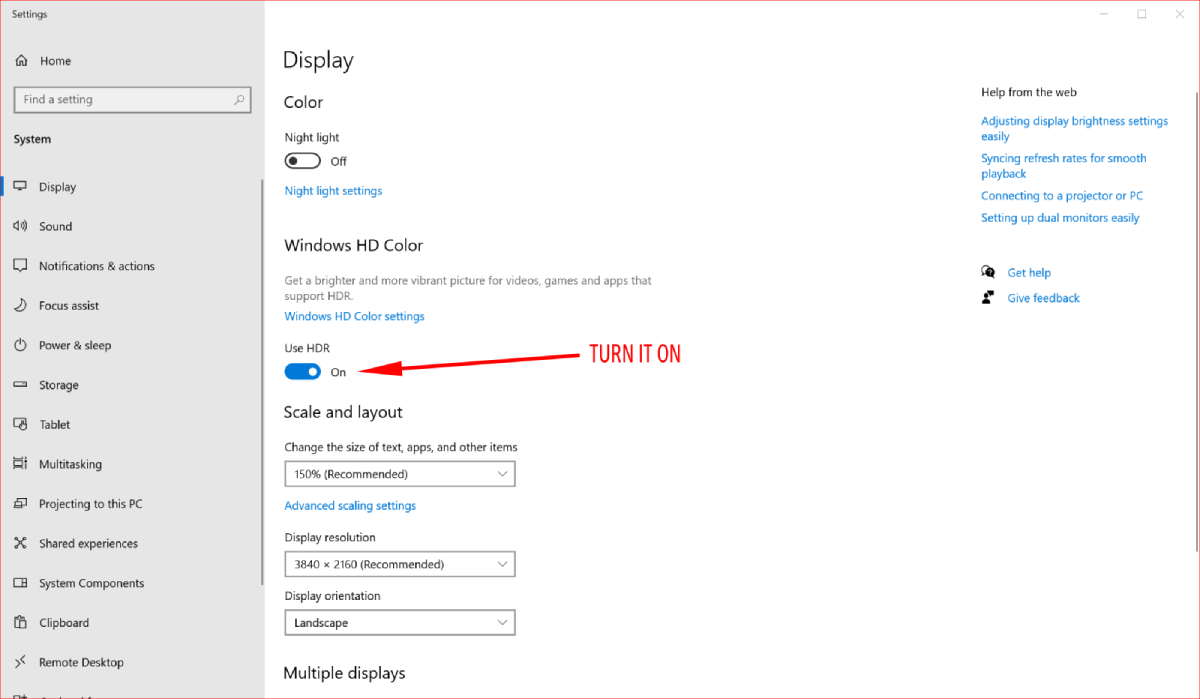
Faster route: Windows key + Alt + B toggles HDR on most PCs. Switch it off again afterwards if normal apps look washed out.
Fix 2: Stop your player switching modes mid-film
MPC-HC and MPC-BE use MPC Video Renderer for HDR, and it can flip Windows into HDR by itself when a film starts. That is the exact moment the sound drops.
- Start any HDR film and right-click the picture. Choose Filters, then MPC Video Renderer.
- Set Windows HDR to Do not change. The renderer now leaves the screen mode alone, so combine this with Fix 1.
- Keep Passthrough to display ticked. Your TV still receives real HDR.
- Turn off automatic refresh-rate switching. In MPC-HC untick Auto-change fullscreen monitor mode under View, Options, Playback, Fullscreen - a refresh-rate change causes the same HDMI re-sync.
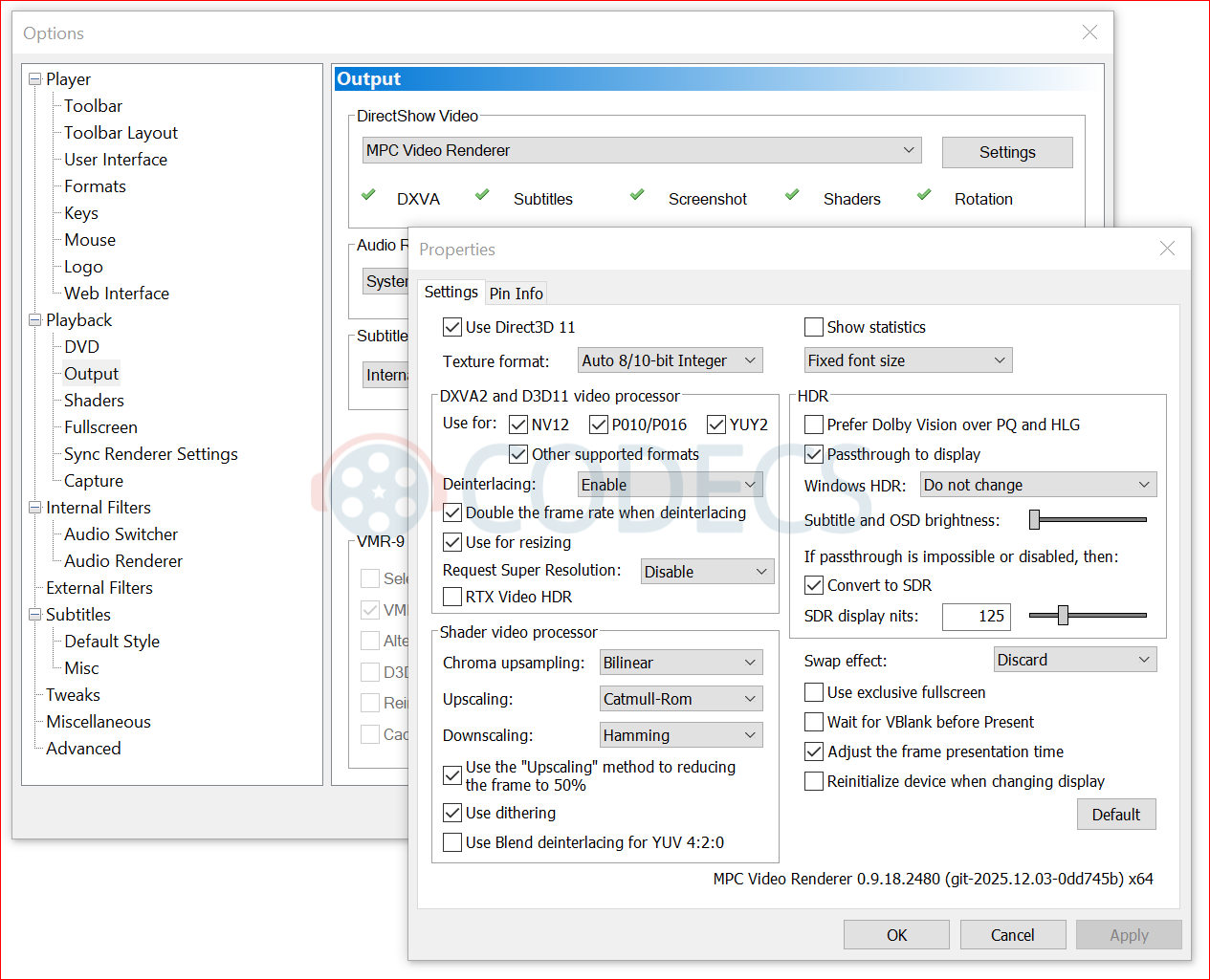
If you would rather keep the screen in SDR, untick Passthrough and let the renderer convert HDR to SDR. The picture is less vivid, but the mode never changes and the sound never drops.
Fix 3: Dolby audio still silent? Flip the track
There is one known case where the sound stays missing for longer. With LAV Video decoding the picture and MPC Audio Renderer sending Dolby audio straight to a receiver (bitstreaming), HDR films can start silent while DTS films play fine.
Three ways round it, quickest first:
- Switch the audio track and back. Press A in MPC-HC or MPC-BE, or use the Audio menu - the sound usually comes straight back.
- Let LAV Audio decode Dolby to PCM. Untick the Dolby formats under Bitstreaming in LAV Audio's settings - you lose the Atmos badge on the receiver, but the gap goes, and our LAV Filters setup guide shows where that page is.
- Pick your receiver by name. In MPC Audio Renderer's settings, choose the receiver or soundbar from the device list instead of Default Sound Driver - or try a different audio renderer.
Fix 4: Update your graphics driver and LAV Filters
Graphics drivers regularly fix HDR and HDMI bugs, and decoder and renderer fixes land in LAV Filters and MPC Video Renderer updates.
- Install the latest NVIDIA, AMD or Intel graphics driver from the manufacturer's site.
- Update LAV Filters and MPC Video Renderer to their current versions.
Prefer one installer? K-Lite Codec Pack installs current LAV Filters together with MPC-HC and MPC Video Renderer, already set up to work together.
Fix 5: Check your HDMI chain
If the gap survives Fixes 1 to 4, the slow part is outside Windows - usually the receiver or soundbar taking its time to reconnect. Work through these in order:
- Connect the PC straight to the TV. If the gap disappears, the receiver is the slow link; send audio back to it through the TV's eARC port instead.
- Use a colour format your cables can carry. 4K at 60Hz in 10-bit needs more bandwidth than HDMI 2.0 has, so choose YCbCr 4:2:2 in your graphics control panel on HDMI 2.0 equipment.
- Try another HDMI input on the receiver. Not every port on a receiver supports full HDR bandwidth.
- Update the receiver or soundbar firmware. Most brands do it from their phone app.
About WASAPI Exclusive
WASAPI Exclusive gives the player sole control of the sound device, which is great for bit-perfect audio. The catch is that it can take longer to recover when HDMI reconnects.
While you are fixing the gap, use shared mode. Once the sound is solid, switch back to Exclusive and see whether it holds.
When nothing works
A receiver that is simply slow to reconnect, an old cable not rated for HDR, or a TV that is slow to lock into HDR can all leave a short gap. For all three, Fix 1 is still the most reliable workaround, because nothing switches once the film is playing.
If you are not sure which part of the chain is at fault, our guide to telling a decoder from a renderer helps narrow it down. Or compare players in our best 4K video players roundup.
Quick questions
Why does my HDR video have no sound at the start?
Windows switches the screen into HDR as the film starts, and that makes the HDMI link between the PC, TV and receiver reconnect. While it reconnects, the audio drops for a second or more.
Is LAV Filters causing it?
Usually not on its own. The gap comes from the HDMI re-sync. One known exception is LAV Video with MPC Audio Renderer bitstreaming Dolby audio, where HDR files can start silent; switching the audio track and back is the quick fix.
Can I leave HDR switched on in Windows all the time?
Yes, if everyday apps still look right to you. On some screens normal content looks a little washed out with HDR on, so many people switch it on only for a film night.
Should I use WASAPI Exclusive for HDR playback?
Not while you are chasing this problem. Exclusive mode can take longer to recover after an HDMI re-sync. Use shared mode until the gap is gone, then try Exclusive again if you want it.
Will a new HDMI cable fix it?
Only if the old one is not certified for HDR bandwidth. Look for Premium High Speed for 4K at 60Hz, or Ultra High Speed for anything above that.
Does this happen with VLC or PotPlayer too?
It can, because the HDMI re-sync happens whatever player triggers the HDR switch. Turning HDR on in Windows before you press play is the fix that works for every player.
The bottom line
Turn HDR on before you press play, stop the renderer switching modes, and flip the audio track if Dolby still starts silent. Still stuck? Tell us your graphics card, player and HDMI setup and we will help.


Latest comments
AllInteresting development with the Fire TV Stick 4K — losing Kodi sideloading is a big deal for a lot of users. For those ...
News: The New Fire TV Stick 4K Can't Run Kodi - Here's Which Fire Stick Still Can 3 commentsThanks genius, it worked for me. v2.4.149.0 on windows 10
Guide: How to Download HEVC Video Extension for Free 181 commentsXMediaRecode gives only the option to Copy (No convert) in Audio Mode drop down. I am trying to convert/recode the EAc3 ...
Team replied Guide: How to Convert EAC3 Audio to AC3 or AAC With XMedia Recode 1 comment