GeoVision CCTV recordings are ordinary AVI files built around a codec Windows has never shipped, so a normal PC opens them and shows you nothing.
Install the free GeoVision CCTV MPEG4 Codec and the same files open.
The install itself takes about two minutes.
The rest of this page is for when it does not go smoothly, which is more often than it should be.
Why GeoVision AVI Files Refuse to Play
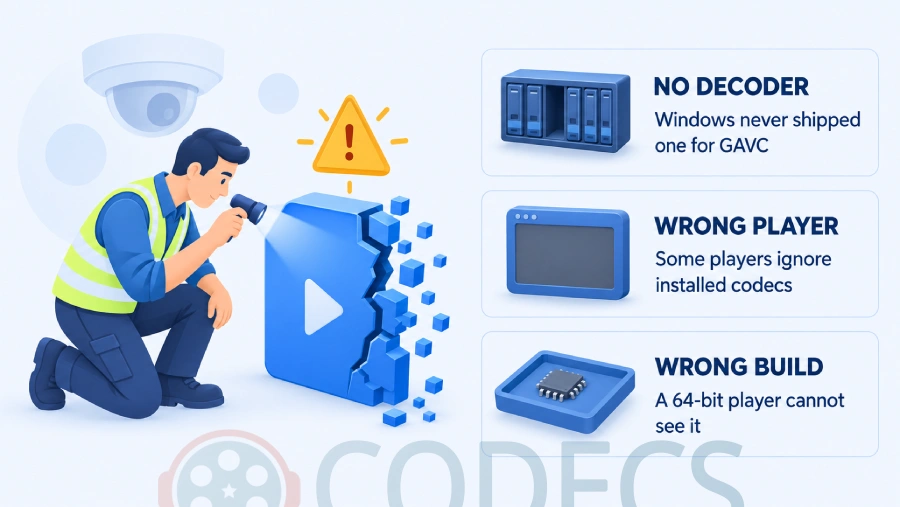
GeoVision cameras and DVRs record with the company's own MPEG-4 variant and stamp it into the AVI file as a four-letter tag, GAVC.
Windows has never included a decoder for that tag. The file itself is fine and the recording is all there - your computer just has no idea how to turn it back into a picture.
That is why the symptoms look so odd. You get sound with a black screen, a green or scrambled picture, a frozen first frame, or a flat refusal saying the codec is missing.
Check it really is a GeoVision file. Drop the AVI onto MediaInfo and look at the video line - if it reads GAVC, this page is the right page. Anything else and the GeoVision codec will not help you.
Install the GeoVision Codec
Download the GeoVision codec, then work through these four steps.
- Extract the archive. Right-click the downloaded zip, choose Extract All, and send it to a normal folder rather than running anything from inside the zip.
- Find the registration program. In the extracted folder look for the small executable that registers the codecs - on every version we could check it is called GeoCodecReg.exe.
- Run it as administrator. Right-click it, choose Run as administrator, and let it finish - it closes without a success message, which is normal.
- Restart the computer. Media players only scan for new codecs when they start, and some Windows components only at sign-in.
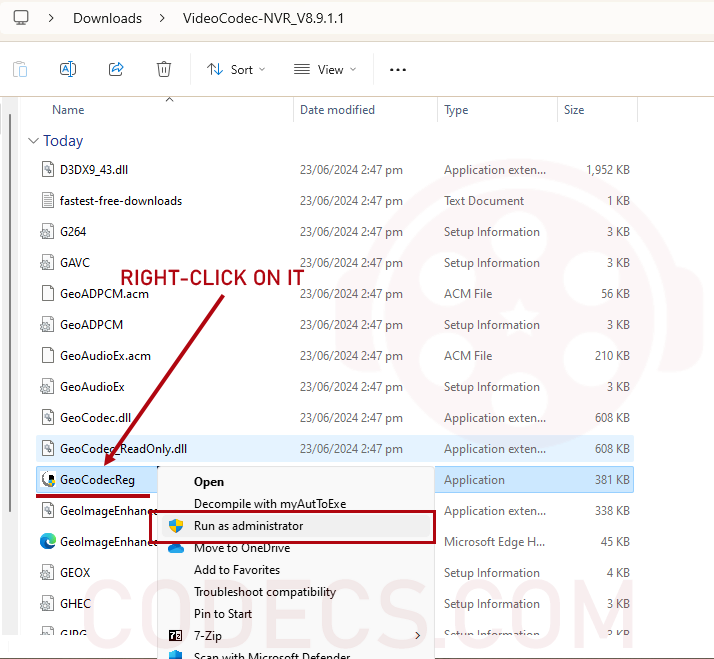
If you were told to right-click and choose Install, that is why nothing happened. Older write-ups pass that instruction around, but a program file has no Install item on its right-click menu - only older driver-style packages ending in .inf do. You run this one instead.
Two prompts are normal along the way. Windows SmartScreen may put up a blue "Windows protected your PC" panel, where you click More info and then Run anyway, and User Account Control will ask for permission straight after.
Use a Player That Actually Reads Windows Codecs
This is where most people get stuck, and it has nothing to do with the install.
A GeoVision codec plugs into the older decoding layer that Windows itself provides. Players that carry their own built-in decoders never look there, so installing the codec changes nothing for them.
VLC will not play these files, before or after the install. VLC Media Player is deliberately self-contained and ignores codecs you add to Windows, and it has no GAVC decoder of its own - so a black screen in VLC tells you nothing about whether the install worked.
Open the file in Windows Media Player instead. On Windows 11 that means the entry called Windows Media Player Legacy, not the newer Media Player app.
MPC-BE is the better long-term answer if you watch a lot of CCTV footage. It falls back on the codecs Windows has installed when its own decoders come up short, and it handles awkward and slightly damaged AVI files far more gracefully than Windows Media Player does.
If the Files Still Will Not Open
Work down this list in order. The first item fixes far more cases than the rest put together.
- Use the 32-bit build of your player. The GeoVision codec is 32-bit, and on 64-bit Windows a 64-bit program cannot see 32-bit codecs at all - MPC-BE offers both builds, so install the x86 one.
- Try an older codec version. The download page keeps several releases going back to 7.1, and footage from an older GV-System sometimes only decodes with the version that matches it.
- Turn antivirus off for the install, then back on. Real-time scanners routinely block a small unsigned program writing codec entries into the registry, and they usually do it silently.
- Register the files by hand. If the installer refuses to run at all, you can register the DLL and AX files by hand - the guide covers the 32-bit and 64-bit system folders, which is the part people get wrong.
Still stuck, or not sure the problem is GeoVision-shaped at all? Our Codec Troubleshooter asks a few questions about the file and your Windows version and points you at the right fix.
When the Codec Is Not the Problem
Not every file that comes off a GeoVision system is a plain AVI, and no codec helps with the ones that are not.
If the recording was exported from GeoVision's own ViewLog software, it may have been saved with the Save as EXE option. That produces a self-contained file that plays on any Windows PC with nothing installed, so if you have that version of the clip, just run it.
Worth knowing. DM MultiView is often suggested here and it is the wrong tool - it is remote viewing software for watching live cameras on a GV system, not a player for recorded files sitting on your disk.
And if the person who sent you the footage still has access to the recorder, the easiest fix is not on your end at all. Ask them to re-export from ViewLog as a standard AVI or as an EXE, and the codec question disappears.
If your recorder is doing something stranger than this, GeoVision's own support FAQ is the next place to look.
Quick questions
Is the GeoVision codec free?
Yes. It is freeware from GeoVision, with no trial period, no watermark and nothing to buy.
Does it work on Windows 11?
Yes, though you need Windows Media Player Legacy rather than the newer Media Player app, and a 32-bit player build if the 64-bit one shows a black screen.
Why does VLC still show a black screen after installing it?
Because VLC uses only its own built-in decoders and ignores codecs installed into Windows. It is not a sign that the install failed - open the file in Windows Media Player or MPC-BE to check properly.
Can I convert GeoVision AVI files to MP4?
Yes, once the codec is installed, because any converter that uses Windows codecs can then read the file. Convert a short test clip first and check the picture before you commit to a long recording.
Which version should I download?
Start with the newest one on the download page. If your footage comes from an older GV-System and refuses to decode, work backwards through the older releases until one matches.
Do I need this on a Mac?
It will not help - the codec is Windows only. Ask for the footage to be re-exported from ViewLog as a standard AVI or MP4, or play it on a Windows machine.
The codec is small, free and does exactly one job, and once it is in, GeoVision recordings behave like any other video on your PC.
Download the GeoVision CCTV MPEG4 Codec and see how it handles your footage, or leave a comment telling us which GV system yours came from - it helps the next person pick the right version.


Latest reviews
AllFree M3U Playlist for TiviMate: Legal Lists That Load Cleanl...
5/5The link isn't working. https://www.free-codecs.com/guides/free-epg-urls-for-iptv.htm
The New Fire TV Stick 4K Can't Run Kodi - Here's Which Fire ...
5/5The Vega OS shift is the biggest Firestick story of 2026. Anyone buying now needs to know: 4K Max = sideloading ...
JPEG XL Is Back in Chrome: What It Means and How to Open JXL...
5/5Brave just enabled it by default for stable users yesterday (1.97). Not specified is chromeOS will be passively gaining decode ...