Between the moment you double-click a video and the moment you see a picture, the file passes through four separate pieces of software - and when playback fails, exactly one of them is usually to blame.
Most playback advice tells you to install a codec pack and hope.
Knowing the four stages turns that guess into a diagnosis.
This guide walks the chain in order, then gives you a table that maps what you are seeing on screen to the stage that caused it.
Starting somewhere else. If you are still working out whether your problem is the file format or the compression inside it, read codecs and containers explained first and come back. This page assumes you know which is which.
The Four Stages, in Order
Every player on Windows does the same four things, whether it tells you about them or not.
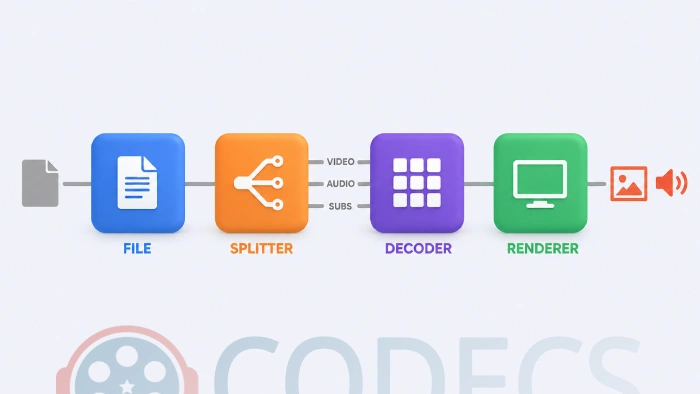
- The splitter opens the file and pulls the video, audio and subtitle streams apart.
- The decoder turns each compressed stream back into raw frames and sound samples.
- Hardware acceleration decides whether your graphics card does that work or your processor does.
- The renderer puts the frames on your screen in time with the audio.
Stages two and four are covered in depth by what decoders and renderers actually do, so this page moves quickly through those and spends its time on the two nobody explains.
Stage 1: The Splitter Opens the File
The splitter, also called a demuxer, is the first thing to touch your file and the one most people have never heard of.
Its job is to read the container and separate what is inside it. One file goes in; a video stream, one or more audio streams and any subtitle tracks come out.
This matters because a splitter failure looks nothing like a codec failure. If the decoder is missing you get a file that opens with no picture, but if the splitter cannot read the container, the player never gets started at all.
LAV Filters is the standard answer here, and it handles both jobs - LAV Splitter opens the container, LAV Video and LAV Audio decode what comes out.
Where a single container is the problem rather than all of them, the dedicated filters are smaller and easier to reason about:
- Matroska Splitter for MKV files that will not open or lose their subtitle tracks.
- MP4 Splitter for MP4 files that stutter or drop an audio track partway through.
- AVI Splitter for old DivX and oversized AVI files, including downloads that never finished.
Uninstall Haali first. If Haali Media Splitter is on your PC, it quietly takes priority over whatever you install next and overrides your player's settings. Remove it or rename its AX file, or your new splitter will look as though it did nothing.
Stage 2: The Decoder Turns Data Into Frames
Once the streams are separated, each one needs a decoder that speaks its particular compression format.
This is the stage people mean when they say "codec". No HEVC decoder means H.265 files open silently or show a black frame, which is why the HEVC Video Extension and the AV1 Codec are the two most downloaded things on this site.
A decoder only ever reads. Encoders such as x264 and x265 are a different job entirely, and installing one will not help a file play - a distinction worth holding on to, because plenty of guides get it wrong.
Stage 3: Who Actually Does the Decoding
This stage is invisible, has no icon anywhere in Windows, and causes more 4K playback complaints than the other three combined.
Decoding can happen on your processor, in software, or on your graphics card, in hardware. Your graphics card is far better at it and uses a fraction of the power.
LAV Filters can hand the work to the GPU through DXVA2, NVIDIA CUVID or Intel QuickSync, and modern players add D3D11 and NVDEC. When 4K stutters on a machine that should cope, hardware decoding is usually switched off or unavailable for that particular format.
The catch is that graphics cards only accelerate formats they were built for. A card from before AV1 existed will decode AV1 in software no matter what you tick, and there is nothing to configure that changes it.
How DirectX and D3D11 video decoding work covers the mechanics, and playing HEVC with LAV Filters walks through the settings that actually matter.
Stage 4: The Renderer Puts It On Screen
Decoded frames still are not a picture. The renderer takes them, converts the colours for your monitor, and paces them so the audio stays in sync.
This is why a video can play with correct sound and still look wrong - washed out, tearing, juddering on camera pans. Those are renderer symptoms, not codec ones.
MPC Video Renderer handles HDR tone mapping properly and ships with MPC-BE already, so switching to it is a dropdown rather than a download. madVR looks better still and asks a great deal more of your graphics card.
For the settings worth changing, see configure MPC Video Renderer, or the best video renderer options if you want to compare them first.
Which Stage Broke
This is the part worth bookmarking. What you see on screen tells you where in the chain it stopped.
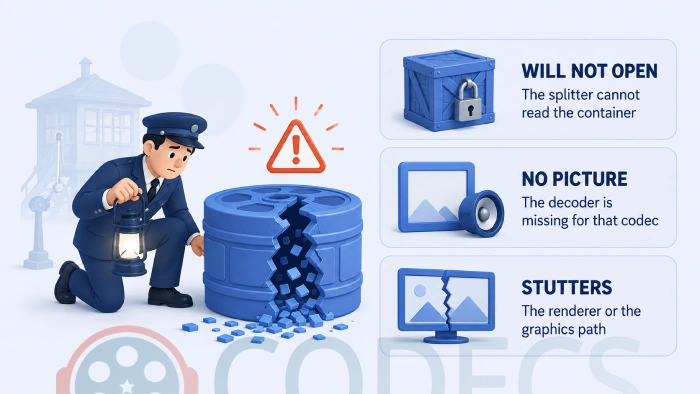
| What you see | Stage at fault | What to do |
|---|---|---|
| Player refuses to open the file at all | Splitter | Install LAV Filters, or the splitter for that one container |
| File opens, sound plays, no picture | Decoder | Install the decoder for that video format |
| Picture plays, no sound | Decoder | Install the audio decoder, usually AC3, DTS or EAC3 |
| Only some tracks or subtitles appear | Splitter | Update the splitter and check Haali is not installed |
| Stutters or drops frames on 4K | Hardware acceleration | Turn on GPU decoding, or check your card supports that format |
| Colours washed out, tearing, juddering | Renderer | Switch to MPC Video Renderer and set HDR handling |
| Audio drifts out of sync as it plays | Renderer | Change the audio renderer or its output mode |
If you do not know what is inside the file yet, MediaInfo lists every stream and its codec in a couple of seconds.
Then take that name to the Codec Finder, or work through the Codec Troubleshooter if you would rather answer questions than read specifications.
The One-Download Version
If diagnosing it stage by stage is more than you wanted, two downloads cover the whole chain at once.
MPC-BE carries LAV Filters and MPC Video Renderer inside the player, so all four stages arrive configured and nothing touches the rest of your system. This is the cleaner option and the one to try first.
K-Lite Codec Pack installs the same components system-wide instead, which is what you want when other programs on your PC need them too.
The Standard variant is the one to pick unless you know why you need more, and it arrives with MPC-HC already set up.
Install one, not both. A system-wide pack and a player with its own built-in filters will compete over which decoder handles a file, and the result is harder to debug than the problem you started with.
Who Should Look Elsewhere
The tell is whether the file plays anywhere else at all.
If it fails on your phone and a friend's laptop too, no amount of splitter or decoder work will help - that is a damaged download or a DRM-protected purchase, and no player or converter opens the latter.
And if you are getting a specific error box rather than a symptom, codec is not supported deals with that message directly.
Quick questions
What is the difference between a splitter and a decoder?
The splitter opens the file and separates the streams inside it. The decoder then uncompresses each stream, so the splitter runs first and a splitter failure stops everything.
Do I need a codec pack?
Often not. A player with built-in filters such as MPC-BE covers the whole chain without changing anything system-wide, and that is the safer starting point.
Why does 4K stutter when everything else plays fine?
Almost always hardware acceleration. Either GPU decoding is switched off in your player, or your graphics card does not support that specific format and is decoding it in software.
My video plays but the colours look wrong. Is that a codec problem?
No, that is the renderer. The frames decoded correctly and something went wrong converting them for your monitor, so changing the video renderer is the fix rather than installing a codec.
How do I find out what is inside a file?
Right-click it, open Properties and check the Details tab, or install MediaInfo for a full list of every stream, its codec and its language.
Will installing an encoder help a file play?
No. Encoders such as x264 and x265 create video files and take no part in playback, so you need the matching decoder instead.
Work out which of the four stages stopped, install the one thing that fixes that stage, and you stop installing codec packs on faith.
Download LAV Filters and see how it handles your files, or tell us which stage was breaking yours so the next reader gets there faster.
Our other guides cover the rest.


Latest comments
AllI used [link] on tivimate with the Usa m3u Playlist. I cannot get the guide to work.
Team replied Guide: Free EPG URLs for IPTV: TV Guide Links That Still Work 2 comments[link] Epg is not working on this one.
Team replied News: Free USA IPTV Playlist: The American TV That Is Really Free 1 commentSi mund te shikoj te gjitha kanalet e DigitAlb dhe Tring me url pa pagese ne Iptv Player?
Team replied Guide: Free Popular IPTV Playlist: Where to Get Fresh, Legal M3U Links in 2026 20 comments