LAME 4.0 is out, it is still free and open-source, and it still takes about five minutes to set up - here is every route from download to first conversion on Windows 10 and 11.
There are four ways to set LAME up on Windows 11 and 10, and which one is right depends on whether you want a command prompt, an audio editor, a drag-and-drop front-end, or nothing installed at all.
Audacity 3.2 and later, foobar2000 with its encoder pack and most modern rippers already carry LAME internally, so if one of those is your whole use case you are already done.
You only need to set it up by hand in three cases: running the encoder yourself from a command prompt, using an old Audacity that still asks for a library, or pairing it with a front-end like LameXP.
What Changed in LAME 4.0
LAME 4.0 landed on 11 July 2026, the first major release since 3.100 back in 2017.
It is a security and housekeeping update rather than a sound overhaul, so nothing in your existing library needs re-encoding.
The two fixes that matter are a stack buffer overflow in the old lame_enc.dll library and an integer underflow in the AIFF header reader. If you only ever encode your own CDs, the urgency is low; if an older program on your machine loads that library and you feed it files from elsewhere, updating is worth the five minutes.
Everything below assumes the current build from the LAME MP3 Encoder 4.0 download page. If you are still wondering whether LAME is the right encoder in the first place, we make that case separately in why LAME is still worth using.
Step 1 - Get the Right Build for Your Machine
Download LAME MP3 Encoder 4.0 and you get a 735 KB ZIP that installs nothing. There is no setup wizard, no registry entry and nothing to uninstall later.
Pick the package that matches your hardware:
- Most Windows 10 and 11 PCs: the standard package, which contains both the 64-bit and 32-bit encoder. Use the 64-bit one unless the machine is genuinely old.
- Windows on ARM, such as Surface and Snapdragon laptops: LAME for Windows ARM64, which skips the emulation layer and runs noticeably faster.
- Mac, including Apple Silicon: LAME 4.0 for Mac instead - this guide is Windows-only from here.
Extract the ZIP wherever you like. Desktop, Documents or a dedicated C:\LAME folder all work equally well.
What Is Actually in the Download
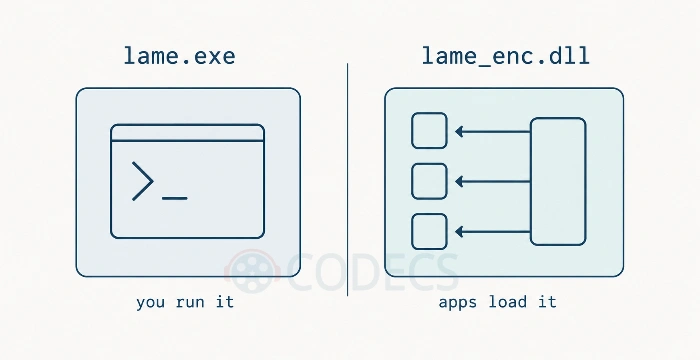
This trips people up more than anything else on the page, so it is worth thirty seconds. LAME comes in two shapes and they are not interchangeable.
- lame.exe is the encoder you run yourself, from a command prompt or from a front-end that calls it for you.
- lame_enc.dll is the older library that other programs load internally, so they can write MP3s without shipping their own encoder.
The package here holds the executables, not the library. If an application specifically asks you for lame_enc.dll, the front-end route further down is a far easier answer than hunting for a matching library build of unknown origin.
Step 2 - Pick Your Route
There is no single install procedure, because LAME is not a traditional app. What you do next depends entirely on how you plan to use it.
| Route | What you end up with | Use this when |
|---|---|---|
| Command line | lame.exe callable from any terminal | You script, batch or automate conversions |
| Audacity | MP3 export inside the editor you already use | You edit audio and just want Export to work |
| Front-end | Drag-and-drop encoding with presets | You convert files regularly and dislike flags |
| Browser | Nothing installed at all | It is one file and you will not be back |
Route A - Command Line
This is the route for scripters and anyone running conversions in a batch file or scheduled task. You do not install anything, you just make lame.exe reachable from any terminal.
- Move the extracted folder somewhere permanent - C:\LAME is the conventional choice.
- Open the Start menu, search for "environment variables" and click Edit the system environment variables.
- Click Environment Variables, select Path under System variables, then click Edit and New.
- Paste the full path to your LAME folder and click OK on every dialog.
- Open a fresh Command Prompt or PowerShell window and type lame --version, which should print the version string.
That is the whole job. You can now run lame -V 2 input.wav output.mp3 from any folder on the machine.
Route B - Audacity
Audacity 3.2 and every version since bundles LAME internally, so there is genuinely nothing to install. Open File, then Export, then Export as MP3, and you are done.
Older releases and some portable builds still ask for the encoder on first export. If yours does, the honest advice is to update Audacity rather than go looking for a loose library file, because the current release solves the problem permanently and takes one download.
If you are stuck on an old version for a reason, and you already have lame_enc.dll from a source you trust, pointing Audacity at it takes four clicks:
- Save the file anywhere on your drive, such as your Documents folder.
- In Audacity, open Edit, then Preferences, then Libraries.
- Click Locate next to the MP3 Library entry and browse to the file.
- Export as MP3 to confirm it took - no restart is needed.
While you are in there, it is worth setting up FFmpeg for Audacity too, which is what unlocks importing M4A, WMA and most video files.
Route C - A Front-End
If typing flags feels like a chore, a graphical front-end removes every sharp edge and is the route most people should take.
LameXP is the fullest option. It bundles LAME alongside Opus and FLAC encoders, takes drag-and-drop batches, and exposes every preset in a normal window, handling threading and tagging for you.
X Audio Converter is the lighter choice when you just want to drop in a file, pick a bitrate and get an MP3 back.
And if you already live in foobar2000, the foobar2000 Free Encoder Pack adds LAME to the player's own converter dialog, alongside AAC, Opus and FLAC.
Route D - No Install at All
Not every job is worth downloading anything for. For a single conversion, the site's own online audio converter handles it in the browser, and your file never leaves your machine.
Drop the file in, pick a bitrate, hit Convert. You get variable and constant bitrate modes and tagging, without a download to manage or update.
Convert audio more than once a month and LameXP is the answer. Only need MP3 export in Audacity, and you are on 3.2 or newer, then you already have it and can skip the install entirely.
Script or automate anything, and the PATH route pays for itself the first week. Here for one file and never coming back, use the browser tool.
Check It Actually Works
Whichever route you took, a thirty-second smoke test now saves a confusing hour later. Grab any WAV file, even a five-second voice memo.
- Run lame -V 2 test.wav test.mp3 from a command prompt, or drag the file into your front-end.
- Open the resulting MP3 in whatever you normally play music with.
- Listen to a few seconds - if it plays cleanly, LAME is wired up correctly.
If the command fails with "not recognized", the PATH entry did not take. Re-check the folder path you pasted, then open a brand new terminal window, because an already-open one keeps the old environment.
Pick the Right Quality Setting
Bitrate is how much data per second the encoder spends on your audio, and LAME can either hold that number steady or let it move with the music.
For music, variable bitrate is almost always right. -V 2 averages around 190 kbps and is the long-standing sweet spot, while -V 0 pushes to roughly 245 kbps if you want headroom you probably cannot hear.
Constant bitrate is for cases where predictable file size matters, such as podcast and broadcast delivery. -b 192 is a sensible floor for music and -b 128 is fine for speech.
One quirk worth remembering. With constant and average bitrate modes, asking for the slowest quality settings -q0 through -q3 can make the output worse rather than better, thanks to an old tuning left over from a psychoacoustic model no longer in use. Use -q4 there instead, and note that variable bitrate is unaffected.
Our best LAME settings guide goes through the presets case by case, and the WAV to MP3 quality guide covers the most common conversion in detail.
Common Gotchas
- SmartScreen warns on the download. The Windows builds are compiled by third parties and are not code-signed, so Defender flags them on first run - click More info, then Run anyway.
- Audacity still says MP3 export is unavailable. Close it fully, checking Task Manager for a lingering process, then relaunch - a half-closed instance keeps the old library path.
- A front-end reports "lame.exe not found". Put lame.exe in the same folder as the converter, or point the app's encoder setting at it directly.
- Your MP3s sound worse than expected. Nine times out of ten this is CBR 128 - re-encode at -V 2 and the files get smaller and better at once.
- Your player shows Unknown Artist everywhere. LAME encodes, it does not organise, so run the output through Mp3tag to fix artist, album and cover art in bulk.
Where LAME Fits in a Ripping Setup
LAME encodes, it does not rip, so a CD collection needs one tool in front of it. Exact Audio Copy is the accurate choice, reading discs repeatedly and verifying against a shared database before handing the audio over.
Audiograbber is the simpler, lighter alternative if that feels like overkill for a stack of pop albums.
Worth knowing where MP3 stops being the right answer, too. Opus clearly beats it at low bitrates for voice and podcasts, and FLAC keeps every bit of the original for archiving.
That trade-off is not obvious from the file sizes alone, and the FLAC versus MP3 comparison lays it out in plain terms.
If you would rather have one tool that handles every format instead of a dedicated encoder, the FFmpeg Audio Encoder covers the lot, and the rest of the current builds sit in the Audio Codecs section.
Quick questions
Is LAME free to use, even commercially?
Yes. LAME is open source under the LGPL, and the MP3 licensing program ended in 2017, so encoding MP3s costs nothing for personal or commercial work.
Do I still need to install LAME separately for Audacity?
Not on Audacity 3.2 or newer, which includes it. Only older releases and some portable builds ask you to supply the library yourself.
Will 4.0 make my MP3s sound better than 3.100 did?
No. It is a security and compatibility release and the encoded output is unchanged, so there is no reason to re-encode anything you already have.
What is the difference between lame.exe and lame_enc.dll?
The first is the encoder you run yourself from a command prompt. The second is the older library that other applications load so they can create MP3s internally.
Which quality setting should I use for music?
Use -V 2 for a good balance and -V 0 for the maximum. Add -q4 if you are using a constant or average bitrate rather than variable.
Does it work on Windows 11 and on ARM laptops?
Yes to both. Windows 11 runs the standard build without any compatibility settings, and ARM machines should use LAME for Windows ARM64 to avoid the emulation layer.
That is every route from download to first conversion.
Download LAME MP3 Encoder 4.0 and see how it handles your files, or tell us how you got on if you have set it up before.


Latest comments
AllThanks genius, it worked for me. v2.4.149.0 on windows 10
Guide: How to Download HEVC Video Extension for Free 181 commentsXMediaRecode gives only the option to Copy (No convert) in Audio Mode drop down. I am trying to convert/recode the EAc3 ...
Guide: How to Convert EAC3 Audio to AC3 or AAC With XMedia Recode 1 commentTo view major football league live
Guide: Free Popular IPTV Playlist: Where to Get Fresh, Legal M3U Links in 2026 19 comments