Open a folder full of SVG files in Windows and you get a row of identical blank icons instead of your artwork, because File Explorer has never learned to draw them - two free add-ons fix that in about two minutes.
Neither of them costs anything and neither has to keep running in the background.
Which one you want depends on whether you need small pictures on the icons, a big preview beside the folder, or both.
Here is the short version.
| What you get | PowerToys | SVG See |
|---|---|---|
| Thumbnails on the file icons | Yes | Yes |
| Preview pane on the right | Yes | No |
| What else you get | Around thirty other utilities | Nothing, and that is the point |
| Download size | A full suite installer | A small single-purpose installer |
| Pick it when | You want the big preview, or you already wanted PowerToys anyway | You only ever wanted the icons to show your artwork |
Thumbnails and Previews Are Not the Same Thing
This trips up almost everyone who tries one of these tools and decides it did not work.
A thumbnail is the small picture drawn onto the file icon itself, so you can scan a folder and spot the logo you want. A preview is the larger rendering that appears in the pane down the right-hand side of the window once you click a file.
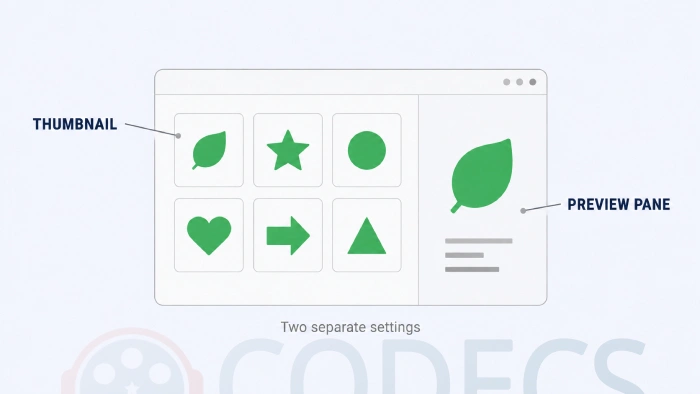
Windows treats them as two entirely separate systems, with separate settings and separate ways of failing. An add-on can supply one, the other, or both.
Option 1: PowerToys, If You Want Both
PowerToys is Microsoft's own free open-source toolkit, and its File Explorer add-ons module covers SVG thumbnails and the SVG preview pane in one install.
It needs Windows 10 version 2004 or later, or any Windows 11 build, on x64 or ARM64 hardware. If you have never used the suite, our guide to what every PowerToys module does is worth a look before you commit.
- Install PowerToys and open it from the system tray.
- Go to File Explorer add-ons in the left-hand list.
- Under Preview Pane, switch on the entry for SVG - there is a Checkered shade option here that makes transparent areas visible.
- Under Thumbnail previews, switch on the entry for SVG as well.
- Restart the machine, because the thumbnail handler often will not register until you do.
- In File Explorer, open the View menu and tick Preview pane, or just press Alt and P.
Windows can block preview handlers entirely. If the pane stays stubbornly blank, search the Start menu for File Explorer Options, open the View tab, and make sure Show preview handlers in preview pane is ticked. Microsoft documents this on its own File Explorer add-ons page, and it is the single commonest reason PowerToys appears to do nothing.
One warning worth knowing in advance: enabling these preview handlers overrides any others already installed, and there have been reports of the PDF handler clashing with Outlook.
Option 2: SVG See, If You Only Want Thumbnails
SVG See does one job. It draws SVG thumbnails in File Explorer, and that is the whole feature list.
It does not add anything to the preview pane, so if the big right-hand rendering is what you are after, this is not the tool. What it gives you instead is a tiny installer, no settings screen and nothing sitting in your system tray.
- Download SVG See in the build that matches your Windows architecture.
- Run it - there is genuinely no configuration step afterwards.
- Open a folder of SVG files and switch the view to Large icons or Extra large icons.
The wrong installer fails silently. A 32-bit build will install perfectly happily on a 64-bit system and then simply never draw a thumbnail, with no error to tell you why. Open Settings, then System, then About, and read the System type line before you download.
Still Seeing Blank Icons?
You installed something, nothing changed, and you are ready to write the whole idea off. Work down this list before you do - one of these four is almost always the answer.
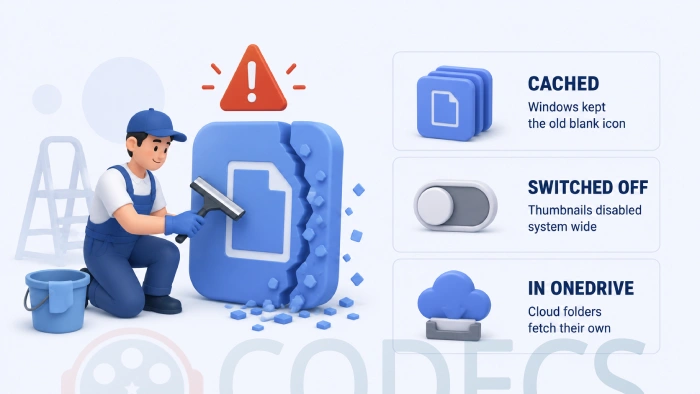
- Old thumbnails are cached. Windows remembers the blank icon it drew before you installed anything - run Disk Cleanup, tick Thumbnails, and click OK.
- Thumbnails are switched off system-wide. In File Explorer Options, on the View tab, make sure Always show icons, never thumbnails is unticked.
- The view is too small. Details and List views draw no thumbnails at all, so switch to Large icons before judging anything.
- The folder lives in OneDrive. Cloud-synced folders often fetch their thumbnails from the server rather than generating them locally, so a copy of the same file on your desktop is the quickest way to test.
If none of those does it, the last resort is clearing the icon cache by hand. Close File Explorer, delete %localappdata%\IconCache.db, and start Explorer again.
Opening an SVG, Not Just Previewing It
Previews and thumbnails are about browsing. Actually opening the file at full size is a separate question, and the answer that has always worked is a browser.
Right-click the file, choose Open with, and pick Microsoft Edge or whichever browser you use. Every modern browser renders SVG natively, with no add-on and no configuration.
If you would rather have a proper image viewer handle it, ImageGlass renders SVG with its own vector engine and opens instantly. Worth knowing that Microsoft Photos is not yet the answer here - SVG support only began appearing in Windows Insider test builds during 2026 and has not reached the version most people are running.
For editing rather than viewing, GIMP will open an SVG and let you work on it, and XnConvert handles whole folders at once when you need everything turned into PNG.
Other Formats Explorer Draws As Blanks
SVG is not the only format Windows quietly refuses to render, and if one folder full of blanks annoyed you, the others probably will too.
- Raw Image Extension - Microsoft's free add-on for camera RAW files such as CR3, NEF and ARW.
- JXL Winthumb - JPEG XL thumbnails on systems where Microsoft's own extension will not install.
- WebP Codec - WebP support for File Explorer and any other app that uses Windows Imaging Component.
- Media Preview - thumbnails for video files, which Windows handles patchily at best.
- SageThumbs - a broad shell extension covering a long list of formats in one install.
Turning an SVG Into an ICO or PNG
Sometimes what you actually need is a different file rather than a better preview - an icon for an application, or a flat image for something that will not accept vectors.
Two free browser-based converters handle that without installing anything: SVG to ICO and SVG to PNG.
Quick questions
Why does File Explorer not show SVG thumbnails on its own?
An SVG is not a picture but a set of drawing instructions, written in text, that can also carry scripts and styles. Rendering one safely means running that code, which is why Windows has always left the job to an add-on.
Do I need both PowerToys and SVG See?
No, and installing both is a good way to end up with two handlers competing over the same file type. Pick PowerToys if you want the preview pane, SVG See if you only care about the icons.
Are these safe to install?
Both are free and open-source. PowerToys is published by Microsoft under an MIT licence, and SVG See is a long-running community project on GitHub.
I installed it and my icons are still blank.
Clear the thumbnail cache with Disk Cleanup, restart, and make sure the folder view is set to Large icons. The Still Seeing Blank Icons section above covers the other two causes.
Can Microsoft Photos open SVG files?
Not on the version most people have. SVG viewing started appearing in Windows Insider test builds during 2026, so until it ships widely, use a browser or a viewer such as ImageGlass.
Does any of this work on Windows 10?
Yes. PowerToys needs Windows 10 version 2004 or later, and SVG See runs on older builds than that.
Two minutes of setup and you never have to guess which blank icon is which again.
Download PowerToys and switch on the two SVG toggles, or tell us which add-on you went with once your folders look the way they should.
More tools for the formats Windows struggles with are in the Graphics section, and the image viewers category has the lightweight apps that open almost anything.


Latest comments
AllI used [link] on tivimate with the Usa m3u Playlist. I cannot get the guide to work.
Team replied Guide: Free EPG URLs for IPTV: TV Guide Links That Still Work 2 comments[link] Epg is not working on this one.
Team replied News: Free USA IPTV Playlist: The American TV That Is Really Free 1 commentSi mund te shikoj te gjitha kanalet e DigitAlb dhe Tring me url pa pagese ne Iptv Player?
Team replied Guide: Free Popular IPTV Playlist: Where to Get Fresh, Legal M3U Links in 2026 20 comments