You have an ISO file and a blank disc, and you want the disc to work the first time.
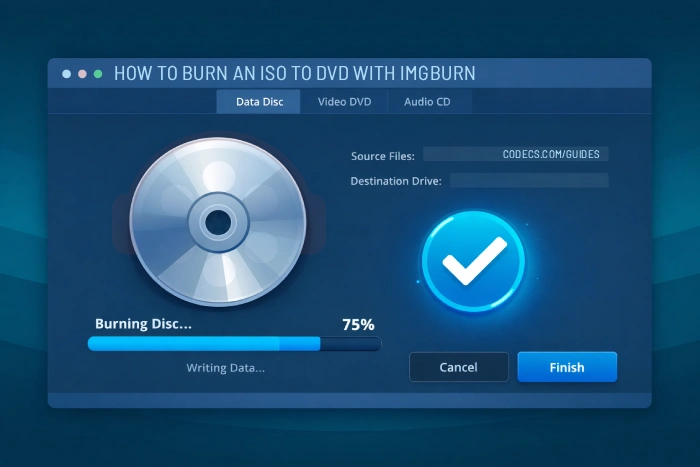
This guide burns an ISO to DVD, CD or Blu-ray with ImgBurn, which is free.
It takes about five minutes, plus the burn itself.
Most failed discs come from one setting, and it is not the one people expect.
That setting is in Step 3.
The Short Version
- Open ImgBurn and choose Write image file to disc.
- Click the folder icon under Source and pick your ISO file.
- Set the write speed to 4x. This is the important one.
- Tick the Verify box.
- Put the blank disc in, and click the big burn button at the bottom.
Not installed yet? Download ImgBurn free from our clean installer. The official one from the developer bundles an advertising component called OpenCandy, and ours does not.
What You Need First
Three things: the ISO file, a blank disc, and a drive that can write discs. A drive that only plays discs will not work.
Pick the disc by the size of the ISO file. Right-click the ISO file and choose Properties to see its size.
| Size of your ISO file | Disc you need | Note |
|---|---|---|
| Under 700 MB | CD-R | A DVD works too, if that is what you have |
| 700 MB to 4.7 GB | DVD-R or DVD+R | The common case, including most Windows and Linux images |
| 4.7 GB to 8.5 GB | DVD+R DL, dual layer | See the dual layer section below |
| Over 8.5 GB | BD-R, Blu-ray | Needs a Blu-ray writer, not just a Blu-ray player |
Step 1 - Open Write Mode
Start ImgBurn. The first window shows six large icons.
Click the first one, Write image file to disc. This is the only one you need for burning an ISO.
The other icons create images or check discs. There is a short description of each one further down this page.
Step 2 - Choose Your ISO File
At the top of the window there is a box marked Source. Click the small folder icon on its right.
Find your ISO file and select it. ImgBurn reads the file and works out how much space it needs.
Below that is a box marked Destination. It should already show your disc drive. If your computer has two drives, choose the correct one from the list.
Step 3 - Set the Write Speed to 4x
This is the step that decides whether the disc works.
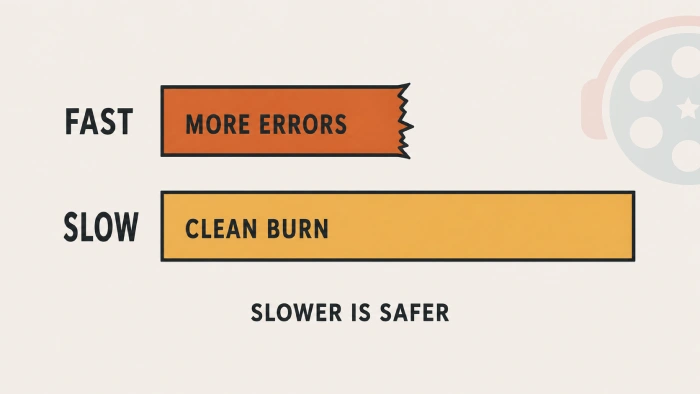
Faster is not better when burning a disc. A slower speed gives the laser more time on each part of the disc, and the result has fewer errors.
Set the speed to 4x. Use 8x only if you are burning ordinary data or video and you are in a hurry.
For any disc you will boot from, always use 4x. Windows installers, Linux live discs and recovery discs are all in this group. A disc that fails in the middle of installing an operating system costs far more time than the two extra minutes.
Step 4 - Tick Verify
Find the Verify box in the Write window and tick it.
After burning, ImgBurn will read the whole disc back and compare it with your ISO file. If anything is wrong, it tells you straight away.
This adds a few minutes. It is worth it, because the alternative is finding out the disc is broken halfway through installing something.
Step 5 - Burn the Disc
Put the blank disc in the drive if you have not already. Wait a few seconds for the computer to notice it.
Click the large button at the bottom of the window. It shows a file, an arrow and a disc.
ImgBurn shows a progress bar while it works. The speed number moves up and down a little, and that is normal.
When it is done, the check runs by itself if you ticked Verify. Then ImgBurn writes Operation Successfully Completed in the log at the bottom, and the disc tray opens.
How to Check the Disc Works
For a data or video disc, take it out, put it back in, and open it. If you can read the files, it worked.
For a video DVD, play it in VLC Media Player, which opens discs without any extra software.
For a disc you plan to boot from, the only real test is booting from it. Restart the computer, press F12 or F8 as it starts, and choose the disc drive from the list.
If the disc is a Linux installer and you plan to keep Windows as well, our dual boot guide covers what to do next.
Dual Layer ISO Files
An ISO between 4.7 GB and 8.5 GB needs a dual layer disc, sold as DVD+R DL.
You do not need to set anything. The point where the disc switches from the first layer to the second is already stored inside the image, and ImgBurn uses it.
If the ISO arrived with a file of the same name ending in .MDS, select that file instead of the ISO. The MDS file holds the layer position, and ImgBurn reads it.
Dual layer discs are fussy about quality. Cheap unbranded DL discs fail far more often than single layer ones. Buy a known brand, and burn at 2x or 4x rather than faster.
The Other Five Icons, Explained
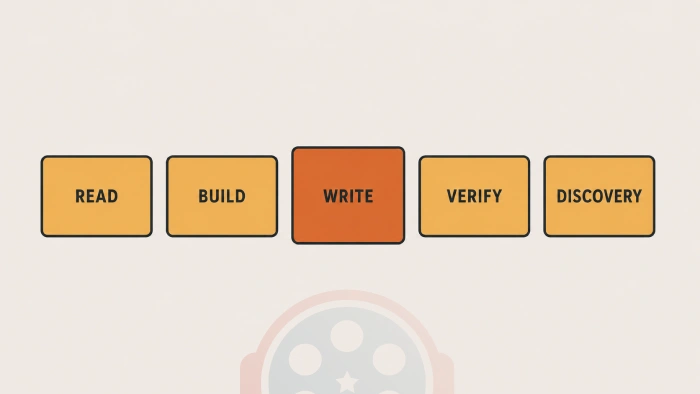
ImgBurn has five modes. Most people only ever need Write, but the others answer questions that bring people to this page.
| Mode | What it does | Use it when |
|---|---|---|
| Write | Burns an image file onto a disc | You have an ISO and want a disc. This guide |
| Read | Copies a disc you own into an ISO file | You want to back up a disc before it gets scratched |
| Build | Turns files and folders into a disc or an image | You have loose files, or want an audio CD from music files |
| Verify | Checks a finished disc against its image file | You burned a disc earlier and want to test it now |
| Discovery | Tests a blank disc and your drive before burning | Discs keep failing and you want to know why |
Build mode also makes audio CDs that play in a car stereo, from MP3, WAV or FLAC files. If that is all you want, Burrrn is simpler, and CDBurnerXP also does it.
For making and editing ISO files rather than burning them, ISO Workshop is the better tool and is still updated.
Three Things ImgBurn Cannot Do
It cannot make a bootable USB stick. ImgBurn writes discs only. Use Rufus for USB drives, or follow our bootable USB recovery drive guide.
It cannot mount an ISO as a fake drive. On Windows 10 and 11 you can right-click an ISO and choose Mount, with nothing installed. PowerISO does it on older versions.
It cannot copy a protected commercial disc. Read mode works on discs without copy protection.
If the Burn Fails
Lower the speed first. Drop to 4x, or 2x on a dual layer disc, and try again with a fresh disc.
If you see a message about Power Calibration, open Tools, then Settings, then the Write tab, and turn off Perform OPC Before Write. Some drives fail this test and burn fine without it.
If the disc is unreadable after burning, try a different brand. Drives and discs disagree with each other more than people expect, and Discovery mode will tell you which combinations your drive handles.
When ImgBurn Is the Wrong Tool
ImgBurn has not been updated since June 2013 and will not be again. It still burns discs correctly, because optical drives and disc formats have not changed, but it has had no security fixes in that time.
For most home users that is fine. On a work computer, decade-old unpatched software is usually the kind of thing an audit flags.
AnyBurn is the closest still-maintained match: about five megabytes, burns discs and images, and writes bootable USB drives too.
BurnAware is larger with a friendlier layout, and True Burner handles bootable discs.
If you want the full paid package, Nero Burning ROM covers everything, and our free Nero tools guide explains which parts of Nero cost nothing.
Everything else sits in the Burning Tools section.
Quick questions
Is ImgBurn free?
Yes, completely, with no paid version. The only catch is the developer's own installer, which bundles an advertising component. Our copy has it removed.
Does ImgBurn work on Windows 11?
Yes. It also runs on Windows 10, 8, 7 and XP, in both 32-bit and 64-bit. The program is old but nothing in Windows 11 stops it working.
What speed should I burn at, 4x or 8x?
Use 4x for anything you will boot from, and for dual layer discs. Use 8x for ordinary data and video when you are in a hurry. Higher speeds save a few minutes and cause most failed discs.
Can ImgBurn make a bootable USB drive?
No, it writes discs only. Rufus is the standard free tool for bootable USB drives, and AnyBurn does both discs and USB.
Can ImgBurn open or mount an ISO without burning it?
No. On Windows 10 and 11, right-click the ISO file and choose Mount, which opens it as a drive with nothing installed. On older Windows, use PowerISO.
Can I make an ISO from a disc I already have?
Yes. Use the Read mode icon rather than Write, choose your drive as the source and a folder as the destination. This works on discs without copy protection.


Latest comments
AllInteresting development with the Fire TV Stick 4K — losing Kodi sideloading is a big deal for a lot of users. For those ...
News: The New Fire TV Stick 4K Can't Run Kodi - Here's Which Fire Stick Still Can 3 commentsThanks genius, it worked for me. v2.4.149.0 on windows 10
Guide: How to Download HEVC Video Extension for Free 181 commentsXMediaRecode gives only the option to Copy (No convert) in Audio Mode drop down. I am trying to convert/recode the EAc3 ...
Team replied Guide: How to Convert EAC3 Audio to AC3 or AAC With XMedia Recode 1 comment