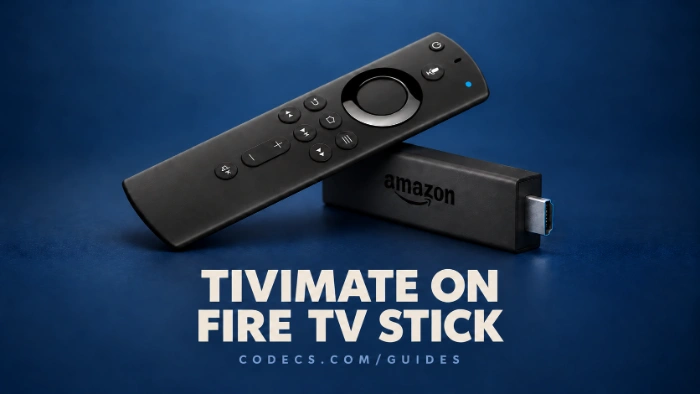
TiviMate is not in Amazon's Appstore, but most Fire TV Sticks can still install it in about five minutes with one free app called Downloader.
The catch is that two of Amazon's newest sticks cannot run it at all, whatever you try.
So check which stick you have first - it takes ten seconds and can save you an evening of hunting for a menu that does not exist.
Then follow the steps below, and you will be adding your playlist before the kettle boils.
First: Can Your Fire TV Stick Run TiviMate?
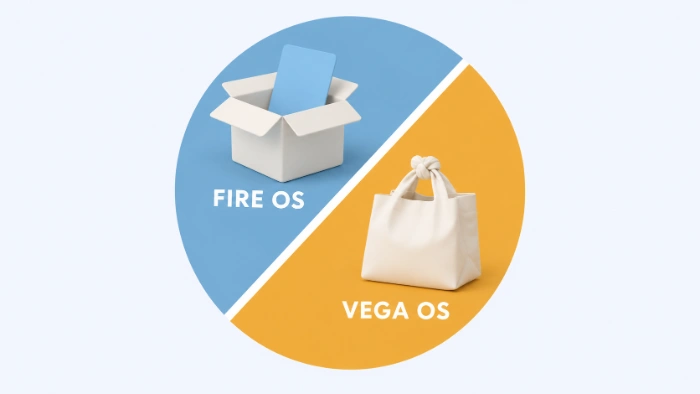
Amazon now sells Fire TV Sticks on two different systems. Fire OS is built on Android, so TiviMate installs on it. Vega OS is Amazon's newer Linux-based system, which runs no Android apps and has no way to sideload anything.
| Fire TV Stick | System | TiviMate? |
|---|---|---|
| Fire TV Stick 4K Max | Fire OS | Yes |
| Fire TV Stick 4K Plus | Fire OS | Yes |
| Older Fire TV Sticks (Lite, HD, earlier 4K) | Fire OS | Yes |
| Fire TV Stick 4K Select | Vega OS | No |
| Fire TV Stick 4K (2026 model) | Vega OS | No |
Not sure which one is plugged into your TV? Go to Settings > My Fire TV > About and read the name at the top.
If the name is not clear, try this quick test: search the Appstore for Downloader. If it does not appear at all, you are almost certainly on a Vega stick - skip to the section on what to do instead.
What You Need
- A Fire TV Stick running Fire OS, connected to the internet.
- About 100MB of free storage - TiviMate itself is around 20MB, plus room for the download.
- Your IPTV playlist link, or your Xtream Codes login, ready to type in.
How to Install TiviMate on a Fire TV Stick
- Install Downloader. On the home screen open Find, search for Downloader, and install the orange app called Downloader by AFTVnews.
- Show Developer Options. Go to Settings > My Fire TV - if Developer Options is missing, open About, select your stick's name seven times, then go back.
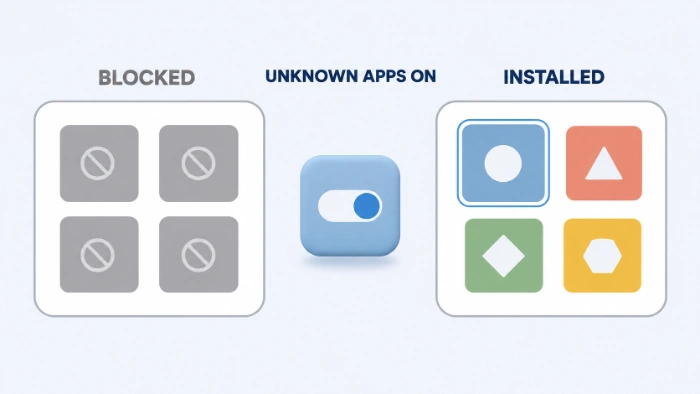
- Let Downloader install apps. Open Developer Options > Install unknown apps and switch Downloader to ON - older sticks show a single Apps from Unknown Sources switch instead.
- Open the TiviMate download page. Launch Downloader, type free-codecs.com/tivimate_download.htm into the address box and press Go.
- Download the APK. Select the Main link for TiviMate and wait for the download to finish.
- Install it. Choose Install when Fire TV asks, then Done - and select Delete when Downloader offers to remove the file, to win back the space.
- Open TiviMate and add a playlist. Choose Add playlist, then enter your M3U link or your Xtream Codes login.
That is it. TiviMate now sits in Your Apps, and you can pin it to the home screen from there.
About those six-digit codes:
Many sites give a short Downloader code for TiviMate instead of an address. Nobody can see where a code points until it opens, and some lead to modded "Premium unlocked" copies, so typing a page address you recognise is the safer habit.
One Thing TiviMate Does Not Include: Channels
TiviMate is a player, like a TV set without an aerial. It shows whatever your playlist contains and nothing more, so an empty screen after install is normal.
If you do not have a playlist yet, IPTV Finder lists free, public M3U playlists you can paste straight into TiviMate.
When You Cannot Install It - and What to Do Instead
You have a Vega stick. There is no workaround here, because Vega cannot run Android apps at all - our piece on why the new Fire TV Stick 4K can't sideload explains it in full. If you are still inside the return window, swapping it for a 4K Max or a Google TV device is the honest fix.
Developer Options will not appear. Make sure you select the stick's name itself under About, not the menu item above it, and press seven times in a row. A message saying you are already a developer means it worked.
Downloader says the app cannot be installed. This is usually storage. Delete apps you no longer use, clear Downloader's old files, and try the download again.
Premium will not activate. That is a separate licensing problem linked to TiviMate's Play Store removal, and our news piece on TiviMate's Play Store situation covers the fix.
Want something simpler?
If TiviMate feels like more than you need, our list of the best free IPTV players includes options that open a playlist with fewer settings.
Quick questions
Why is TiviMate not in the Amazon Appstore?
It is not listed there. TiviMate is built for Android TV, so on Fire TV it is installed from its APK file, which is what Downloader does for you.
Does TiviMate work on the new Fire TV Stick 4K?
No. The 2026 Fire TV Stick 4K and the 4K Select run Vega OS, which cannot install Android apps. The 4K Max still runs Fire OS and works fine.
Is TiviMate free?
The basic app is free and plays your playlist. Premium is an optional paid upgrade that unlocks extra features, and the free version is enough to see whether TiviMate suits you.
Is it legal to install TiviMate?
Yes - TiviMate is a player and contains no channels. What matters legally is the playlist you put into it, so stick to services and free playlists you are entitled to watch.
Is it safe to turn on unknown apps?
It is safe as long as you only allow Downloader and only install files from sources you trust. You can switch it off again once TiviMate is installed.
Five minutes, one helper app, and your Fire TV Stick is ready for TiviMate.
Download TiviMate and follow the steps above, or tell us which stick you got it running on so other readers know what to expect.


Latest comments
AllHola cuando descargo un video con mpc-hc lo descarga en formato webm en vez de mp4 o mp3
Team replied Guide: How to Stream Videos with MPC-HC 1 commentInteresting development with the Fire TV Stick 4K — losing Kodi sideloading is a big deal for a lot of users. For those ...
News: The New Fire TV Stick 4K Can't Run Kodi - Here's Which Fire Stick Still Can 3 commentsThanks genius, it worked for me. v2.4.149.0 on windows 10
Guide: How to Download HEVC Video Extension for Free 181 comments