Your tablet is already an eBook reader - it just arrives set up for everything except reading.
Three display settings and one good reading app do most of the work.
The rest is getting your books onto the device in a format it actually likes.
Here is the whole setup, plus an honest note about the two things a real e-reader still does better.
Start With the Display, Not the App
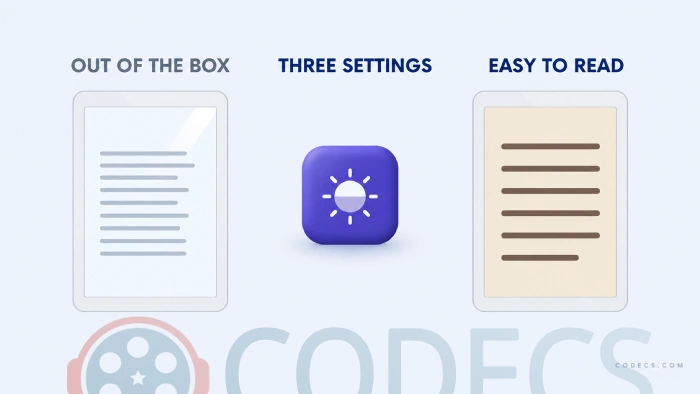
A tablet ships bright enough to be read at arm's length in a shop window, which is far more light than a book needs.
Drop the brightness to roughly a third indoors, and lower again at night. Your eyes adjust within a minute or two, and the page stops glowing at you.
Leave adaptive brightness on if you like, but expect to nudge it down by hand once you settle into a chapter - it aims for "clearly visible", not "comfortable for an hour".
Then warm the colours. Every Android tablet has this under a name like Night Light, Eye Comfort or Reading Mode, and it pushes the screen towards amber instead of blue-white.
Last, get off pure white. Almost every reading app offers a sepia or light grey page, and either one is easier to sit with than a page rendered at maximum brightness white.
If the built-in filter does not go far enough. Twilight is a free Android filter that dims below the system minimum and lets you set the warmth yourself, on a schedule tied to sunset where you live.
What Night Mode Actually Does, and What It Does Not
Warm modes get sold as eye protection and sleep medicine. They are neither, and it is worth knowing that before you build a bedtime routine around one.
The American Academy of Ophthalmology is blunt about the first claim: there is no scientific evidence that blue light from a screen damages your eyes.
Tired, dry, aching eyes after two hours of reading are real - they just come from blinking less and holding focus at one distance, not from the colour of the light.
The sleep claim has not held up either. A controlled trial run by Brigham Young University and Cincinnati Children's Hospital compared phones with night mode on, night mode off, and no phone at all, and found no difference in how people slept.
So keep the warm filter, because a warm page genuinely is nicer to read at night. Just do not expect it to do a job that only a dimmer screen and an earlier finish can do.
The Reading Apps Worth Installing
Four apps cover almost everybody, and the right one depends on where your books came from rather than on features.
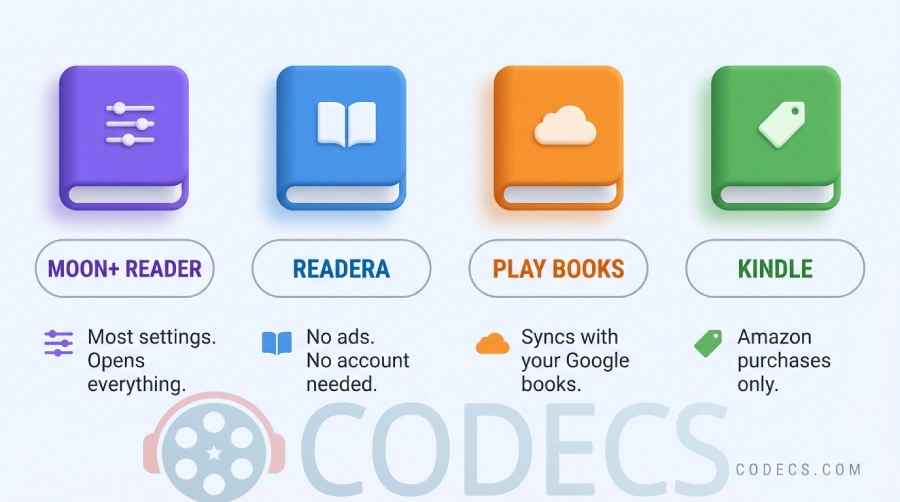
- Moon+ Reader is the one to pick if you want control - its own brightness and contrast sliders independent of the system, a stack of page themes, custom margins and line spacing, and support for EPUB, PDF, MOBI, FB2, CHM and a long tail of older formats.
- ReadEra is the one to pick if you want none of that - no account, no ads, automatic day and night switching, and it opens EPUB, PDF and DOCX without asking you anything.
- Google Play Books makes sense if your books are already in Google's store, since it syncs your place across every device you sign in on and has a dictionary built in.
- The Kindle app is the only way to read Amazon purchases, and it keeps your place across a phone, a tablet and a real Kindle.
Sideloading on a tablet without the Play Store. Amazon Fire tablets and some imported models have no Google services, so apps arrive as APK files - run one through the APK analyzer to see what it asks for, and through Play Services Check to find out whether it will run without Google's framework at all.
Getting Your Books Onto the Tablet
This is the part that stops most people, and one free program on your computer solves it.
Calibre holds your whole library, fixes the metadata and covers, converts between EPUB, MOBI, AZW3, PDF and comic formats, and sends the result straight to a connected reader.
If your shelf is still empty, our guide to where to download free eBooks legally lists the public-domain archives and library services worth using.
Most of them hand you an EPUB, which is exactly what this setup wants.
If your books are already EPUB files, you can skip the converting entirely - EPUB is what nearly every Android reading app wants, and Amazon's Send to Kindle service takes it too.
MOBI is the format to stop using. Amazon retired it for new documents in 2022, so a MOBI file you send today may simply be refused.
Books bought from a store stay in that store's app. Purchases from Amazon, Kobo or Google carry copy protection, which no converter can remove and none of these tools will try to - a Kindle book opens in the Kindle app or on a Kindle, and if you prefer to manage that library from a computer, Kindle for PC is where it lives.
Comics, Manga and PDFs
Comics arrive as CBZ or CBR files, which are simply folders of page images with a different extension, and every app listed above opens them.
The problem is fit. A page drawn for print is taller than a tablet screen, so you either zoom constantly or read it at postage-stamp size.
Kindle Comic Converter rebuilds the file for a specific screen - it trims the margins, resizes each page to your device and can split a double-page spread into two panels, with a right-to-left mode for manga.
PDFs deserve the same warning. A PDF has a fixed page size baked into it, so text cannot reflow to your screen the way an EPUB does, and a document laid out for A4 will always be a compromise on a 10-inch tablet.
Converting a text-heavy PDF to EPUB in Calibre usually reads far better, though anything with columns, tables or heavy layout is worth leaving alone. You can check what you are getting first in the browser-based EPUB viewer before you copy anything across.
Reading for Hours Without Sore Eyes
Since the discomfort comes from how you read rather than from what the screen emits, the fixes are behavioural and they are dull but effective.
- Follow the 20-20-20 rule - every twenty minutes, look at something about twenty feet away for twenty seconds.
- Blink deliberately now and then, because most of us blink far less while staring at a screen and that is what dries the eyes out.
- Take a proper break every hour, and stand up for it rather than switching apps.
- Keep a lamp on in the room - reading in the dark will not damage anything, but a bright page in a black room is tiring within minutes.
- Hold the tablet a little further away than feels natural, around arm's length, and prop it on a stand or a cushion so your neck is not doing the work.
- Set the type a size larger than you think you need, with generous line spacing - it looks odd for a page and then you stop noticing.
- A matte screen protector kills reflections, which matters more than any setting if you read near a window.
- Over-the-counter artificial tears help if your eyes still feel gritty, and a pharmacist can point you at a suitable one.
Battery, Storage and Other Practicalities
Reading is one of the gentlest things you can ask a tablet to do, and screen brightness is far and away the biggest drain of what is left.
Turning brightness down for comfort has already done most of the work. Airplane mode and closing background apps buy a little more.
Dark mode is worth less than its reputation suggests. Purdue University measured it on OLED phones and found the saving is large only when the screen is near maximum brightness - at the level you would actually read at, it is a few percent.
Charging matters more than either. A tablet that spends every evening on a charger benefits from the same habits as any other lithium battery, and how to charge your devices covers those in one page.
Storage is rarely the problem people expect. A plain text ebook is smaller than a single phone photo, so a library of hundreds fits comfortably, and only illustrated books, comics and scanned PDFs get large.
If your tablet still has a microSD slot, most reading apps will happily keep the library there. Plenty of newer models dropped the slot, in which case a folder in internal storage is fine.
Who Should Look Elsewhere
Two tells, and both are things you can check without buying anything.
If most of your reading happens outdoors, a tablet will lose. E-ink is readable in direct sun where a glossy screen becomes a mirror, and no setting in this guide changes that.
If your reading sessions end because your wrists ache rather than because you are sleepy, weight is the issue. A 10-inch tablet is roughly twice the weight of a small e-reader, and that gap is felt after an hour, not after five minutes.
The flip side is the reason to stay: a tablet shows colour, so illustrated books, cookbooks, comics and magazines look right on it in a way they never will on grey e-ink.
Quick questions
Do I need a reading app, or will the built-in one do?
Most tablets ship with a viewer that opens a PDF and nothing else, so a proper reading app is the single biggest upgrade here. It is also where the page themes, margins and independent brightness live.
Is blue light from my tablet damaging my eyes?
The American Academy of Ophthalmology says there is no scientific evidence that it is. Sore, dry eyes after a long session come from blinking less and focusing at one distance, which is why the breaks matter more than the filter.
Can I read my Kindle books in Moon+ Reader?
No. Books bought from Amazon are copy-protected and open only in Amazon's own app or on a Kindle, and that applies to Kobo and Google purchases in their apps too.
EPUB or PDF - which should I be using?
EPUB, almost always, because the text reflows to fit whatever screen and font size you choose. Keep PDF only for documents whose exact layout matters, such as sheet music, manuals and anything with tables.
How do I read comics without zooming on every page?
Convert them first with Kindle Comic Converter, which resizes each page for your specific screen and can split wide spreads into single panels. Then open the result in any of the apps above.
Will reading flatten the battery?
Not really - a static page is about the lightest load a tablet ever handles. The screen is what uses the power, so the brightness you turned down for comfort is already the fix.
Set up this way, a tablet handles almost everything a dedicated e-reader does, and it does colour, comics and illustrated books far better - the trade is glare outdoors and a bit of extra weight in your hands.
Download Calibre to get your library in order first, and tell us how you got on if you have a setup of your own worth sharing.


Latest comments
AllInteresting development with the Fire TV Stick 4K — losing Kodi sideloading is a big deal for a lot of users. For those ...
News: The New Fire TV Stick 4K Can't Run Kodi - Here's Which Fire Stick Still Can 3 commentsThanks genius, it worked for me. v2.4.149.0 on windows 10
Guide: How to Download HEVC Video Extension for Free 181 commentsXMediaRecode gives only the option to Copy (No convert) in Audio Mode drop down. I am trying to convert/recode the EAc3 ...
Team replied Guide: How to Convert EAC3 Audio to AC3 or AAC With XMedia Recode 1 comment