A video renderer is the last step in playback - the part that puts already-decoded frames on your screen - and changing it fixes a short, specific list of problems.
Washed-out HDR, banding in dark scenes, mushy upscaling and combing on old TV recordings are all renderer problems.
Stuttering, high CPU usage and files that refuse to open are not, and no renderer will fix them.
So the first section sorts one from the other, and the rest names the renderer actually worth installing.
Start Here: Is It Really the Renderer?
Playing a video takes three steps in a row. A splitter opens the container, a decoder turns the compressed data into raw frames, and a renderer draws those frames on your display.
A renderer only touches the third step, which is why swapping it has no effect on the first two. Our explainer on how decoders and renderers divide the work goes through the split properly.
If the picture is there but it looks wrong, that is the renderer. If the picture is missing, juddering, or your fan is screaming, that is the decoder.
High CPU usage during playback means your machine is decoding in software. The fix is hardware decoding in LAV Filters, set to D3D11 rather than software mode.
Files that will not open at all are missing a decoder, not a renderer. Drop a sample into the Codec Finder and it will name what your system is short of.
MPC Video Renderer - the One Most People Should Install
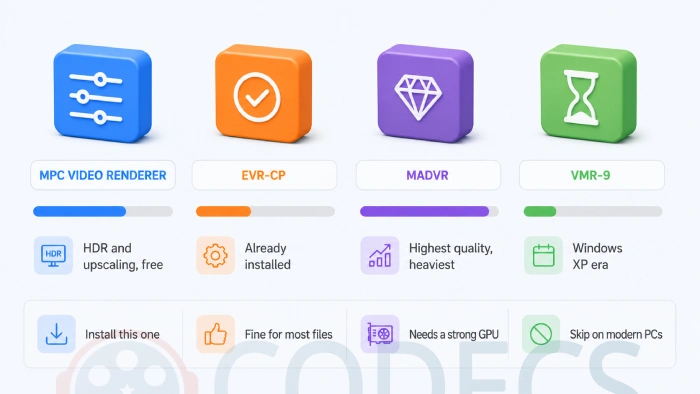
MPC Video Renderer, usually written MPCVR, is the practical answer for almost everyone reading this. It is free, open source, actively developed, and small enough that trying it costs you nothing.
It handles HDR tone mapping, HDR to SDR conversion for ordinary monitors, Dolby Vision, dithering that kills banding in dark gradients, decent upscaling and proper deinterlacing. If HDR films look grey on your screen, our washed-out HDR guide has the exact settings.
Two of the reviews on our MPC Video Renderer page describe moving to it from madVR specifically for HDR, which is a fair summary of where it now sits.
It is a filter, not a program. The download is a ZIP with no installer and no Start menu entry. Unpack it somewhere permanent, run the included install .cmd as administrator, then pick it in your player.
One qualification worth knowing before you get excited: the Super Resolution and RTX Video HDR options need an NVIDIA RTX card and a recent GeForce driver. On AMD and Intel graphics they simply do not appear, and everything else still works.
Once it is running, the settings walkthrough covers which options are worth changing and which to leave alone.
EVR and EVR Custom Presenter - What You Already Have
The Enhanced Video Renderer has shipped with Windows since Vista, and it is what most players fall back to. It is competent, it uses your GPU to present frames, and for a lot of people it is genuinely fine.
Most Media Player Classic builds default to a variant called EVR Custom Presenter, or EVR-CP, which is the same renderer with the player supplying its own presentation layer. That is the entry your dropdown is probably sitting on right now.
Worth being clear about one thing: EVR does not decode anything and cannot turn hardware decoding on. That happens earlier in the chain, in your decoder settings.
madVR - the Ceiling, If Your GPU Can Pay for It
madVR is still the reference for image quality on Windows, with high-quality chroma upsampling, the NGU and Jinc scalers, 16-bit internal processing and gamut correction for calibrated displays.
It is also heavy, fiddly to tune, and demanding enough that weak integrated graphics will drop frames on the aggressive presets. Check what card you have before you commit an evening to it.
madVR builds expire. Each release carries a built-in expiry date, and once it passes the renderer starts reminding you to update rather than quietly carrying on. It is not a trial, but it does mean an old install eventually nags.
It also renders no subtitles of its own and does no decoding, so it needs a decoder and a subtitle filter alongside it. The madVR page lays out the full pairing.
VMR, Sync Renderer and the Rest of the Dropdown
Open any Media Player Classic renderer list and you will find several more entries. They are historical, and none of them is the right answer on a current machine.
- VMR-7 and VMR-9. The Windows XP era renderers, superseded by EVR - VMR-9 can still use hardware acceleration, so the old line about it being the lightweight software option is simply wrong.
- Sync Renderer. Built on EVR, it re-times video frames to your display's refresh rate to remove judder, which is not the same thing as fixing audio sync - it is finicky, needs manual tuning, and modern players handle timing better without it.
- Overlay Mixer. Older still, with no shaders and no modern colour handling - useful only on genuinely ancient hardware.
- Null renderer. Draws nothing at all - it exists for testing, and picking it by accident is a classic way to end up with sound and a black window.
About the Haali Video Renderer
Older versions of this guide recommended it, and that recommendation was wrong, so it is worth saying plainly why.
Haali's filters were frozen at their final 2013 build. The renderer was an experimental extra even then, and it predates HEVC, AV1, VP9, HDR and everything else people watch now.
Worse, an old Haali install fights newer filters for control of the playback chain and usually wins, which is why LAV Filters tells you to remove it before installing. If MKV files went quiet or HEVC stopped starting after you installed something, a leftover Haali registration is one of the first things to rule out.
How to Change the Renderer in Your Player
The setting is in the same place in both Media Player Classic forks, and it takes a restart of playback rather than a restart of the player.
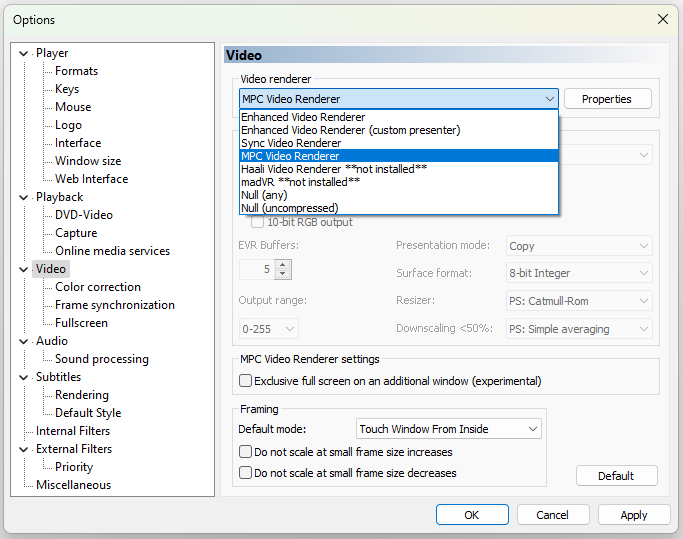
- In MPC-BE, open View then Options. In MPC-HC, open View then Options as well.
- Go to Playback, then Output.
- Pick your renderer from the DirectShow Video dropdown.
- Close the dialog and restart the file. If the entry you want is missing, the filter is not registered yet.
PotPlayer keeps the same setting under Preferences, Video, Video Renderer. Any other DirectShow-based player will have it somewhere similar, usually near the video or output settings.
Who Should Look Elsewhere
- You use VLC or mpv. Both run their own internal video pipeline and ignore DirectShow renderers entirely, so none of this applies.
- You watch mostly in a browser. The browser does its own rendering and no system filter reaches it.
- Your complaint is stuttering or a hot laptop. That is decoding, so start with hardware acceleration in your decoder settings.
- Files will not open at all. That is a missing decoder or a codec pack, not a renderer.
Quick questions
Which video renderer is best for most people?
MPC Video Renderer. It is free, still maintained, works on AMD, Intel and NVIDIA graphics, and covers HDR, banding, upscaling and deinterlacing without the tuning madVR demands.
Will changing my renderer reduce CPU usage?
Almost certainly not. Decoding is what loads the CPU and it happens before the renderer, so the fix is hardware decoding in LAV Filters instead.
Is madVR better than MPC Video Renderer?
On a strong discrete GPU, with time spent tuning it, madVR still has the edge on scaling quality. For everyday watching on ordinary hardware, most people now prefer MPCVR, especially for HDR.
Do renderers work in VLC?
No. VLC and mpv use their own internal output paths and never load a DirectShow renderer, so installing one changes nothing in either player.
Do I need a codec pack as well?
Only if files are failing to open. A renderer handles display, a codec pack handles decoding, and they solve different problems.
Should I still use the Haali video renderer?
No. It has been frozen since 2013, it never supported modern formats, and an old install interferes with the filters that replaced it.
If the picture is the problem rather than the playback, one small download fixes most of it.
Get MPC Video Renderer and see how it handles your files, or tell us which renderer you settled on if you have already been through this.


Latest comments
AllI used [link] on tivimate with the Usa m3u Playlist. I cannot get the guide to work.
Team replied Guide: Free EPG URLs for IPTV: TV Guide Links That Still Work 2 comments[link] Epg is not working on this one.
Team replied News: Free USA IPTV Playlist: The American TV That Is Really Free 1 commentSi mund te shikoj te gjitha kanalet e DigitAlb dhe Tring me url pa pagese ne Iptv Player?
Team replied Guide: Free Popular IPTV Playlist: Where to Get Fresh, Legal M3U Links in 2026 20 comments