Microsoft PowerToys is a free, open-source box of more than two dozen utilities for Windows 10 and 11 - window layouts, batch renaming, a proper launcher, OCR, a colour picker. This is what each one does, and which four to switch on first.
PowerToys started life on Windows 95, disappeared for two decades, and came back in 2019 as an open-source project Microsoft develops in public.
It is not one program but a toolbox, and every tool in it is switched off until you say otherwise.
That matters, because the temptation with a suite this size is to enable everything and end up with a machine full of hotkeys you do not remember setting.
Microsoft PowerToys rewards being picky.
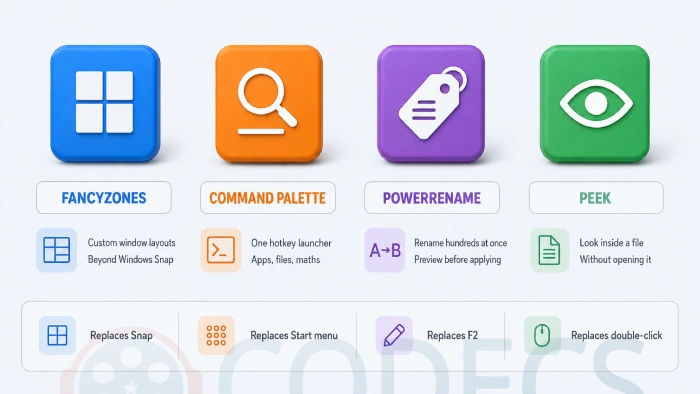
FancyZones for window layouts, Command Palette for launching things, PowerRename for renaming files in bulk, and Peek for looking inside a file without opening it.
Those four cover what most people install PowerToys for. Everything below is worth knowing about, but start there.
Before you install
- Windows 10 version 2004 or later, or any build of Windows 11.
- An x64 or ARM64 processor.
- The .NET Desktop Runtime, which the installer brings with it - nothing to fetch separately.
It is MIT-licensed, developed openly on GitHub, and carries no telemetry-for-features trade and no bundled extras. Download PowerToys free, or see the screenshots first if you want a look before committing.
FancyZones: window layouts that are not halves and quarters
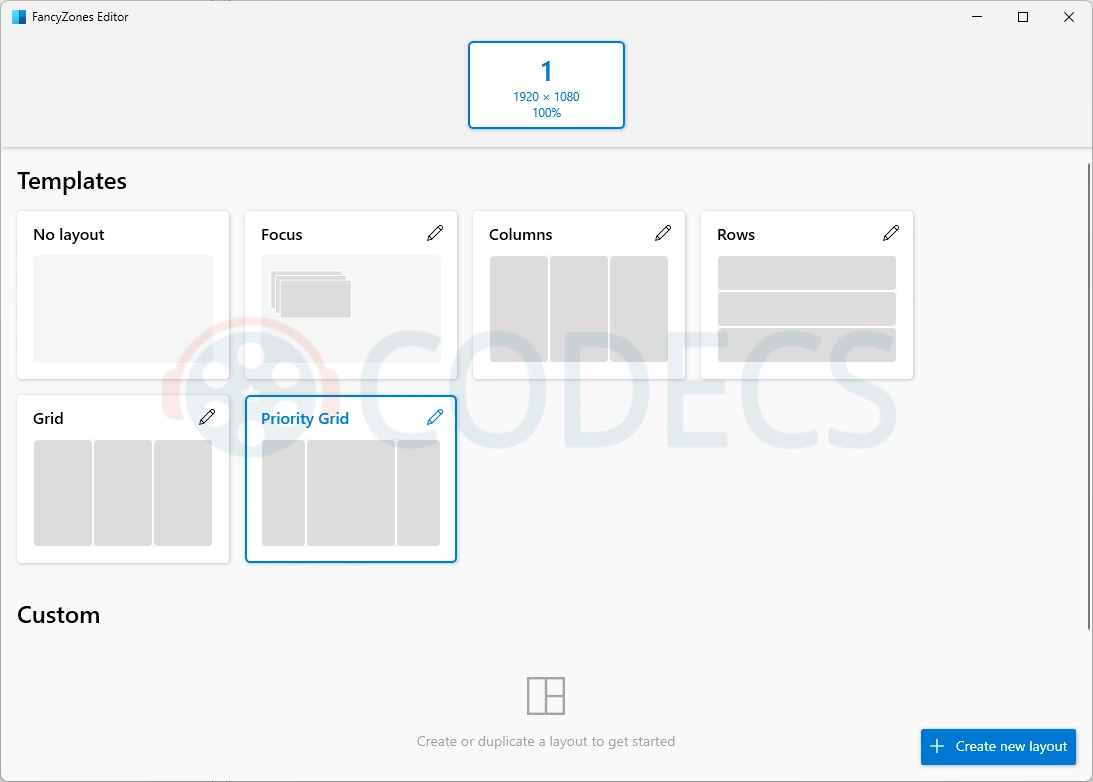
Windows Snap tiles windows into halves and quarters. FancyZones lets you draw whatever layout you actually want and snap windows into it.
Hold Shift while dragging a window and the zones appear; drop it into one and it fills that zone exactly. Open the layout editor with Win + Shift + `.
- Grids, columns, rows or entirely custom shapes, with different layouts per monitor.
- Windows remember which zone they were in after a restart.
- On an ultrawide it is the single strongest argument for installing PowerToys at all.
Command Palette: the launcher Windows never had
Formerly called PowerToys Run, this is Windows' answer to Spotlight on a Mac. Press Alt + Space and start typing.
It launches apps, finds files, does arithmetic, converts units, runs shell commands and searches the web, all from the same box. Recent versions added an Extension Gallery so you can browse and install community extensions without leaving it.
If you script media jobs, it is a fast way to fire off FFmpeg commands or start a yt-dlp download without opening a terminal first.
PowerRename: renaming hundreds of files at once
Select files, right-click, choose Rename with PowerRename. Search and replace, or regular expressions if you need them, with a live preview of every change before you commit.
It also does sequential numbering, can target specific extensions only, and has an undo. For anyone tidying a folder of episode files or camera exports, it is the utility that pays for the install on day one.
Peek: look inside a file without opening it
Select a file, press Ctrl + Space, and its contents appear in a floating window - images, documents, PDFs, text. Close it with the same key.
It is Quick Look from macOS, and it is the one people miss most when they switch. For video thumbnails in Explorer itself rather than a preview window, pair it with Media Preview.
The PowerToys that earn their place in a media workflow
PowerToys does nothing for playback. If a video will not play, this is the wrong tool and you want the K-Lite Codec Pack or a self-contained player like VLC Media Player instead.
Where it does help is everything around the files.
| Utility | What it does for media work |
|---|---|
| PowerRename | Renames a season of episodes or a card full of camera exports in one pass |
| File Locksmith | Shows which player still has a lock on the file you cannot delete or move |
| Text Extractor | OCRs text off a paused frame - burned-in subtitles, a title card, an error dialog |
| Peek | Confirms which take is which without loading a player for each one |
| Image Resizer | Batch-resizes stills from Explorer, including WebP |
| Color Picker | Grabs an exact colour off a frame for grading notes or thumbnails |
| ZoomIt | Zooms and annotates live, with a webcam overlay, for tutorials and demos |
File Locksmith is the underrated one. Right-click a stubborn file, choose What's using this file?, and it names the process holding it - usually a player you closed to the tray rather than quit.
Recording as well as editing? Our guide on recording your screen with VLC covers the capture side, and ShareX pairs well with ZoomIt if you share what you record.
Everything else, by category
The rest of the suite, in brief. Enable what you recognise a need for, leave the rest off, and go to Microsoft's PowerToys documentation if you want the full detail on any one of them.
| Utility | What it does | Shortcut |
|---|---|---|
| Always On Top | Pins a window above everything else | Win + Ctrl + T |
| Workspaces | Saves and restores whole window arrangements | From Settings |
| Dock | A launcher bar for pinned apps and folders | From Settings |
| Power Display | Switches resolution, refresh rate and monitor layout quickly | From Settings |
| Keyboard Manager | Remaps keys and shortcuts, including per-app | From Settings |
| Quick Accent | Hold a letter for its accented variants | Hold a letter key |
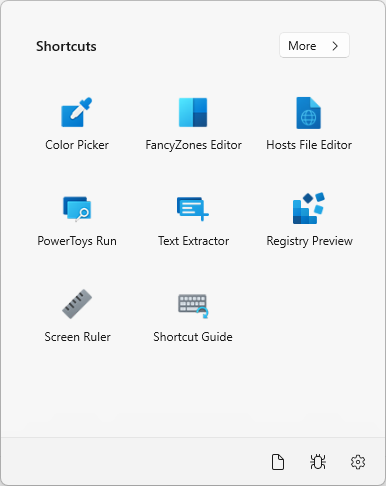
| Shortcut Guide | Overlays the shortcuts for the app you are actually in | Hold Win |
| Screen Ruler | Measures pixel distances with edge detection | Win + Shift + M |
| Crop And Lock | Keeps a cropped slice of a window visible | From Settings |
| Awake | Stops the PC sleeping without touching power settings | Tray icon |
| Light Switch | Swaps light and dark theme on a schedule | From Settings |
| Video Conference Mute | Mutes mic and camera across every app at once | Win + Shift + Q |
| Advanced Paste | Pastes as plain text, JSON or Markdown | Win + Shift + V |
| Registry Preview | Shows what a .reg file will change before you run it | From Settings |
| Hosts File Editor | Edits the hosts file without fighting permissions | From Settings |
| Mouse Utilities | Find My Mouse, Highlighter, Jump and Crosshairs | Various |
Advanced Paste can also run AI transformations, but that part needs your own OpenAI API key and is off by default. The rest of it works with no account and no key.
File Explorer preview add-ons
These extend the Explorer preview pane rather than adding a separate tool, and they are all in one settings page.
- SVG, Markdown and PDF - render properly in the preview pane instead of showing a blank panel.
- Source code and G-code - syntax highlighting for code, and a 3D preview for printer files.
- QOI - the Quite OK Image format, which nothing else on Windows previews.
Just need to look at one SVG without installing anything? A browser opens them natively, and there is an online SVG viewer if you want something more deliberate.
Color Picker formats
Press Win + Shift + C, click anywhere on screen, and the colour under the cursor is copied in whichever format you set as default.
| Format | Looks like | Use it for |
|---|---|---|
| HEX | #4BB2D5 | Web and CSS |
| RGB | rgb(75, 178, 213) | CSS and graphics software |
| HSL | hsl(195, 60%, 56%) | Adjusting a colour by hand |
| CMYK | 65, 16, 0, 16 | Print work |
Keyboard Manager, in practice
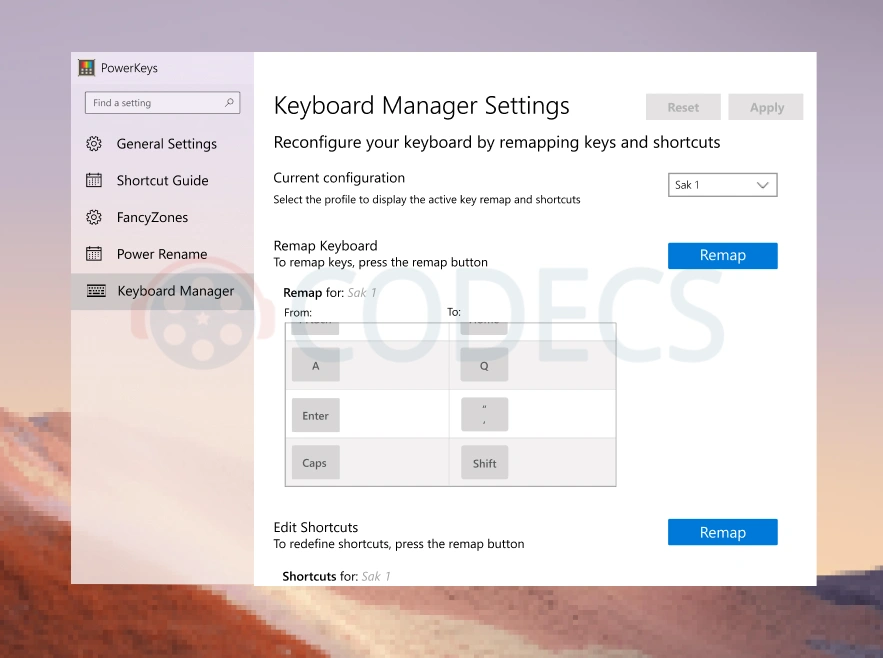
Remap any key to any other key, or build shortcuts that only apply inside one application. The changes are live immediately and survive a reboot.
- Caps Lock to Escape, which is why most Vim users install PowerToys in the first place.
- Disabling a key that has started registering on its own.
- App-specific shortcuts, so the same combination does different things in different programs.
How to install it
Three routes, all giving you the same official Microsoft build.
- From here. Download PowerToys - virus-checked, no bundled extras.
- WinGet. Run winget install --id Microsoft.PowerToys --source winget in a terminal.
- GitHub. Take the latest build straight from the official releases page.
Afterwards it sits in the system tray. Open Settings from there, work down the sidebar, and turn on only what you will use - and check for hotkey clashes as you go, because several defaults collide with shortcuts other apps already claim.
Setting up a machine from scratch? FlyOobe smooths the Windows 11 first-run experience, and DirectX is worth having current.
Our explainer on how DirectX handles video decoding covers why that matters well beyond games.
Quick questions
Is PowerToys free, and is it really from Microsoft?
Yes to both. It is an official Microsoft project, MIT-licensed, developed in the open on GitHub, with no ads and no paid tier.
Will it slow my PC down?
Not noticeably. Every module is off until you enable it, and the ones you leave off are not running at all.
Which ones should I turn on first?
FancyZones, Command Palette, PowerRename and Peek. Add others when you hit a problem one of them solves.
Does PowerToys help with videos that will not play?
No. That is a codec problem - try the online codec finder to see what the file needs, or the K-Lite Codec Pack.
Does it work on Windows 10?
Yes, from version 2004 onwards. Windows 11 needs no particular build.
Can I uninstall just one utility?
You do not need to - toggle it off in Settings and it stops loading. Uninstalling removes the whole suite.
PowerToys is not one thing to learn, it is two dozen small ones you can ignore individually. Install it, turn on four, and add more only when you meet the problem they solve.
Batch-resizing a handful of images and would rather not install anything? The online image resizer and our online audio converter both run in the browser.
The rest of the toolkit lives in Multimedia Tools and the Other Tools section.
And the Codec Tweak Tool is there if heavy tweaking ever breaks playback.
Download PowerToys and see which modules stick, or tell us which four you kept if you have been running it a while.


Latest comments
AllInteresting development with the Fire TV Stick 4K — losing Kodi sideloading is a big deal for a lot of users. For those ...
News: The New Fire TV Stick 4K Can't Run Kodi - Here's Which Fire Stick Still Can 3 commentsThanks genius, it worked for me. v2.4.149.0 on windows 10
Guide: How to Download HEVC Video Extension for Free 181 commentsXMediaRecode gives only the option to Copy (No convert) in Audio Mode drop down. I am trying to convert/recode the EAc3 ...
Team replied Guide: How to Convert EAC3 Audio to AC3 or AAC With XMedia Recode 1 comment