A three-year-old can use real drawing software, but graphic design - making something for somebody else to read - starts years later.
This guide gives you one tool per age band, each one checked in September 2026 for whether it is still free, still maintained and still allowed to be used by a child.
It also names three tools that parenting articles still recommend and shouldn't.
Start Here: One Tool Per Age
Most guides hand you fifteen apps and leave you to guess, so here is the short version, with the reasoning below it.
| Age | Install this | What they are actually learning |
|---|---|---|
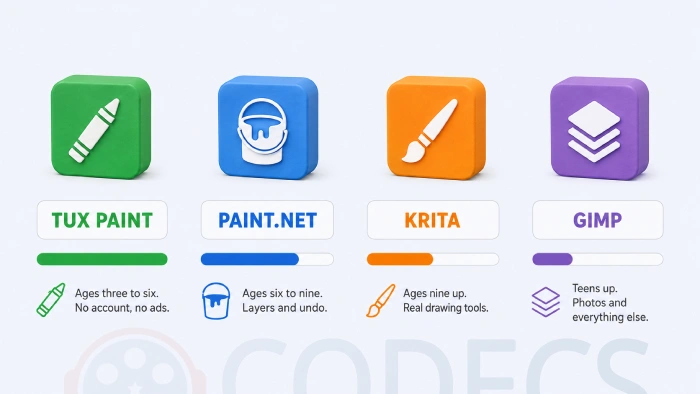
| 3 to 6 | Tux Paint | Mouse or finger control, colour, cause and effect |
| 6 to 9 | Paint.NET, or Artweaver Free for painting | Shapes, layers, undo, saving a file and finding it again |
| 9 to 12 | Krita or Inkscape, GIMP if they want photos | Composition, type, making something for a reader |
| 12 and up | GIMP, Inkscape, Blender | The same tools professionals use, at no cost |
Everything in that table is free, runs offline and needs no account. That is not a coincidence, and it is the single most useful filter a parent can apply.
Ages 3 to 6: One App, No Account
At this age the goal is not design. It is the discovery that moving a hand changes something on a screen, and that a mistake can be undone.
Tux Paint is the only major drawing program actually built for this age group, and it has been maintained for over twenty years. Version 0.9.35 arrived in May 2025, and the Android build was updated in July 2026.
The developers state plainly that it does no networking, which means no advertising, no in-app purchases and no tracking. Big buttons, sound effects, stamps and a Magic tool that does something surprising every time.
One thing to check. There is no official Tux Paint for iPad or iPhone. The App Store listing that looks like it is an unofficial third-party port, and the Tux Paint project itself notes that it is not free and carries in-app advertisements.
Free-play sessions of fifteen or twenty minutes are plenty. The World Health Organization still advises no sedentary screen time at all below two years old, and no more than an hour a day between two and four.
Ages 6 to 9: Shapes, Colour and the First Real Job
This is where a child stops drawing whatever comes out and starts drawing a thing they had in mind first. It is also where a real editor becomes useful, because undo, layers and saving start to matter.
Paint.NET is the best first proper editor on Windows. It has layers, selection tools, effects and a plugin ecosystem, and it opens in about a second on a laptop that struggles with anything heavier.
Download it from the developer's own site or from the link above. The Microsoft Store edition of Paint.NET costs money for exactly the same program, which catches out a lot of parents.
If the child would rather paint than edit, Artweaver Free is the better fit. Its brushes behave like real media, and it can replay a finished painting stroke by stroke, which children find genuinely fascinating and which is a quietly brilliant teaching tool.
For nostalgia value there is also JSKidPix, a browser rebuild of the original 1989 Kid Pix by developer Vikrum Nijjar. It works because Kid Pix 1.0 was released into the public domain by its author, and it needs no account, but it is a one-person hobby project rather than something to build a term's work around.
Projects that work at this age:
- A sign for a bedroom door, which teaches that big text is read first.
- A birthday card, which forces a decision about where the words go.
- A logo for the family pet, which is the first time simplicity beats detail.
- A menu for a pretend restaurant, which sneaks in alignment and grouping.
Ages 9 to 12: Designing for Somebody Else
Around nine, children start caring what other people think of the work. That sounds like a problem and is actually the doorway to design, because design is the point at which you make something for a reader rather than for yourself.
Krita 5.3.3 is the strongest free drawing and painting program available, and it runs on Windows, macOS, Linux and Android. Download it from krita.org rather than the Microsoft Store or Steam, where the identical program is sold to fund development.
For anything that has to scale cleanly, such as a logo or a sticker, Inkscape 1.4.4 is the free vector editor. It is genuinely hard at first, so treat it as a step up rather than a starting point.
GIMP is the one to install once photographs enter the picture. GIMP 3 was a generational rewrite, and the current 3.2 series is a far friendlier program than the 2.10 many adults remember bouncing off.
If the child is more interested in things that move or respond, Scratch is worth more than another drawing app. The offline editor needs no account and sends nothing to MIT, which makes it the rare creative platform you can hand a nine-year-old without reading a privacy policy first.
What the Drawing Stages Actually Tell You
The stages people quote come from Viktor Lowenfeld's Creative and Mental Growth, and most articles quote them wrong. There are six, not four, and the one usually left out is the one parents of young children most need.
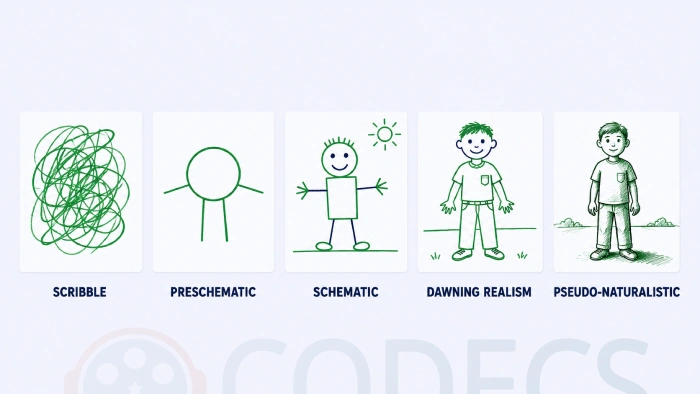
- Scribble, roughly two to four. Marks made for the pleasure of making them, before any intention to represent something.
- Preschematic, roughly four to seven. The stage everyone skips - a person becomes a circle with two lines, and the drawing starts meaning something specific.
- Schematic, roughly seven to nine. A settled personal formula for a house, a tree, a face, repeated and refined.
- Dawning realism, roughly nine to eleven. Proportion and detail suddenly matter, and so does what friends think.
- Pseudo-naturalistic, roughly eleven to thirteen. Deliberate attempts at light, depth and likeness, often with a lot of frustration attached.
- Decision, fourteen and up. The point where a child either keeps drawing or quietly stops.
A 2025 study in Education Sciences tested the model against real children's drawings and found the general trend holds, with a moderate-to-high correlation between age and stage. It also found plenty of individual children well ahead of or behind the schedule.
So use the stages to recognise where a child already is, never to decide where they should be. A six-year-old drawing circle-people is exactly on time, and so is a five-year-old drawing them well.
Three Tools to Skip in 2026
These three turn up in nearly every "graphic design for kids" list. All three have a problem that the lists have not caught up with.
Canva for Kids does not exist. It is a template category on Canva's website, not a product. Canva's own terms of use set the minimum age at 13, and defer to local law where the digital consent age is higher, which means 16 in much of Europe.
The route that is genuinely intended for children is Canva for Education, which a school signs up for and a teacher administers. A parent creating a personal Canva account for a nine-year-old is signing them up to a service whose terms say they may not use it.
Pixlr has changed beyond recognition. Its terms of use, last updated in May 2026, now require users to be 16 or older unless directly supervised by an adult, and its pricing page no longer lists a free plan at all.
It is also now AI-first, with credit-metered generative tools, an AI face swap feature, and a licence clause claiming broad rights over AI-generated content that users publish on the platform. None of that belongs on a page aimed at children.
Vectr used to be the answer to "a free vector editor a child can actually use". It is now owned by Pixlr and has been rebuilt as an AI logo maker with sign-in and credits. Use Inkscape instead.
The Account Question, and Why Offline Wins Early
There is a practical reason every tool in the table at the top runs offline. A drawing made in a local program is a file on your own disk, and nothing else happens to it.
A drawing made in a free web account is a file on somebody's server, governed by a policy that can change. Canva's arrangements have been contentious enough that a US law firm opened an investigation in August 2026 into whether its defaults and disclosures around using ordinary users' content for AI training were adequate.
The short version. If a young child's artwork matters to you, keep it in a program that does not upload it. When they are older and using a web service deliberately, go into the privacy settings together and read them together - that is a better lesson than any tutorial.
The same logic applies to AI image generation, which now sits one click away inside several tools marketed at children. A generative fill button next to a nine-year-old's canvas is a supervision question, not a feature.
One practical habit worth teaching early: before a child's work goes anywhere public, strip the file's metadata. ExifToolGUI does it in a couple of clicks, and photographs taken on a phone can carry the location where they were shot.
What to Say While They Work
The research on this is consistent and slightly counter-intuitive. Children want conversation about the work far more than they want praise for it.
- Ask what they chose rather than what it is - "why did you make that bit bigger" beats "what is it".
- Use the actual words. Contrast, balance, alignment and hierarchy are not too hard for an eight-year-old.
- Narrate the process, not the outcome, so the effort is what gets noticed.
- Let them explain a version they abandoned - that is where the design thinking is.
If you feel underqualified, that matters less than you think. Interest and questions are the contribution; expertise is optional.
When They Outgrow All of It
Somewhere around twelve or thirteen, a child who has stuck with this stops needing a curated list. At that point they are simply using free professional software, which is a good place to be.
Blender is the usual next stop, because 3D is where a lot of teenagers go when 2D starts feeling solved. It is free, it is used in actual film and games production, and it will keep them busy for years.
Everything else worth trying is in the graphics software category, which is where to browse when they ask for something specific you have not heard of.
Quick questions
What age can a child start using drawing software?
About three, with something built for it such as Tux Paint. Graphic design in the real sense, making something for another person to read, realistically starts around eight to ten.
Is Canva safe for a young child?
Canva's terms set a minimum age of 13, and higher in countries where the digital consent age is 16. Under-13s are only meant to use it through Canva for Education, which a school administers.
Do I need to buy anything?
No. Every tool recommended on this page is free, and several of them are also sold in app stores, so check you are downloading from the developer's own site before paying for something that is free elsewhere.
What about an iPad rather than a computer?
There is no official Tux Paint for iPad, and Krita does not support iOS at all. Android tablets have far better coverage of the free tools listed here.
Should I worry about AI features in these apps?
For a young child, prefer tools that have none, which is another reason the offline programs here are the first recommendation. For an older child, treat it as something to sit down and look at together rather than something to block.
How much screen time is reasonable for this?
The American Academy of Pediatrics replaced its screen-time guidance in January 2026 and moved away from fixed hour counts toward what the time is spent on and what it displaces. Drawing is at the good end of that scale, but it still counts.
Pick one program, install it tonight, and sit next to them for the first twenty minutes without touching the mouse.
Download Paint.NET if you want the one that fits the widest age range, or tell us what worked with your child so other parents can borrow the idea.


