Every player on this list reads SRT and ASS files, so the format list you usually see compared is not the thing that should decide it.
What actually differs is how well each one draws the subtitles, how quickly you can nudge the timing, and whether it can find a subtitle for you.
Those are the three things this comparison measures.
Here is the short version before the detail.
Pick VLC if you are not sure. It renders styled subtitles properly, finds subtitles online without any add-on, and runs on everything, while the other four earn their place in narrower cases.
What Actually Separates Them
Four things vary between these players, and format support is not one of them. All five open the common subtitle files without complaint.
The first is the rendering engine. Subtitle files in ASS format can carry fonts, colours, outlines, positioning and animation, and a weak renderer throws all of that away and shows plain white text instead.
The second is how fast you can fix timing. Every player can shift subtitles, but some make it a keypress and others bury it in a preferences dialog.
The third is whether it can search for a subtitle you do not have. The fourth is simply which machines it runs on, which matters more than people expect once a tablet or a Mac is involved.
VLC Media Player: the Default Answer
VLC Media Player renders styled subtitles correctly, adjusts timing from the keyboard, and downloads subtitles without installing anything extra.
That last point is worth stating clearly, because it is widely got wrong. VLSub is built into VLC and lives under the View menu, so you do not need to fetch an extension from anywhere.
On macOS you may need to enable it once under VLC then Extensions, but you are enabling something already on your disk rather than downloading it.
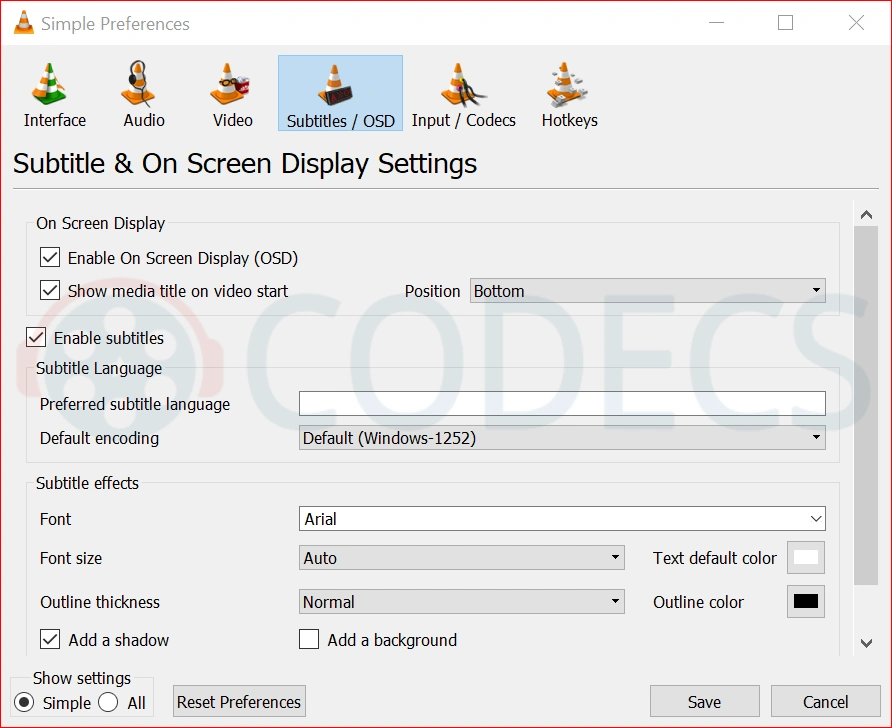
For timing, H pushes subtitles later and G pulls them earlier, 50 milliseconds per press. Appearance settings sit under Tools, Preferences, Subtitles and OSD.
It also runs on Windows, Linux, iOS and Android, with a separate build for macOS. Nothing else here comes close on coverage.
Best for: almost everyone, and anyone who watches on more than one kind of device.
mpv: the Best-Looking Subtitles
If you watch anime, fansubbed content, or anything where the subtitles carry styling and on-screen signs, mpv player is the one to use.
It renders ASS subtitles more faithfully than anything else on this list, which is why it is the standard recommendation in communities that care about typesetting.
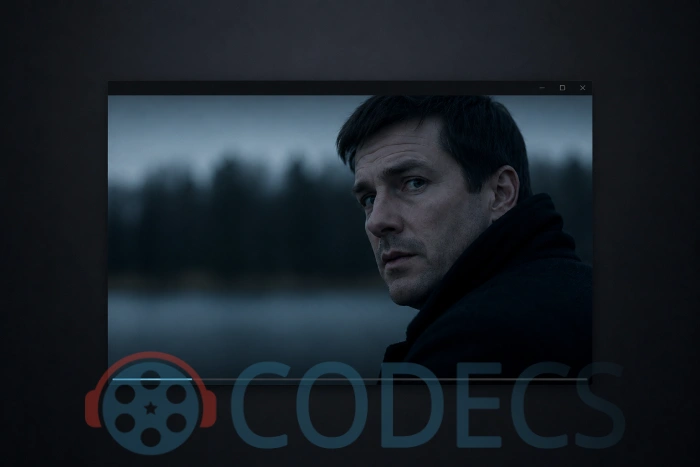
The trade-off is the interface, or rather the absence of one. mpv shows you a video and a thin progress bar, and everything else is keyboard shortcuts or a config file.
Best for: styled subtitles and people who do not want a player cluttering the screen.
MPC-HC: Light and Fast
MPC-HC opens instantly, uses very little memory, and handles subtitles well enough that it has stayed popular for two decades.
Subtitle delay is on F1 and F2, which step the timing in opposite directions and print the value on screen. Press one and read the number to see which way you are going.
Not the arrow keys, incidentally, which is a mistake worth correcting because it sends people hunting through settings that do nothing.
The step size is adjustable under View, Options, Subtitles, and you can reassign the shortcuts entirely. MPC-BE is the actively developed sibling if you want more control.
Best for: older machines, and anyone who wants a player that opens before they have finished double-clicking.
KMPlayer: Feature-Heavy, With One Caveat
KMPlayer gives you the most subtitle knobs of anything here - font, size, colour, background opacity, position and live sync from a dedicated control box.
Take the 64-bit build. KMPlayer's own developers recommend it, and users report that the 32-bit version shows advertising during windowed playback. The choice is made at download time, so get it right the first time.
It is Windows only despite what some comparisons claim. A Mac version has been described as in development for some time, and there is a separate Android build.
Best for: people who genuinely want to fine-tune how subtitles look, on Windows, on the 64-bit build.
Subs Player: Built Around Sync
Subs Player is the odd one out, because it is a player designed around subtitle handling rather than a player that happens to support subtitles.
Its selling point is automatic sync, where it analyses the video against the subtitle file and aligns them without you measuring anything. It also switches between language tracks easily and previews a subtitle before loading it.
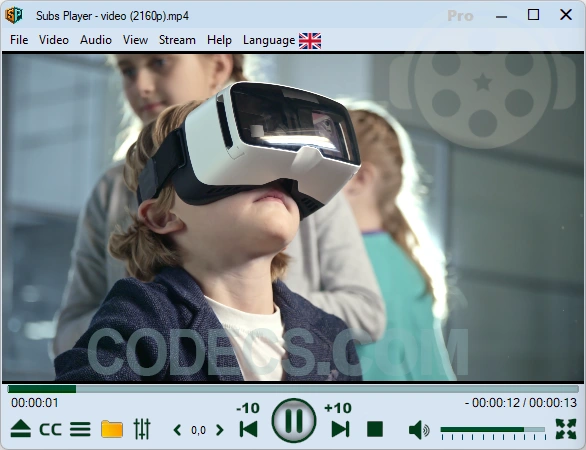
It is Windows 10 and 11 only, and a much smaller project than the others, so treat it as a specialist tool rather than a daily player.
Best for: people who keep hitting badly timed subtitle files and would rather not fix them by hand.
Side by Side
| Player | Styled ASS subtitles | Finds subtitles for you | Runs on |
|---|---|---|---|
| VLC | Yes, rendered properly | Yes, built in, no add-on | Windows, macOS, Linux, iOS, Android |
| mpv | Yes, the best of the five | No | Windows, macOS, Linux |
| MPC-HC | Yes, good | Limited | Windows |
| KMPlayer | Yes, heavily customisable | No | Windows |
| Subs Player | Not its focus | Yes, plus automatic sync | Windows 10 and 11 |
The Part Most Comparisons Skip
Your subtitles can look wrong even in a good player, because on Windows the player is not always the thing drawing them.
DirectShow players can hand subtitle rendering to an external filter, and which filter wins decides how styled subtitles appear. xy-VSFilter is the one you want for accurate ASS output.
VLC and mpv sidestep this entirely by rendering subtitles themselves, which is a large part of why they are consistent. Players built on LAV Filters and friends depend on how the stack is configured.
If you installed a bundle such as K-Lite Codec Pack, the renderer was chosen for you at install time. That is usually fine, and occasionally the explanation for subtitles that look wrong in one player and right in another.
MPC SubtitleSource is worth a look if you use MPC-BE and want finer control over rendering.
If Timing Is Your Real Problem
Changing player will not help if the subtitle file itself is mistimed. It will just be wrong in a nicer window.
Work out whether the gap is constant or growing first, because those need different fixes, and our guide to fixing out-of-sync subtitles walks through both.
To repair the file permanently rather than nudging it every time you watch, Subtitle Edit is free and does the job in a couple of clicks.
Quick questions
Which player is best for subtitles overall?
VLC, for most people. It renders styled subtitles correctly, searches for subtitles without an add-on, and runs on every platform you are likely to use.
Do I need to install VLSub to download subtitles in VLC?
No. VLSub is bundled with VLC on the desktop and sits under the View menu. On macOS you may need to enable it once, but it is already on your disk.
Why do my anime subtitles look plain instead of styled?
The renderer is discarding the styling information in the ASS file. Try mpv, or set a DirectShow player to use xy-VSFilter.
Is KMPlayer safe to install?
Take the 64-bit build, which the developers themselves recommend. Users have reported advertising in the 32-bit version during windowed playback.
Does any player fix out-of-sync subtitles automatically?
Subs Player attempts it by analysing the video against the subtitle file. For anything it cannot handle, fix the file itself in a subtitle editor.
Do I still need a codec pack to see subtitles?
Not for subtitles specifically, since these players render them without help. A pack is still useful for playing unusual video formats.
Install VLC if you want one player that handles everything, or mpv if styled subtitles matter more than the interface - and tell us in the comments which one you settled on.
Browsing for something else? Our full media players and subtitle tools sections list every option we stock.


Somewhat different from what is written in the comparison just above.
@P.A. Blok
You're right, thanks for the feedback! We've updated the guide to clarify that VLC does auto-detect local subtitle files.
The confusion may have come from mixing up two different features: Auto-Detection (loading local subtitle files) and Auto Subtitle Search (downloading subtitles online). VLC handles the first one automatically, but requires the VLSub extension for the second.
Appreciate the correction!